HAPROXY
- Configuração e Customização HAPROXY
- 2 Ways to Enable Sticky Sessions in HAProxy (Guide)
- HAPROXY com persistência de URL
- Building a High Availability Cluster with HAProxy, Keepalived, and Docker: A Step-by-Step Guide
- Configuração de URL Path no HAPROXY
- Configuração de logs no HAPROXY
- Reconfiguração automática do haproxy.cfg do HAPROXY
- Reconfiguração automática do haproxy.cfg do HAPROXY - 2
- Instalação HAPROXY docker
Configuração e Customização HAPROXY
2 Ways to Enable Sticky Sessions in HAProxy (Guide)
Link: https://www.haproxy.com/blog/enable-sticky-sessions-in-haproxy
HyperText Transfer Protocol (HTTP), the protocol that defines the language browsers use to communicate with web servers, is stateless, meaning that after you make a web request and a server sends back a response, no memory of that interaction remains. Websites need other ways to remember previous user interactions to make anything more sophisticated than a static web page work.
These days, Javascript frameworks like Vue.js, React.js, and others let developers create single-page applications (SPAs) that provide statefulness to the otherwise stateless web. Because they’re implemented as Javascript applications running in the user’s browser, they can keep track of what the user has done and render the app in a way that accounts for that shared history. However, the user’s browser
Nick creates technical content for HAProxy Technologies ranging from documentation and blog posts to Wikipedia articles, GitHub READMEs and Stack Overflow answers. With a background in web development and DevOps, he has fun digging into product features and discovering the optimal path for a new blog tutorial.
Related Posts

How to Enable Health Checks in HAProxy (Guide)
HAProxy provides three types of health checks: active health checks, passive health checks and agent health checks. In this blog, we will learn about each one.
2 Ways to Implement a Circuit Breaker in HAProxy (Guide)
In this blog post, you'll learn how to implement a circuit breaker with HAProxy in a simple and more complex way, that allows greater customization.

Load Balancing, Affinity, Persistence & Sticky Sessions
This blog post shows why and how to use a load balancer, the differences between Affinity, Persistence, and Sticky Sessions, and how to enable them in HAProxy.
Preserve Source IP Address Despite Reverse Proxies (Guide)
In this blog post, we aim to demonstrate how to preserve source IP addresses when using the reverse-proxy mode in HAProxy.
HAPROXY com persistência de URL
Informações geradas pelo ChatGPT.
Sim, é possível configurar o HAProxy para atender tanto HTTP (porta 80) quanto HTTPS (porta 443) ao mesmo tempo. Isso pode ser feito configurando dois frontends separados — um para HTTP e outro para HTTPS — e ambos encaminhando as requisições para o mesmo backend, de modo que o balanceamento de carga e a persistência por URL sejam aplicados de maneira uniforme para ambos os protocolos.
Exemplo de Configuração para HTTP e HTTPS ao Mesmo Tempo
Aqui está um exemplo de configuração onde o HAProxy aceita tráfego HTTP e HTTPS e roteia as requisições para o mesmo backend, mantendo a persistência baseada na URL para ambos os protocolos:
Explicação da Configuração:
Como Funciona:
Certificado SSL:
O caminho /etc/ssl/certs/meucertificado.pem deve apontar para o certificado SSL e a chave privada do seu domínio. Se você estiver usando o Let's Encrypt ou outra autoridade certificadora (CA), basta colocar o arquivo .pem correto que contenha o certificado público e a chave privada.
Caso você precise gerar um certificado SSL autoassinado, pode usar o seguinte comando openssl:
Esse comando gera um certificado autoassinado, o que é útil para testes ou ambientes internos, mas para produção, recomenda-se o uso de um certificado de uma autoridade certificadora (CA) confiável.
Conclusão:
Se você deseja configurar o HAProxy para rotear tráfego em portas diferentes de 80 (HTTP) e 443 (HTTPS), o procedimento é semelhante, mas você deve ajustar a configuração de frontends e backends para escutar nas portas específicas que deseja utilizar.
A lógica de balanceamento de carga e persistência por URL será a mesma, mas em vez de usar as portas padrão (80 e 443), você configurará o HAProxy para escutar nas portas que você escolher.
Exemplo de Configuração para Portas Diferentes:
Vamos imaginar que você deseja usar as portas 8080 para HTTP e 8443 para HTTPS, em vez das portas padrão (80 e 443). A configuração seria:
Explicação das Modificações:
-
Frontend HTTP:
-
bind *:8080: O HAProxy agora escuta na porta8080para tráfego HTTP, em vez de80. -
acl is_http_request path_reg ^/.*: A regra ACL captura qualquer URL que for solicitada e a redireciona para o backend.
-
-
Frontend HTTPS:
-
bind *:8443 ssl crt /etc/ssl/certs/meucertificado.pem: O HAProxy escuta na porta8443para tráfego HTTPS e usa o certificado SSL localizado no caminho/etc/ssl/certs/meucertificado.pem. O certificado SSL deve ser válido, seja autoassinado ou de uma autoridade certificadora.
-
-
Backend:
-
A configuração do backend permanece a mesma, com balanceamento de carga baseado em
roundrobin, persistência por URL usandostick-table, e a inserção do cookieSERVERIDpara garantir a persistência.
-
-
Servidores Backend:
-
server server1 192.168.1.1:80 check: Os servidores backend continuam sendo configurados na porta80, porque o HAProxy irá fazer a terminação SSL para o tráfego HTTPS e, em seguida, encaminhá-lo para os servidores backend na porta80.
-
Fluxo de Funcionamento:
1. Requisição HTTP (porta 8080):
-
O cliente acessa a URL
http://meusite.com:8080/pagina1. -
O HAProxy recebe a requisição na porta
8080, e com base no balanceamento de carga (roundrobin), encaminha a requisição para um dos servidores backend. -
O servidor que responder à primeira requisição para
/pagina1será registrado no stick-table com a URL/pagina1, garantindo que futuras requisições para essa URL sejam roteadas para o mesmo servidor.
2. Requisição HTTPS (porta 8443):
-
O cliente acessa a URL
https://meusite.com:8443/pagina1. -
O HAProxy recebe a requisição na porta
8443, faz a terminação SSL (descriptografa o tráfego HTTPS) e, em seguida, redireciona a requisição para os servidores backend na porta80. -
O HAProxy verifica na stick-table qual servidor foi associado à URL
/pagina1e direciona a requisição para o mesmo servidor que atendeu a primeira requisição.
3. Persistência para Todos os Usuários:
-
Independentemente de ser uma requisição HTTP ou HTTPS, a persistência será mantida para todos os usuários com base na URL, garantindo que a URL
/pagina1seja sempre tratada pelo mesmo servidor.
Caso Você Queira Usar Portas Diferentes para Cada Backend:
Se você quiser que o tráfego seja roteado para diferentes portas nos servidores backend, você pode ajustar a configuração para cada servidor backend. Por exemplo, se você tiver servidores que escutam em portas diferentes, a configuração seria algo como:
Essa configuração faria com que cada servidor backend estivesse escutando em portas diferentes, mas o HAProxy ainda aplicaria a persistência e o balanceamento de carga.
Resumo:
-
Sim, é possível configurar o HAProxy para escutar em portas diferentes de 80 e 443 (por exemplo, 8080 para HTTP e 8443 para HTTPS).
-
A persistência de URL e o balanceamento de carga continuam funcionando da mesma forma, independentemente da porta que está sendo utilizada.
-
A configuração de terminação SSL no HAProxy permite que o tráfego HTTPS seja manipulado na porta
8443e redirecionado para os servidores backend na porta80(ou qualquer porta configurada).
Building a High Availability Cluster with HAProxy, Keepalived, and Docker: A Step-by-Step Guide

High availability (HA) is essential for ensuring that web applications remain accessible, even in the face of hardware or software failures. An HA architecture distributes traffic across multiple servers, preventing any single point of failure from disrupting service. In this article, we’ll explore how to build a high availability cluster using HAProxy and Keepalived, two powerful tools for load balancing and failover.
To enhance flexibility and simplify deployment, we’ll leverage Docker to containerize HAProxy, Keepalived, and our web applications. Docker allows us to create a portable and easily manageable HA setup that can be deployed across different environments, whether on-premises or in the cloud.
Throughout this guide, we’ll walk you through the entire process — from setting up Docker networks and building Dockerfiles to configuring HAProxy and Keepalived for seamless failover. By the end, you’ll have a fully functional HA cluster that ensures your web applications are always available, all within a Dockerized environment.
I-/ General Concepts
Before diving into the different configurations, it’s helpful to understand the core components of the architecture.
I-1/HAproxy
HAProxy, as its name suggests, stands for High Availability Proxy. It is a robust and versatile tool designed to provide high availability and efficient load balancing for network traffic.
HAProxy is a widely used tool for distributing incoming requests across multiple backend servers to enhance both reliability and performance. It performs continuous health checks on these servers to ensure that traffic is routed only to those that are healthy and responsive.
The tool employs various algorithms, such as round-robin and least connections, to effectively balance the load. Supporting both TCP and HTTP traffic, HAProxy operates at Layer 4 (the transport layer) and Layer 7 (the application layer) of the OSI model.
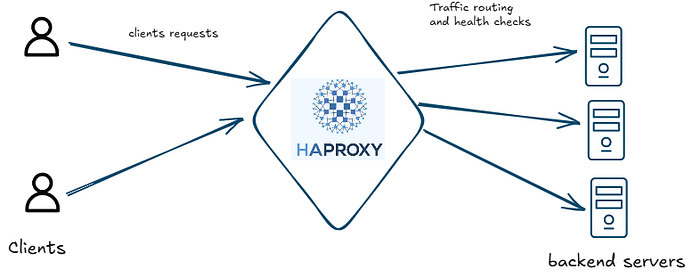
There are two main components when configuring HAproxy , a frontend and a backend section.
- Frontend section: It is the entry point for incoming client requests. It defines how HAProxy listens for incoming traffic and how it should handle these requests, here we specify the address and port on which HAProxy should listen, as well as any rules or conditions for routing the traffic to the appropriate backend by inspecting the incoming packets.
- Backend section: it represents the servers that will handle the requests forwarded by the frontend. we define how HAProxy should route traffic to the backend servers and how it should manage these servers basically we specify also load balancing algorithms, and health checks. In summary we control how requests will be distributed among the servers and how we are going to handle server failures or maintenance.
I-2/Keepalived & VRRP
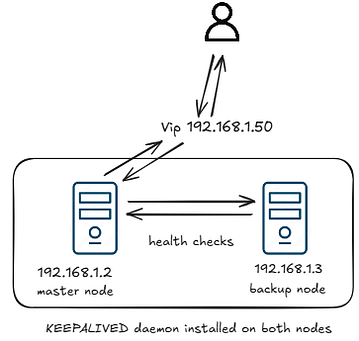
VRRP (Virtual Router Redundancy Protocol) is designed to create a virtual router that represents a group of physical routers, allowing them to work together to present a single virtual IP address (VIP) to the network. This VIP is used as the default gateway by clients.
In a VRRP setup, one router is elected as the master. The master router handles traffic directed to the VIP, while the other routers in the group act as backups and monitor the master router’s health. If the master router fails, one of the backup routers takes over as the new master, ensuring the continuity of service.
Keepalived is a widely used implementation of VRRP with additional features. It assigns a priority to each node in the group, and based on these priorities, it elects a new master if a failure occurs. Keepalived enhances VRRP with advanced health checks and failover capabilities, making it ideal for high-availability setups.
II-/ Deployment architecture
After understanding the foundational concepts of HAProxy and Keepalived, it’s crucial to see how these components come together to form a high availability cluster.
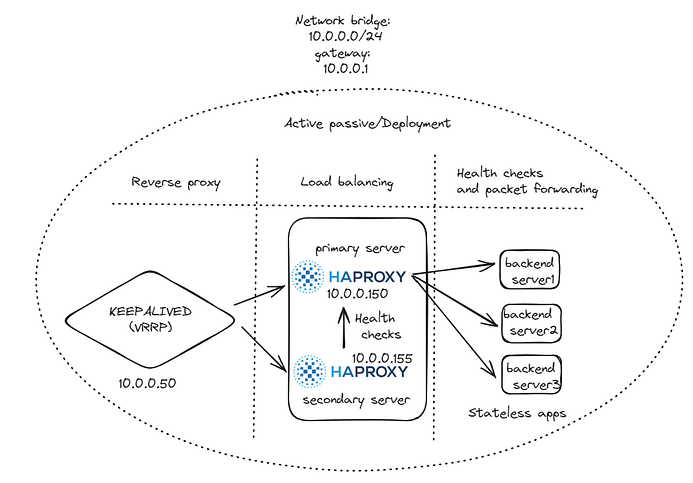
The architecture I’ve implemented leverages Docker to create a resilient and scalable environment, ensuring continuous service availability. The visual representation above illustrates how traffic is routed through HAProxy instances and managed by Keepalived to provide redundancy and failover capabilities.
To interconnect all components, I set up a Docker bridge network, which ensures seamless communication between the HAProxy instances, Keepalived, and the backend servers. This network allows the HAProxy instances to effectively distribute incoming traffic across multiple backend servers while monitoring their health and performance.
In this setup, there is a primary HAProxy instance (the master) and a secondary instance (the backup) ready to take over if the master fails. Keepalived, installed on both machines, manages the virtual IP (VIP) that clients connect to. This VIP ensures that, even in the event of a failure, traffic is automatically redirected to the backup HAProxy instance, maintaining service availability without interruption.
The backend comprises three cloned instances of a server running a simple Flask application that serves static content. This setup is an example of a stateless application deployment, where each instance operates independently without relying on session persistence or shared state. In the case of stateful applications, additional architectural considerations would be necessary, such as implementing shared storage, session replication, sticky sessions, or database clustering to ensure consistency and availability. Following best practices in system design is crucial to address these challenges and optimize the architecture based on the application’s specific requirements and context.
III-/Step by step guide
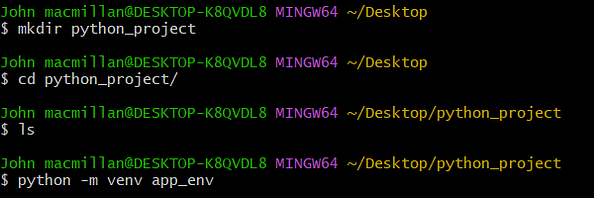
- The first thing we’re going to do is create our stateless app a simple Python application that doesn’t store any session information. To get started, we need to create a virtual environment, so make sure you have Python installed on your machine.
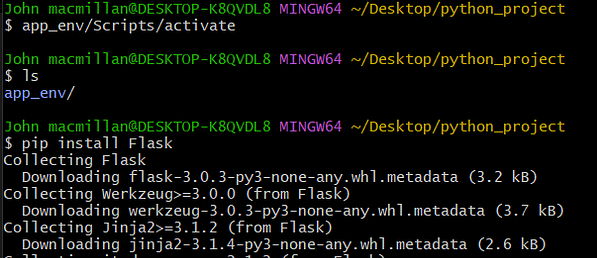
- Activate the virtual environment, and then install Flask.
- Now Flask is installed in our virtual environment, we are going to create a simple Flask App with
hello world!content, for me I’ll use nano editor, you can use whatever editor you want for that purpose.
nano app.py
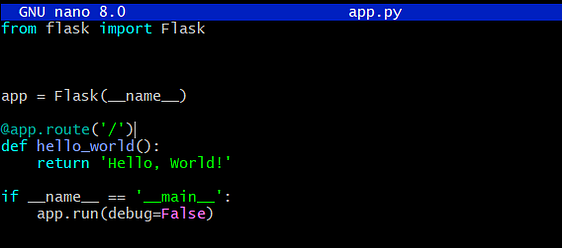
Copy paste the following content or create your own:
from flask import Flask
app = Flask(__name__)

@app.route('/')
def hello_world():
    return 'Hello, World!'

if __name__ == '__main__':
    app.run(debug=False)
Flask apps run by default in port 5000, you can test the webapp by running: python app.py
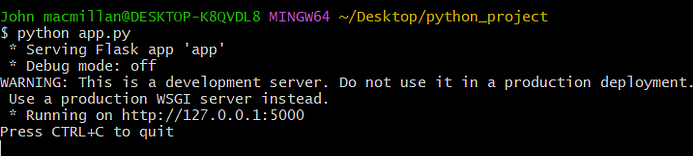

The app is up and running Now we should get the dependencies used in our app, we will save them on requirements.txt .

pip freeze > requirements.txt
- We will need these requirements so we can create the Dockerfile of our webapp, then run the following command to create a Dockerfile of the webapp.
nano Dockerfile.webapp
copy and paste the following:
FROM python:3.12.5
Expose 5000
ENV FLASK_app=app.py
WORKDIR /app
COPY ./app.py .
COPY ./requirements.txt .
RUN pip install -r requirements.txt
RUN pip install gunicorn
CMD gunicorn -w 4 -b :5000 app:app
Note that we added Gunicorn in our Dockerfile to run our Python web app because using development servers is not suitable for production environments.
Let’s create our first image , it’ll be saved locally.
docker build -f Dockerfile.webapp -t webapp_test .
After finalizing the Dockerfile for our web app, it’s time to create our Docker Compose YAML file, which will define our entire architecture. We’ll break it down step by step.
Here is the docker compose file.
version: '3.8'

services:
  haproxy1:
    build:
      context: .
      dockerfile: Dockerfile
    container_name: haproxy1
    networks:
      yahya_prive:
        ipv4_address: 10.0.0.150
    cap_add:
      - NET_ADMIN
    ports:
      - "8888:80"
      - "8404:8404"
    volumes:
      - C:\Users\John macmillan\Desktop\python_project\haproxy.cfg:/usr/local/etc/haproxy/haproxy.cfg:ro
      - C:\Users\John macmillan\Desktop\python_project\keepalived_primary.conf:/etc/keepalived/keepalived.conf:ro
    depends_on:
      - web1
      - web2
      - web3
    entrypoint: ["/bin/sh", "-c", "keepalived -D -f /etc/keepalived/keepalived.conf && haproxy -f /usr/local/etc/haproxy/haproxy.cfg"]

  haproxy2:
    build:
      context: .
      dockerfile: Dockerfile
    container_name: haproxy2
    networks:
      yahya_prive:
        ipv4_address: 10.0.0.155
    cap_add:
      - NET_ADMIN
    ports:
      - "8800:80"
      - "8405:8404"
    volumes:
      - C:\Users\John macmillan\Desktop\python_project\haproxy.cfg:/usr/local/etc/haproxy/haproxy.cfg:ro
      - C:\Users\John macmillan\Desktop\python_project\keepalived_bck.conf:/etc/keepalived/keepalived.conf:ro
    depends_on:
      - web1
      - web2
      - web3
    entrypoint: ["/bin/sh", "-c", "keepalived -D -f /etc/keepalived/keepalived.conf && haproxy -f /usr/local/etc/haproxy/haproxy.cfg"]

  web1:
    image: webapp_test
    container_name: web1
    networks:
      - yahya_prive

  web2:
    image: webapp_test
    container_name: web2
    networks:
      - yahya_prive

  web3:
    image: webapp_test
    container_name: web3
    networks:
      - yahya_prive

networks:
  yahya_prive:
   driver: bridge
   #specify the driver
   ipam:
    config :
       - subnet: 10.0.0.0/24
         gateway: 10.0.0.1
let’s break this down:
First thing we did is to create a network bridge . This Network bridge is called yahya_privethen we specified the CIDR notation: 10.0.0.0/24with the following gateway: 10.0.0.1
it’ll be our private network in which all the containers will be assigned an ip address from the ip address range 10.0.0.0/24 .
networks:
  yahya_prive:
   driver: bridge
   #specify the driver
   ipam:
    config :
       - subnet: 10.0.0.0/24
         gateway: 10.0.0.1
It’s advisable to use a custom network rather than the default network provided by Docker Compose. This approach enhances security and allows you to use domain names instead of IP addresses in configurations.
Then there is a section for our webapps, they’re called respectively: web1, web2 and web3, all three of them is now attached to yahya_privenetwork.
Each one was provided a name, and the base image was created previously, and it was saved locally which is webapp_test
web1:
    image: webapp_test
    container_name: web1
    networks:
      - yahya_prive

  web2:
    image: webapp_test
    container_name: web2
    networks:
      - yahya_prive

  web3:
    image: webapp_test
    container_name: web3
    networks:
      - yahya_prive
After this we’ve created the service for our HAProxy load balancer.
haproxy1:
    build:
      context: .
      dockerfile: Dockerfile
    container_name: haproxy1
    networks:
      yahya_prive:
        ipv4_address: 10.0.0.150
    cap_add:
      - NET_ADMIN
    ports:
      - "8888:80"
      - "8404:8404"
    volumes:
      - C:\Users\John macmillan\Desktop\python_project\haproxy.cfg:/usr/local/etc/haproxy/haproxy.cfg:ro
      - C:\Users\John macmillan\Desktop\python_project\keepalived_primary.conf:/etc/keepalived/keepalived.conf:ro
    depends_on:
      - web1
      - web2
      - web3
    entrypoint: ["/bin/sh", "-c", "keepalived -D -f /etc/keepalived/keepalived.conf && haproxy -f /usr/local/etc/haproxy/haproxy.cfg"]
The Master HAProxy is called haproxy1, and it was assigned the ip address:
10.0.0.150from the private network yahya_prive.
To enable Keepalived, which uses VRRP for failover, the container requires additional network capabilities. Therefore, we grant the container NET_ADMIN privileges, allowing it to manage network settings necessary for VRRP operations.
The necessary configuration files for HAProxy and Keepalived are mounted as read-only volumes from the host machine to ensure that both services are properly configured.
The entrypoint directive ensures that Keepalived starts in the background and monitors the HAProxy service, providing the high availability setup.
And obviously, there is the configuration Dockerfile that contains our Keepalived and HAProxy.
FROM ubuntu:22.04

# Install Keepalived and HAProxy
RUN apt-get update && apt-get install -y \
    nano \
 net-tools \
    keepalived \
    haproxy

EXPOSE 80
EXPOSE 8444
The configuration for both load balancers is exactly the same (haproxy.cfg)
global
  stats socket /var/run/api.sock user haproxy group haproxy mode 660 level admin expose-fd listeners
  log stdout format raw local0 info

defaults
  mode http
  timeout client 10s
  timeout connect 5s
  timeout server 10s
  timeout http-request 10s
  log global

frontend stats
  bind *:8404
  stats enable
  stats uri /
  stats refresh 10s

frontend myfrontend
  bind :80
  default_backend webservers

backend webservers
server s1 web1:5000 check
server s2 web2:5000 check
server s3 web3:5000 check
What we’ve done here is configure our load balancer to listen for requests on port 80. We’ve also defined our web servers in the backend webservers section, allowing us to route traffic to them effectively.
On the other hand, we had different configurations of Keepalived daemons for both nodes.
here is the configuration for the master node (keepalived_primary.conf):
vrrp_instance VI_1 {
    state MASTER
    interface eth0
    virtual_router_id 33
    priority 255
    advert_int 1
    unicast_src_ip 10.0.0.50

    authentication {
        auth_type PASS
        auth_pass letmein
    }

    virtual_ipaddress {
        10.0.0.50/24 dev eth0
    }
}
This is a basic configuration where we’ve assigned a priority of 255, which is higher than the priority set on the backup machine. As a result, this machine will be assigned the virtual IP address first. We’ve defined the state as MASTER for this machine and specified eth0 as the interface, as it’s connected to the private network through this interface.
The most critical part of this configuration is the virtual_ipaddress section, where we define the virtual IP address (10.0.0.50/24) that will be managed by the VRRP protocol. This IP address will be assigned to the master machine, ensuring that it handles traffic as long as it remains in the master state. The authentication section provides basic security by requiring a password for VRRP communications, adding an extra layer of protection to the setup.
The configuration for the backup node will be different a little bit (keepalived_bck.conf):
vrrp_instance VI_1 {
    state BACKUP
    interface eth0
    virtual_router_id 33
    priority 150
    advert_int 1
    unicast_src_ip 10.0.0.50

    authentication {
        auth_type PASS
        auth_pass letmein
    }

    virtual_ipaddress {
        10.0.0.50/24 dev eth0
    }
}
We’ve set a priority of 150, which is lower than that of the master, and designated the state as BACKUP. Both the master and backup nodes share the same virtual IP address (VIP). In the event of the master node failing, the backup node will detect this through ARP checks and automatically take over the VIP, ensuring continued service availability.
Note that the Docker Compose file includes a depends_on section that specifies the order in which containers are started. In this case:
depends_on:
      - web1
      - web2
      - web3
This configuration ensures that the web applications (web1, web2, and web3) start before the load balancers are initialized. This order is crucial to ensure that the web servers are up and running before the load balancers begin routing traffic to them.
After completing the necessary configurations, you can run the entire setup with the following command:
docker-compose -p high_availability_cluster up -d
Now, your setup is up and running.

The haproxy1 container will receive the virtual IP address on its eth0 interface. You can verify this by running the following command inside the container: ip a.
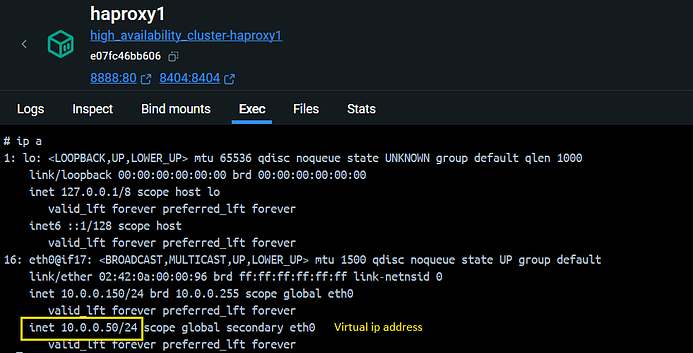
We can try sending an HTTP request using the curl command from a node inside the yahya_prive network. For example, we can use web1 for this purpose.

IV-/Conclusion
In conclusion, building a high availability cluster with HAProxy, Keepalived, and Docker is an effective way to ensure continuous service availability and reliability. Through this guide, we’ve explored the fundamental concepts of high availability, examined how HAProxy and Keepalived work together to manage traffic and failover, and demonstrated how to set up this architecture in a Docker environment. By following these steps, you can create a resilient infrastructure that can handle disruptions and maintain service continuity, making it an essential setup for any robust and scalable application deployment.
Equipped with this understanding, you’ll now be able to enhance your network infrastructure and deploy more resilient, scalable applications with confidence.
We invite you to share your experiences and insights in the comments below. We’re eager to hear your feedback and thoughts. Happy networking!
References
For more detailed information :
Configuração de URL Path no HAPROXY
Arquivo exemplo haproxy.cfg
Configuração de logs no HAPROXY
ChatGPT:
Ótimo! Vamos configurar o HAProxy + rsyslog dentro (ou fora) do Docker para gerar logs em horário local, salvos no arquivo /var/log/haproxy.log.
🧱 O que vamos fazer:
-
Configurar o HAProxy para enviar logs ao syslog (
/dev/log) -
Garantir que o rsyslog esteja ativo no host
-
Mapear o socket
/dev/logpara o container Docker (ou fazer logging fora) -
Salvar os logs com horário local no host
✅ 1. Configuração do HAProxy (haproxy.cfg)
Altere a seção global do seu haproxy.cfg para:
✅ 2. Configurar o rsyslog no host Linux
Verifique se o rsyslog está ativo:
Se não estiver, ative:
Crie o arquivo de log e a regra:
Agora crie um arquivo de configuração para o rsyslog:
E adicione:
Reinicie o rsyslog:
✅ 3. Rodar o container HAProxy com acesso ao /dev/log
Você precisa montar o socket do syslog no container:
👉 Exemplo com docker run:
✅ O
-v /dev/log:/dev/logé essencial — ele conecta o HAProxy ao rsyslog do host.
👉 Exemplo com docker-compose.yml:
✅ 4. Verificar os logs
Após acessar HAProxy (ex: curl http://localhost:2025/teste), veja os logs com:
O horário será o local do host, por exemplo:
🧪 Dica extra: usar hostname no log
Se quiser que apareça o nome do container no log, passe -h haproxy-logs no docker run, ou use no docker-compose.yml:
🚀 Pronto!
Agora o HAProxy está:
-
Gerando logs com
option httplog -
Mandando logs para o rsyslog do host via
/dev/log -
Gravando logs com horário local em
/var/log/haproxy.log
Reconfiguração automática do haproxy.cfg do HAPROXY
ChatGPT:
Perfeito! Aqui está um script cron completo e seguro para fazer o reload do haproxy.cfg em todos os containers haproxy do Swarm, sem reiniciar os containers — apenas recarregando o processo haproxy com kill -HUP.
✅ Script: reload-haproxy-containers.sh
## INICIO SCRIPT ##
## FIM SCRIPT ##
🔧 Como usar
1. Salve o script
2. Agende via crontab
🛡️ Segurança adicional (opcional)
Reconfiguração automática do haproxy.cfg do HAPROXY - 2
chatGPT
Instalação HAPROXY docker
Instalação HAproxy Docker HAproxytec
Link: https://hub.docker.com/r/haproxytech/haproxy-debian
- Quick reference
-
Where to get help:
HAProxy mailing list, HAProxy Community Slack or #haproxy on Libera.chat -
Where to file issues:
https://github.com/haproxytech/haproxy-docker-debian/issues -
Maintained by:
HAProxy Technologies -
Supported architectures: (more info)
linux/amd64,linux/arm64,linux/arm/v7 -
Image updates:
commits tohaproxytech/haproxy-docker-debian, top levelhaproxytech/haproxy-docker-debianimage folder -
Source of this description:
README.md
What is HAProxy?
HAProxy is the fastest and most widely used open-source load balancer and application delivery controller. Written in C, it has a reputation for efficient use of both processor and memory. It can proxy at either layer 4 (TCP) or layer 7 (HTTP) and has additional features for inspecting, routing and modifying HTTP messages.
It comes bundled with a web UI, called the HAProxy Stats page, that you can use to monitor error rates, the volume of traffic and latency. Features can be toggled on by updating a single configuration file, which provides a syntax for defining routing rules, rate limiting, access controls, and more.
Other features include:
- SSL/TLS termination
- Gzip compression
- Health checking
- HTTP/2
- gRPC support
- Lua scripting
- DNS service discovery
- Automatic retries of failed conenctions
- Verbose logging

How to use this image
This image is being shipped with a trivial sample configuration and for any real life use it should be configured according to the extensive documentation and examples. We will now show how to override shipped haproxy.cfg with one of your own.
Create a Dockerfile
FROM haproxytech/haproxy-debian:3.0
COPY haproxy.cfg /usr/local/etc/haproxy/haproxy.cfg
Build the container
$ docker build -t my-haproxy .
Test the configuration file
$ docker run -it --rm my-haproxy haproxy -c -f /usr/local/etc/haproxy/haproxy.cfg
Run the container
$ docker run -d --name my-running-haproxy my-haproxy
You will also need to publish the ports your HAProxy is listening on to the host by specifying the -p option, for example -p 8080:80 to publish port 8080 from the container host to port 80 in the container.
Use volume for configuration persistency
$ docker run -d --name my-running-haproxy -v /path/to/etc/haproxy:/usr/local/etc/haproxy:ro haproxytech/haproxy-debian:3.0
Note that your host's /path/to/etc/haproxy folder should be populated with a file named haproxy.cfg as well as any other accompanying files local to /etc/haproxy.
Reloading config
To be able to reload HAProxy configuration, you can send SIGUSR2 to the container:
$ docker kill -s USR2 my-running-haproxy
Enable Data Plane API
Data Plane API sidecar is being distributed by default in all 2.0+ images and to enable it there are a few steps required:
- define one or more users through
userlist - enable dataplane api process through
program api - enable haproxy.cfg to be read/write mounted in Docker, either by defining volume being r/w or by rebuilding image with your own haproxy.cfg
- expose dataplane TCP port in Docker with
--expose
Relevant part of haproxy.cfg is below:
userlist haproxy-dataplaneapi
    user admin insecure-password mypassword

program api
   command /usr/bin/dataplaneapi --host 0.0.0.0 --port 5555 --haproxy-bin /usr/sbin/haproxy --config-file /usr/local/etc/haproxy/haproxy.cfg --reload-cmd "kill -SIGUSR2 1" --restart-cmd "kill -SIGUSR2 1" --reload-delay 5 --userlist haproxy-dataplaneapi
   no option start-on-reload
To run such image we would use the following command (note that volume containing haproxy.cfg is mounted r/w and port tcp/5555 is being exposed):
$ docker run -d --name my-running-haproxy --expose 5555 -v /path/to/etc/haproxy:/usr/local/etc/haproxy:rw haproxytech/haproxy-debian
License
View license information for the software contained in this image.
As with all Docker images, these likely also contain other software which may be under other licenses (such as Bash, etc from the base distribution, along with any direct or indirect dependencies of the primary software being contained).
Instalação HAproxy Docker Bitnami
Link: https://github.com/bitnami/containers/tree/main/bitnami/haproxy
HAProxy is a TCP proxy and a HTTP reverse proxy. It supports SSL termination and offloading, TCP and HTTP normalization, traffic regulation, caching and protection against DDoS attacks.
Overview of HAProxy Trademarks: This software listing is packaged by Bitnami. The respective trademarks mentioned in the offering are owned by the respective companies, and use of them does not imply any affiliation or endorsement.
docker run --name haproxy bitnami/haproxy:latest
⚠️ Important Notice: Upcoming changes to the Bitnami Catalog
Beginning August 28th, 2025, Bitnami will evolve its public catalog to offer a curated set of hardened, security-focused images under the new Bitnami Secure Images initiative. As part of this transition:
- Granting community users access for the first time to security-optimized versions of popular container images.
- Bitnami will begin deprecating support for non-hardened, Debian-based software images in its free tier and will gradually remove non-latest tags from the public catalog. As a result, community users will have access to a reduced number of hardened images. These images are published only under the “latest” tag and are intended for development purposes
- Starting August 28th, over two weeks, all existing container images, including older or versioned tags (e.g., 2.50.0, 10.6), will be migrated from the public catalog (docker.io/bitnami) to the “Bitnami Legacy” repository (docker.io/bitnamilegacy), where they will no longer receive updates.
- For production workloads and long-term support, users are encouraged to adopt Bitnami Secure Images, which include hardened containers, smaller attack surfaces, CVE transparency (via VEX/KEV), SBOMs, and enterprise support.
These changes aim to improve the security posture of all Bitnami users by promoting best practices for software supply chain integrity and up-to-date deployments. For more details, visit the Bitnami Secure Images announcement.
Why use Bitnami Images?
- Bitnami closely tracks upstream source changes and promptly publishes new versions of this image using our automated systems.
- With Bitnami images the latest bug fixes and features are available as soon as possible.
- Bitnami containers, virtual machines and cloud images use the same components and configuration approach - making it easy to switch between formats based on your project needs.
- All our images are based on minideb -a minimalist Debian based container image that gives you a small base container image and the familiarity of a leading Linux distribution- or scratch -an explicitly empty image-.
- All Bitnami images available in Docker Hub are signed with Notation. Check this post to know how to verify the integrity of the images.
- Bitnami container images are released on a regular basis with the latest distribution packages available.
Looking to use HAProxy in production? Try VMware Tanzu Application Catalog, the commercial edition of the Bitnami catalog.
Supported tags and respective Dockerfile links
Learn more about the Bitnami tagging policy and the difference between rolling tags and immutable tags in our documentation page.
You can see the equivalence between the different tags by taking a look at the tags-info.yaml file present in the branch folder, i.e bitnami/ASSET/BRANCH/DISTRO/tags-info.yaml.
Subscribe to project updates by watching the bitnami/containers GitHub repo.
Get this image
The recommended way to get the Bitnami haproxy Docker Image is to pull the prebuilt image from the Docker Hub Registry.
docker pull bitnami/haproxy:latest
To use a specific version, you can pull a versioned tag. You can view the list of available versions in the Docker Hub Registry.
docker pull bitnami/haproxy:[TAG]
If you wish, you can also build the image yourself by cloning the repository, changing to the directory containing the Dockerfile and executing the docker build command. Remember to replace the APP, VERSION and OPERATING-SYSTEM path placeholders in the example command below with the correct values.
git clone https://github.com/bitnami/containers.git
cd bitnami/APP/VERSION/OPERATING-SYSTEM
docker build -t bitnami/APP:latest .
Why use a non-root container?
Non-root container images add an extra layer of security and are generally recommended for production environments. However, because they run as a non-root user, privileged tasks are typically off-limits. Learn more about non-root containers in our docs.
Configuration
Running commands
To run commands inside this container you can use docker run, for example to execute haproxy --version you can follow the example below:
docker run --rm --name haproxy bitnami/haproxy:latest -- --version
In order for the container to work, you need to mount your custom haproxy.cfg file in /bitnami/haproxy/conf/. The following example runs HAProxy with a custom configuration file:
docker run --rm --name haproxy -v /path/to/haproxy.cfg:/bitnami/haproxy/conf/haproxy.cfg bitnami/haproxy:latest
Using docker-compose:
version: '2'
services:

  haproxy:
    image: bitnami/haproxy:latest
    volumes:
      - /path/to/haproxy.cfg:/bitnami/haproxy/conf/haproxy.cfg
Check the official HAProxy documentation to understand the possible configurations.
Using docker-compose.yaml
Please be aware this file has not undergone internal testing. Consequently, we advise its use exclusively for development or testing purposes. For production-ready deployments, we highly recommend utilizing its associated Bitnami Helm chart.
If you detect any issue in the docker-compose.yaml file, feel free to report it or contribute with a fix by following our Contributing Guidelines.
Contributing
We'd love for you to contribute to this container. You can request new features by creating an issue or submitting a pull request with your contribution.
Issues
If you encountered a problem running this container, you can file an issue. For us to provide better support, be sure to fill the issue template.
License
Copyright © 2025 Broadcom. The term "Broadcom" refers to Broadcom Inc. and/or its subsidiaries.
Licensed under the Apache License, Version 2.0 (the "License"); you may not use this file except in compliance with the License. You may obtain a copy of the License at
http://www.apache.org/licenses/LICENSE-2.0
Unless required by applicable law or agreed to in writing, software distributed under the License is distributed on an "AS IS" BASIS, WITHOUT WARRANTIES OR CONDITIONS OF ANY KIND, either express or implied. See the License for the specific language governing permissions and limitations under the License.
How to Run HAProxy With Docker (In-Depth Guide)
Link: https://www.haproxy.com/blog/how-to-run-haproxy-with-docker
8 min read
Can you run HAProxy as a Docker container? Yes! Did you even need to ask? Docker is ubiquitous these days and you’ll find that many applications have been Docker-ized; the HAProxy load balancer is no exception. Pardon the cliché, but HAProxy was born for this. As a standalone service that runs on Linux, porting it to Docker certainly seemed natural.
HAProxy Enterprise is a flexible data plane layer that provides high-performance load balancing for TCP, UDP, QUIC, and HTTP-based applications, high availability, an API/AI gateway, Kubernetes application routing, SSL processing, DDoS protection, bot management, global rate limiting, and a next-generation WAF.
HAProxy Enterprise is a core component of HAProxy One: the world's fastest application delivery and security platform that is the G2 category leader in API management, container networking, DDoS protection, web application firewall (WAF), and load balancing.
Why would you want to run your load balancer inside of a Docker container? Are their performance penalties when doing so? Will it introduce any security issues?
In this blog post, you’ll learn why you might consider running HAProxy inside a container and what the ramifications could be. Then you’ll see how to do it. Note that if you want to use HAProxy for Kubernetes traffic management, we encourage you to view our Kubernetes solution to see what’s possible.
HAProxy Technologies builds its own set of Docker images under its namespace haproxytech. These are updated regularly with the latest patches and security updates. I will be using those images in this blog post. You’ll find them here:
-
HAProxy (Alpine Linux base)- https://hub.docker.com/r/haproxytech/haproxy-alpine
-
HAProxy (Ubuntu base) – https://hub.docker.com/r/haproxytech/haproxy-ubuntu
-
HAProxy (Debian base) – https://hub.docker.com/r/haproxytech/haproxy-debian
The commands I demonstrate were performed on a Linux workstation but will work just as well when using Docker Desktop for Windows or Docker Desktop for Mac.
#The Benefits of Docker
Do you want the ability to run HAProxy without needing to compile it, install dependencies, or otherwise alter your system?
Docker containers bring considerable benefits, chief among them being less ceremony around installation and execution. Docker allows you to drop a container onto a host system and instantly get a running service—no install scripts, no installing C libraries. The service is completely contained within the container and all you need to do is start it and then map a TCP port to it. When you deploy a container, you gain the ability to run an entire application complete with its runtime environment without ever actually installing it onto the host system.
Lifecycle management becomes standardized too. Starting, stopping, and removing a container is as easy as calling one-line docker commands. That in turn makes deployment a repeatable and testable process. It also lends itself to easier software upgrades.
#The Performance Impact of Running Docker
You want your load balancer to be fast, with no added latency from the environment. So, the question is, what is the impact of running HAProxy inside of a container?
In terms of CPU overhead, it helps to remember that, unlike a virtual machine, Docker does not require a layer of virtualization on top of the host operating system. A container runs on the host’s kernel and is basically just another process, albeit one with better isolation from other processes running on the host (it uses namespaces to accomplish this). It should come as little surprise then that a study by researchers at IBM found that the CPU overhead of using Docker is negligible.
Networking is another story. By default, Docker lets you access the services running inside containers by creating a bridge network to the host. This does incur latency due to the network address translation (NAT) that must happen between the container’s local network and the host’s bridge network. In the same IBM study cited before, the researchers found that Docker’s NAT doubled latency from roughly 35 µs to 70 µs for a 100-byte request from the client and a 200-byte response from the application.
On the other hand, bridge networks are useful because they allow you to isolate groups of containers into a container-only network and expose only some of those containers to the host, which is handy for reducing the number of IP addresses required on your host’s network (think about the number of IPs required to run hundreds or possibly thousands of containers).
If you require very low latency you can switch to using Docker’s host network feature, which allows your container to share the same network as the host, cutting out the need for NAT. Then again, that doesn’t touch on what to do if you want to run Docker Swarm or Kubernetes, which use overlay networks, for which different network drivers like Project Calico and Cilium have solutions. However, that is outside the scope of this article.
In short, unless you require very low latency, you should be fine sticking with the default bridge networking option. Just be sure to test it out and see if you’re getting the throughput you need.
#Security Considerations of Running Docker
You may be concerned by the fact that many Docker containers run their service as root, and this root user is the same root user as on the host system. Concerns about a container breakout are legitimate. HAProxy runs as root too. However, to put your mind at ease: HAProxy requires root access because it needs to bind to restricted TCP ports like 80 and 443. However, once it has finished its startup, it drops its root privileges and runs as an unprivileged user.
People also weigh the risk that a container may be malicious. This is a good reason to stick with the haproxytech Docker images, which are curated by HAProxy Technologies.
#Run Haproxy With Docker
We’ll create three instances of a web application, one instance of HAProxy, and a bridge network to join them together. So, once you’ve installed Docker, use the following command to create a new bridge network in Docker:
| $ sudo docker network create --driver=bridge mynetwork |
Then use the docker run command to create and run three instances of the web application. In this example, I use the Docker image jmalloc/echo-server. It’s a simple web app that returns back the details of the HTTP requests that you send to it.
| $ sudo docker run -d \ |
| --name web1 --net mynetwork jmalloc/echo-server:latest |
| $ sudo docker run -d \ |
| --name web2 --net mynetwork jmalloc/echo-server:latest |
| $ sudo docker run -d \ |
| --name web3 --net mynetwork jmalloc/echo-server:latest |
Notice that we assign each one a unique name and attach it to the bridge network we created. You should now have three web applications running, which you can verify by calling the docker ps command:
| $ sudo docker ps |
| CONTAINER ID IMAGE COMMAND CREATED STATUS PORTS NAMES |
| 98216bb8c5ff jmalloc/echo-server:latest "/bin/echo-server" About a minute ago Up About a minute 8080/tcp web3 |
| ae6accc111d9 jmalloc/echo-server:latest "/bin/echo-server" About a minute ago Up About a minute 8080/tcp web2 |
| 554fafbc2b3b jmalloc/echo-server:latest "/bin/echo-server" About a minute ago Up About a minute 8080/tcp web1 |
These containers listen on their own port 8080, but we did not map those ports to the host, so they are not routable. We’ll relay traffic to these containers via the HAProxy load balancer. Next, let’s add HAProxy in front of them. Create a file named haproxy.cfg in the current directory and add the following to it:
| global |
| stats socket /var/run/api.sock user haproxy group haproxy mode 660 level admin expose-fd listeners |
| log stdout format raw local0 info |
| defaults |
| mode http |
| timeout client 10s |
| timeout connect 5s |
| timeout server 10s |
| timeout http-request 10s |
| log global |
| frontend stats |
| bind *:8404 |
| stats enable |
| stats uri / |
| stats refresh 10s |
| frontend myfrontend |
| bind :80 |
| default_backend webservers |
| backend webservers |
| server s1 web1:8080 check |
| server s2 web2:8080 check |
| server s3 web3:8080 check |
A few things to note:
-
In the
globalsection, thestats socketline enables the HAProxy Runtime API and also enables seamless reloads of HAProxy. -
The first frontend listens on port 8404 and enables the HAProxy Stats dashboard, which displays live statistics about your load balancer.
-
The other frontend listens on port 80 and dispatches requests to one of the three web applications listed in the webservers backend.
-
Instead of using the IP address of each web app, we’re using their hostnames web1, web2, and web3. You can use this type of DNS-based routing when you create a Docker bridge network as we’ve done.
Next, create and run an HAProxy container and map its port 80 to the same port on the host by including the -p argument. Also, map port 8404 for the HAProxy Stats page:
| $ sudo docker run -d \ |
| --name haproxy \ |
| --net mynetwork \ |
| -v $(pwd):/usr/local/etc/haproxy:ro \ |
| -p 80:80 \ |
| -p 8404:8404 \ |
| haproxytech/haproxy-alpine:2.4 |
Calling docker ps afterwards shows that HAProxy is running:
| $ sudo docker ps |
| CONTAINER ID IMAGE COMMAND CREATED STATUS PORTS NAMES |
| d734d0ef2635 haproxytech/haproxy-alpine:2.4 "/docker-entrypoint.…" 3 seconds ago Up 2 seconds 0.0.0.0:80->80/tcp, 0.0.0.0:8404->8404/tcp haproxy |
You can access the echo-server web application at http://localhost. Each request to it will be load balanced by HAProxy. Also, you can see the HAProxy Stats page at http://localhost:8404.
If you make a change to your haproxy.cfg file, you can reload the load balancer—without disrupting traffic—by calling the docker kill command:
| $ sudo docker kill -s HUP haproxy |
To delete the containers and network, run the docker stop, docker rm, and docker network rm commands:
| $ sudo docker stop web1 && sudo docker rm web1 |
| $ sudo docker stop web2 && sudo docker rm web2 |
| $ sudo docker stop web3 && sudo docker rm web3 |
| $ sudo docker stop haproxy && sudo docker rm haproxy |
| $ sudo docker network rm mynetwork |
#Conclusion
In this blog post, you learned how running HAProxy inside of a Docker container can simplify its deployment and lifecycle management. Docker provides a standardized way for deploying applications, making the process repeatable and testable. While the CPU overhead of running Docker is negligible, it can incur extra network latency, but the impact of that depends on your use case and throughput needs.
To run HAProxy, simply create an HAProxy configuration file and then call the docker run command with the name of the HAProxy Docker image. HAProxy Technologies supplies up-to-date Docker images on Docker Hub.
Want to know when more content like this is published? Subscribe to our blog or follow us on Twitter. You can also join the conversation on Slack.
Get the latest release updates, tutorials, and deep-dives from HAProxy experts.
Authors Nick Ramirez
Nick creates technical content for HAProxy Technologies ranging from documentation and blog posts to Wikipedia articles, GitHub READMEs and Stack Overflow answers. With a background in web development and DevOps, he has fun digging into product features and discovering the optimal path for a new blog tutorial.
Related Posts
Use the GeoIP Database With HAProxy (Easy to Follow Guide)
Geolocation is the process of linking a third party to a geographical location. In easier words: know the country of a client's IP address. On the Internet, such a base is called GeoIP.
Hitless Reloads With HAProxy (How-To Configuration Guide)
HAProxy offers a patch set for enabling seamless reloads of HAProxy without dropping packets in the process. In this blog post, we show you how to enable this.
HAProxy on Docker Swarm: load balancing & DNS service discovery
In this blog post, you’ll see how to combine HAProxy and Docker Swarm to load balance traffic across your service replicas.
How to Check & Test Your HAProxy Config Safely (Easy Guide)
Learn how to safely test and validate your HAProxy config file with a single command.