# How to Check CPU Information on Linux?
Link: [https://www.scaler.com/topics/cpu-info-linux/](https://www.scaler.com/topics/cpu-info-linux/)
By Eshika Shah 7 mins read Last updated: 18 Jul 2023
##### **Overview**
Checking CPU information on Linux is an essential task for understanding your system's hardware configuration and capabilities. The CPU (Central Processing Unit) is a crucial component that performs calculations executes instructions, and manages system resources. You can gather details such as the CPU model, architecture, clock speed, number of cores, cache size, and supported features by checking CPU information.
#### **Introduction**
Linux provides various methods to get CPU info linux, from simple commands to more advanced tools. These methods offer different levels of detail and flexibility, allowing you to choose the one that suits your needs. By exploring these methods, you can gain valuable insights into your CPU and optimize your system accordingly.
Some commonly used methods to get CPU info linux include using commands like "lscpu," "cat /proc/cpuinfo," "top" or "htop," "nproc," and utilizing tools such as "hardinfo," "hwinfo," "dmidecode," "inxi," and "lshw." Each method provides specific information about the CPU, enabling you to analyze its capabilities and make informed decisions.
To get CPU info linux is beneficial in various scenarios. It helps system administrators understand the system's performance characteristics, identify hardware limitations, and plan resource allocation. Developers and software enthusiasts can utilize CPU information to optimize applications for specific CPU architectures and features. Additionally, troubleshooting performance issues, diagnosing compatibility problems, and monitoring system utilization is also facilitated by checking CPU information.
In the following sections, we will delve into each method to get CPU info linux, providing step-by-step instructions and explanations on how to use them effectively. By understanding these methods, you will be equipped with the knowledge to gather comprehensive CPU information and make informed decisions based on your system's hardware capabilities.
It's important to note that the specific commands and tools mentioned in this guide may vary depending on your Linux distribution. However, the underlying concepts and approaches remain consistent across distributions.
Checking CPU information on Linux allows you to understand the characteristics and capabilities of your system's CPU. It provides crucial insights for system optimization, troubleshooting, and resource allocation. Utilizing various commands and tools in the Linux ecosystem allows you to gather detailed information about the CPU model, architecture, clock speed, cores, cache size, and supported features. With this knowledge, you can make informed decisions to maximize your system's performance and compatibility.
#### **Methods to Get CPU Information on Linux**
#### Using lscpu Command
The lscpu command provides detailed information about the CPU architecture and characteristics. Open a terminal and type:
```shell
$ lscpu
```
This command will display information such as CPU model, CPU family, number of cores and threads, clock speed, and cache size. The lscpu command output is easy to read and provides a concise overview of the CPU's specifications.
#### Using cat /proc/cpuinfo
The /proc/cpuinfo file contains information about the CPU and its features. Open a terminal and run:
```console
$ cat /proc/cpuinfo
```
This command will display detailed information about each CPU core, including model name, vendor, cache size, and flags indicating CPU-supported features. The output can be quite extensive, as it provides information for each core on the system.
#### Using top or htop Command
The top and htop commands are system monitoring tools that provide real-time information about processes and system resources. Open a terminal and type:
```console
$ top
```
or
```console
$ htop
```
Look for the CPU section, which displays CPU usage, load average, and individual core usage information. While these commands primarily focus on process monitoring, they glance at CPU utilization and core performance.
#### Using nproc Command
The nproc command displays the number of processing units available. Open a terminal and run:
```console
$ nproc
```
This command will output the total number of CPU cores. It provides a simple way to determine the number of cores without diving into detailed specifications.
#### Using hardinfo Command
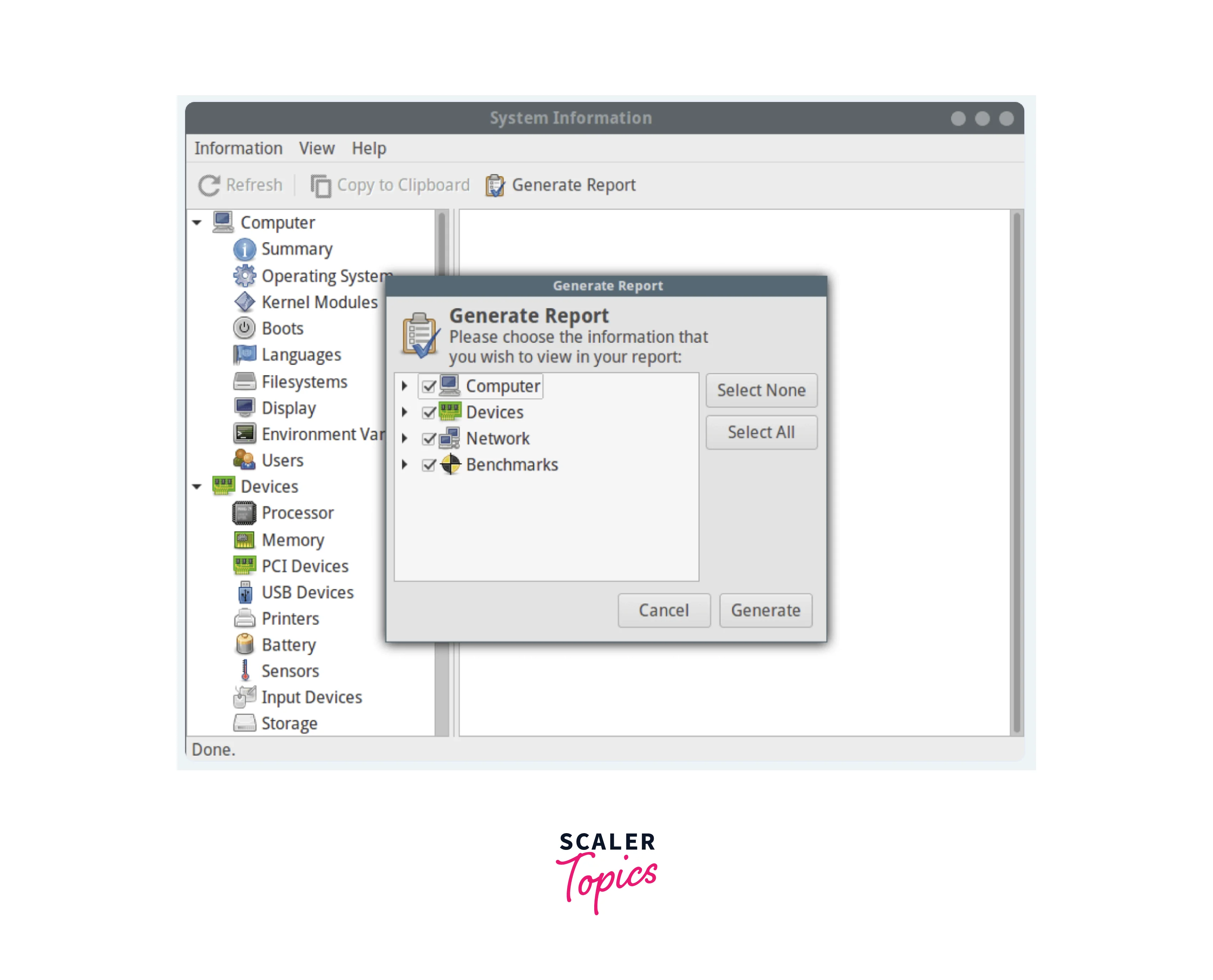
The hardinfo command is a graphical tool that provides detailed information about hardware components, including the CPU. Install it if it's not already available and run:
```console
$ hardinfo
```
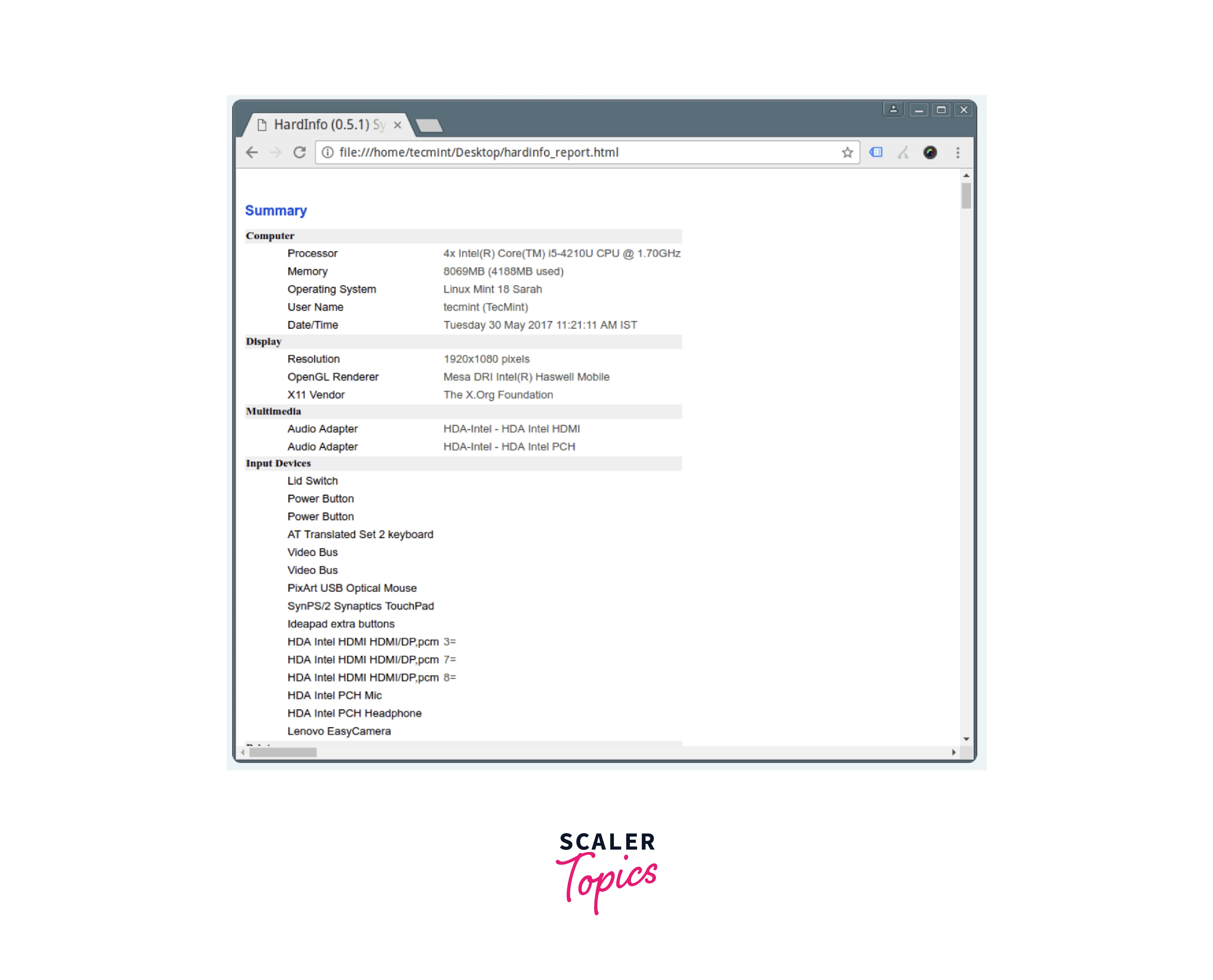
Navigate to the "Processor" section to view CPU-related information. And click generate report. Hardinfo offers a user-friendly interface and presents CPU details in an organized manner.
#### Using hwinfo Command
The hwinfo command is a powerful hardware information tool. Install it if needed and execute:
```console
$ hwinfo --cpu
```
This command will provide comprehensive information about the CPU, including architecture, clock speed, cache size, and supported features. The output may contain a wealth of information, making it suitable for advanced users and system administrators.
#### Using dmidecode -t Processor Command
The dmidecode command displays information from the system DMI (Desktop Management Interface) table. Open a terminal and run:
```console
$ sudo dmidecode -t processor
```
This command will output detailed information about the CPU, such as socket designation, type, family, and characteristics. The dmidecode command extracts information directly from the system's firmware, providing accurate and specific details about the CPU.
#### Using getconf \_NPROCESSORS\_ONLN Command
The getconf command retrieves system configuration variables. Open a terminal and type:
```shell
$ getconf _NPROCESSORS_ONLN
```
This command will display the number of online processors or CPU cores. It is a quick way to obtain the core count without requiring extensive CPU information.
#### Using Inxi Tool
The inxi tool provides a comprehensive system information overview, including CPU details. Install it if necessary and run:
```console
$ inxi -C
```
This command will display CPU-related information, including model, cache size, clock speed, and other relevant details. Inxi is a versatile tool that offers a wide range of system information, making it useful for various purposes.
#### Using lshw Tool
The lshw command (Hardware Lister) provides detailed information about the system's hardware configuration. Install it if not already available and execute:
```shell
$ sudo lshw -class processor
```
This command will show detailed information about the processor, including model, vendor, capabilities, clock speed, and more. Lshw generates a comprehensive report that includes various hardware components, making it a valuable tool for system inspection.
Here are some other methods to get Linux CPU info:
**1. Using the cpufrequtils Command:**
The cpufrequtils package provides utilities for managing CPU frequency scaling. Install it if needed and run:
```console
$ cpufreq-info
```
This command will display information about the current CPU frequency scaling settings, including the available scaling governors and the maximum and minimum CPU frequencies.
**2. Using the sysfs Filesystem:**
Linux provides a sysfs filesystem that exposes information about the system's devices and drivers. Open a terminal and navigate to the "/sys/devices/system/cpu" directory. Inside this directory, you will find subdirectories corresponding to each CPU core. You can access files such as "cpu MHz" to retrieve the current CPU frequency, "cache" to obtain cache-related information, and "cpuinfo\_max\_freq" to determine the maximum CPU frequency.
**3. Using the dmidecode -t 4 Command:**
The dmidecode command can also provide information about the CPU sockets available on the system. Open a terminal and run:
```console
$ sudo dmidecode -t 4
```
This command will display information about the physical characteristics of the CPU sockets, including socket designation, type, and more.
**4. Using the i7z Tool:**
The i7z tool is designed for Intel Core i3/i5/i7 CPUs and provides detailed information about their features and status. Install it if necessary and run:
```console
$ i7z
```
This command will display CPU temperature, multiplier, core frequency, and more information.
**5. Using the sysctl Command:**
The sysctl command allows you to view and modify kernel parameters. Open a terminal and run:
```console
$ sysctl -a | grep machdep.cpu
```
This command will display CPU-related kernel parameters, including features, capabilities, and cache information.
Utilizing these methods lets you easily retrieve CPU information on your Linux system. Each command or tool provides different levels of detail, allowing you to choose the one that best suits your needs. Understanding your CPU's capabilities and specifications can be beneficial for system optimization, troubleshooting, or hardware compatibility purposes.
Whether you prefer a command-line approach or a graphical tool, Linux offers a variety of options to obtain CPU information. These versatile methods cater to different user preferences, making gathering the necessary information for your specific requirements easier.
Checking CPU information on Linux is crucial for understanding your system's hardware configuration and capabilities. By using various commands and tools such as lscpu, cat /proc/cpuinfo, top, htop, nproc, hardinfo, hwinfo, dmidecode, getconf, inxi, lshw, and more, you can gather detailed information about your CPU, including its model, architecture, clock speed, cache size, and supported features. This knowledge is valuable for system optimization, troubleshooting, resource allocation, and software development. Choose the method that suits your needs and explore the capabilities of your CPU on Linux.
#### Conclusion
- Checking CPU information on Linux is crucial for understanding your system's hardware configuration and capabilities.
- The lscpu command provides a concise overview of CPU specifications, including the model, family, clock speed, and cache size.
- The cat /proc/cpuinfo command offers detailed information about each CPU core, such as the model name, vendor, cache size, and supported features.
- The top and htop commands provide real-time CPU utilization, load average, and core usage information.
- The nproc command quickly determines the total number of CPU cores without extensive specifications.
- Tools like hardinfo, hwinfo, dmidecode, getconf, inxi, and lshw provide comprehensive reports on CPU and system information.
- The cpufrequtils package allows the management of CPU frequency scaling settings.
- The sysfs filesystem provides access to CPU-related information, including current frequency and cache details.
- The **i7z tool** is designed for Intel Core i3/i5/i7 CPUs and provides detailed information about their features and status.
- The sysctl command lets you view and modify kernel parameters related to CPU information.
- Utilizing these methods and tools allows you to gather detailed CPU information for system optimization, troubleshooting, and software development purposes.