# Verificação de Status - Linux

# How to Check CPU Information on Linux?

Link: [https://www.scaler.com/topics/cpu-info-linux/](https://www.scaler.com/topics/cpu-info-linux/)

<div class="relative article-author_tooltipContainer__LSaMQ" id="bkmrk-by-eshika-shah-7-min" style="text-align: justify;"><div><div class="article-author_author_name__C_DzB">By Eshika Shah <span class="flex-c column">7 mins read </span><span class="row flex-c"><span class="">Last updated: 18 Jul 2023</span></span></div></div></div><div class="markdown-body" id="bkmrk-overview-checking-cp" style="text-align: justify;"><section class="abstract">##### **Overview**

Checking CPU information on Linux is an essential task for understanding your system's hardware configuration and capabilities. The <span class="highlight--red">CPU (Central Processing Unit)</span> is a crucial component that performs calculations executes instructions, and manages system resources. You can gather details such as the CPU model, architecture, clock speed, number of cores, cache size, and supported features by checking CPU information.

</section><section class="main">#### **Introduction**

Linux provides various methods to get CPU info linux, from simple commands to more advanced tools. These methods offer different levels of detail and flexibility, allowing you to choose the one that suits your needs. By exploring these methods, you can gain valuable insights into your CPU and optimize your system accordingly.

Some commonly used methods to get CPU info linux include using commands like "lscpu," "<span class="highlight--red">cat /proc/cpuinfo</span>," "top" or "htop," "nproc," and utilizing tools such as <span class="highlight--red">"hardinfo," "hwinfo," "dmidecode," "inxi," and "lshw."</span> Each method provides specific information about the CPU, enabling you to analyze its capabilities and make informed decisions.

To get CPU info linux is beneficial in various scenarios. It helps system administrators understand the system's performance characteristics, identify hardware limitations, and plan resource allocation. Developers and software enthusiasts can utilize CPU information to optimize applications for specific CPU architectures and features. Additionally, troubleshooting performance issues, diagnosing compatibility problems, and monitoring system utilization is also facilitated by checking CPU information.

In the following sections, we will delve into each method to get CPU info linux, providing step-by-step instructions and explanations on how to use them effectively. By understanding these methods, you will be equipped with the knowledge to gather comprehensive CPU information and make informed decisions based on your system's hardware capabilities.

It's important to note that the specific commands and tools mentioned in this guide may vary depending on your Linux distribution. However, the underlying concepts and approaches remain consistent across distributions.

Checking CPU information on Linux allows you to understand the characteristics and capabilities of your system's CPU. It provides crucial insights for system optimization, troubleshooting, and resource allocation. Utilizing various commands and tools in the Linux ecosystem allows you to gather detailed information about the CPU model, architecture, clock speed, cores, cache size, and supported features. With this knowledge, you can make informed decisions to maximize your system's performance and compatibility.

</section><section class="main">#### **Methods to Get CPU Information on Linux**

#### Using lscpu Command

The <span class="highlight--red">lscpu</span> command provides detailed information about the CPU architecture and characteristics. Open a terminal and type:

```shell
$ lscpu
```

This command will display information such as CPU model, CPU family, number of cores and threads, clock speed, and cache size. The <span class="highlight--red">lscpu</span> command output is easy to read and provides a concise overview of the CPU's specifications.

#### Using cat /proc/cpuinfo

The <span class="highlight--red">/proc/cpuinfo</span> file contains information about the CPU and its features. Open a terminal and run:

<div class="code-box_snippetContainer__cJ6zK"></div>```console
$ cat /proc/cpuinfo
```

This command will display detailed information about each CPU core, including model name, vendor, cache size, and flags indicating CPU-supported features. The output can be quite extensive, as it provides information for each core on the system.

#### Using top or htop Command

The <span class="highlight--red">top</span> and <span class="highlight--red">htop</span> commands are system monitoring tools that provide real-time information about processes and system resources. Open a terminal and type:

```console
$ top
```

or

```console
$ htop
```

Look for the CPU section, which displays CPU usage, load average, and individual core usage information. While these commands primarily focus on process monitoring, they glance at CPU utilization and core performance.

#### Using nproc Command

The <span class="highlight--red">nproc</span> command displays the number of processing units available. Open a terminal and run:

```console
$ nproc
```

This command will output the total number of CPU cores. It provides a simple way to determine the number of cores without diving into detailed specifications.

#### Using hardinfo Command

The <span class="highlight--red">hardinfo</span> command is a graphical tool that provides detailed information about hardware components, including the CPU. Install it if it's not already available and run:

```console
$ hardinfo
```

Navigate to the "Processor" section to view CPU-related information. And click generate report. Hardinfo offers a user-friendly interface and presents CPU details in an organized manner.

![hardinfo command output](https://www.scaler.com/topics/images/hardinfo-command-output.webp)

![hardinfo system summary](https://www.scaler.com/topics/images/hardinfo-system-summary.webp)

#### Using hwinfo Command

The <span class="highlight--red">hwinfo</span> command is a powerful hardware information tool. Install it if needed and execute:

```console
$ hwinfo --cpu
```

This command will provide comprehensive information about the CPU, including architecture, clock speed, cache size, and supported features. The output may contain a wealth of information, making it suitable for advanced users and system administrators.

#### Using dmidecode -t Processor Command

The <span class="highlight--red">dmidecode</span> command displays information from the system DMI (Desktop Management Interface) table. Open a terminal and run:

```console
$ sudo dmidecode -t processor
```

This command will output detailed information about the CPU, such as socket designation, type, family, and characteristics. The <span class="highlight--red">dmidecode</span> command extracts information directly from the system's firmware, providing accurate and specific details about the CPU.

#### Using getconf \_NPROCESSORS\_ONLN Command

The <span class="highlight--red">getconf</span> command retrieves system configuration variables. Open a terminal and type:

```shell
$ getconf _NPROCESSORS_ONLN
```

This command will display the number of online processors or CPU cores. It is a quick way to obtain the core count without requiring extensive CPU information.

#### Using Inxi Tool

The <span class="highlight--red">inxi</span> tool provides a comprehensive system information overview, including CPU details. Install it if necessary and run:

```console
$ inxi -C
```

This command will display CPU-related information, including model, cache size, clock speed, and other relevant details. Inxi is a versatile tool that offers a wide range of system information, making it useful for various purposes.

#### Using lshw Tool

The <span class="highlight--red">lshw</span> command (Hardware Lister) provides detailed information about the system's hardware configuration. Install it if not already available and execute:

```shell
$ sudo lshw -class processor
```

This command will show detailed information about the processor, including model, vendor, capabilities, clock speed, and more. Lshw generates a comprehensive report that includes various hardware components, making it a valuable tool for system inspection.

Here are some other methods to get Linux CPU info:

**1. Using the cpufrequtils Command:**

The <span class="highlight--red">cpufrequtils</span> package provides utilities for managing CPU frequency scaling. Install it if needed and run:

```console
$ cpufreq-info
```

This command will display information about the current CPU frequency scaling settings, including the available scaling governors and the maximum and minimum CPU frequencies.

**2. Using the sysfs Filesystem:**

Linux provides a sysfs filesystem that exposes information about the system's devices and drivers. Open a terminal and navigate to the <span class="highlight--red">"/sys/devices/system/cpu"</span> directory. Inside this directory, you will find subdirectories corresponding to each CPU core. You can access files such as "cpu MHz" to retrieve the current CPU frequency, "cache" to obtain cache-related information, and <span class="highlight--red">"cpuinfo\_max\_freq"</span> to determine the maximum CPU frequency.

**3. Using the dmidecode -t 4 Command:**

The <span class="highlight--red">dmidecode</span> command can also provide information about the CPU sockets available on the system. Open a terminal and run:

```console
$ sudo dmidecode -t 4
```

This command will display information about the physical characteristics of the CPU sockets, including socket designation, type, and more.

**4. Using the i7z Tool:**

The <span class="highlight--red">i7z</span> tool is designed for Intel Core i3/i5/i7 CPUs and provides detailed information about their features and status. Install it if necessary and run:

```console
$ i7z
```

This command will display CPU temperature, multiplier, core frequency, and more information.

**5. Using the sysctl Command:**

The <span class="highlight--red">sysctl</span> command allows you to view and modify kernel parameters. Open a terminal and run:

```console
$ sysctl -a | grep machdep.cpu
```

This command will display CPU-related kernel parameters, including features, capabilities, and cache information.

Utilizing these methods lets you easily retrieve CPU information on your Linux system. Each command or tool provides different levels of detail, allowing you to choose the one that best suits your needs. Understanding your CPU's capabilities and specifications can be beneficial for system optimization, troubleshooting, or hardware compatibility purposes.

Whether you prefer a command-line approach or a graphical tool, Linux offers a variety of options to obtain CPU information. These versatile methods cater to different user preferences, making gathering the necessary information for your specific requirements easier.

Checking CPU information on Linux is crucial for understanding your system's hardware configuration and capabilities. By using various commands and tools such as <span class="highlight--red">lscpu</span>, <span class="highlight--red">cat /proc/cpuinfo</span>, <span class="highlight--red">top</span>, <span class="highlight--red">htop</span>, <span class="highlight--red">nproc</span>, <span class="highlight--red">hardinfo</span>, <span class="highlight--red">hwinfo</span>, <span class="highlight--red">dmidecode</span>, <span class="highlight--red">getconf</span>, <span class="highlight--red">inxi</span>, <span class="highlight--red">lshw</span>, and more, you can gather detailed information about your CPU, including its model, architecture, clock speed, cache size, and supported features. This knowledge is valuable for system optimization, troubleshooting, resource allocation, and software development. Choose the method that suits your needs and explore the capabilities of your CPU on Linux.

</section><section class="summary">#### Conclusion

- Checking CPU information on Linux is crucial for understanding your system's hardware configuration and capabilities.
- The <span class="highlight--red">lscpu</span> command provides a concise overview of CPU specifications, including the model, family, clock speed, and cache size.
- The <span class="highlight--red">cat /proc/cpuinfo</span> command offers detailed information about each CPU core, such as the model name, vendor, cache size, and supported features.
- The <span class="highlight--red">top</span> and <span class="highlight--red">htop</span> commands provide real-time CPU utilization, load average, and core usage information.
- The <span class="highlight--red">nproc</span> command quickly determines the total number of CPU cores without extensive specifications.
- Tools like <span class="highlight--red">hardinfo</span>, <span class="highlight--red">hwinfo</span>, <span class="highlight--red">dmidecode</span>, <span class="highlight--red">getconf</span>, <span class="highlight--red">inxi</span>, and <span class="highlight--red">lshw</span> provide comprehensive reports on CPU and system information.
- The <span class="highlight--red">cpufrequtils</span> package allows the management of CPU frequency scaling settings.
- The sysfs filesystem provides access to CPU-related information, including current frequency and cache details.
- The **i7z tool** is designed for <span class="highlight--red">Intel Core i3/i5/i7</span> CPUs and provides detailed information about their features and status.
- The <span class="highlight--red">sysctl</span> command lets you view and modify kernel parameters related to CPU information.
- Utilizing these methods and tools allows you to gather detailed CPU information for system optimization, troubleshooting, and software development purposes.

</section></div>

# How to Check CPU Temperature on Linux

Link: [https://phoenixnap.com/kb/linux-cpu-temp](https://phoenixnap.com/kb/linux-cpu-temp)

<section class="ct-section single-post-header" id="bkmrk-"><div class="ct-section-inner-wrap"><div class="ct-div-block" id="bkmrk--1"><div class="ct-div-block" id="bkmrk--2"></div></div></div></section><section class="ct-section" id="bkmrk-introduction-like-an">#### **Introduction**

Like any electrical component, [CPUs](https://phoenixnap.com/glossary/cpu-definition) generate heat when being used. Some resource-demanding programs cause the CPU to increase the clock speed, which results in higher temperatures. Dust buildup also causes the CPU to overheat.

High temperatures shorten the lifespan of sensitive components, so keeping track of CPU temperatures is crucial. This way, you prevent performance throttling or component damage.

**In this tutorial, you will learn how to use different tools and in-built utilities to check CPU temperature on Linux machines.**

<div class="ct-section-inner-wrap"><div class="ct-new-columns"><div class="ct-div-block"><div class="ct-text-block single-post-content"><div class="wp-block-image"></div></div></div></div></div>#### **Prerequisites**

<div class="ct-section-inner-wrap"><div class="ct-new-columns"><div class="ct-div-block"><div class="ct-text-block single-post-content"><div>- A machine running Linux
- An account with sudo/root privileges

</div></div></div></div></div>#### Check CPU Temperature Using Lm-Sensors

**Lm-sensors** is a command-line utility for [hardware](https://phoenixnap.com/glossary/what-is-hardware) monitoring. Use the tool to check the temperature of the CPU and other components. Follow these steps to install and configure Lm-sensors:

1\. Open the terminal and install these packages using a package manager for your distribution. In Ubuntu, use the following command:

```
```
sudo apt install hddtemp lm-sensors
```<button class="copy-the-code-button" data-style="svg-icon" title="Copy to Clipboard"><svg aria-hidden="true" class="copy-icon" fill="currentColor" focusable="false" height="16" role="img" viewbox="0 0 16 16" width="16"><path d="M0 6.75C0 5.784.784 5 1.75 5h1.5a.75.75 0 0 1 0 1.5h-1.5a.25.25 0 0 0-.25.25v7.5c0 .138.112.25.25.25h7.5a.25.25 0 0 0 .25-.25v-1.5a.75.75 0 0 1 1.5 0v1.5A1.75 1.75 0 0 1 9.25 16h-7.5A1.75 1.75 0 0 1 0 14.25Z"></path><path d="M5 1.75C5 .784 5.784 0 6.75 0h7.5C15.216 0 16 .784 16 1.75v7.5A1.75 1.75 0 0 1 14.25 11h-7.5A1.75 1.75 0 0 1 5 9.25Zm1.75-.25a.25.25 0 0 0-.25.25v7.5c0 .138.112.25.25.25h7.5a.25.25 0 0 0 .25-.25v-7.5a.25.25 0 0 0-.25-.25Z"></path></svg></button>
```

Wait for the **lm-sensors** and **hddtemp** to finish downloading and installing.

2\. Execute the **`sensors`** command to see the CPU temperature. The output shows the current temperature readings of all sensors in the machine. The results include the temperature of each core and maximum thresholds.

<div class="ct-section-inner-wrap"><div class="ct-new-columns"><div class="ct-div-block"><div class="ct-text-block single-post-content"><div><div class="wp-block-image"><figure class="aligncenter">![Sensors command output on Linux Ubuntu.](https://phoenixnap.com/kb/wp-content/uploads/2021/04/sensors.png)</figure></div></div></div></div></div></div>3\. To check SSD and hard drive temperatures, execute the following command:

```
```
sudo hddtemp /dev/sda
```<button class="copy-the-code-button" data-style="svg-icon" title="Copy to Clipboard"><svg aria-hidden="true" class="copy-icon" fill="currentColor" focusable="false" height="16" role="img" viewbox="0 0 16 16" width="16"><path d="M0 6.75C0 5.784.784 5 1.75 5h1.5a.75.75 0 0 1 0 1.5h-1.5a.25.25 0 0 0-.25.25v7.5c0 .138.112.25.25.25h7.5a.25.25 0 0 0 .25-.25v-1.5a.75.75 0 0 1 1.5 0v1.5A1.75 1.75 0 0 1 9.25 16h-7.5A1.75 1.75 0 0 1 0 14.25Z"></path><path d="M5 1.75C5 .784 5.784 0 6.75 0h7.5C15.216 0 16 .784 16 1.75v7.5A1.75 1.75 0 0 1 14.25 11h-7.5A1.75 1.75 0 0 1 5 9.25Zm1.75-.25a.25.25 0 0 0-.25.25v7.5c0 .138.112.25.25.25h7.5a.25.25 0 0 0 .25-.25v-7.5a.25.25 0 0 0-.25-.25Z"></path></svg></button>
```

<div class="ct-section-inner-wrap"><div class="ct-new-columns"><div class="ct-div-block"><div class="ct-text-block single-post-content"><div><div class="wp-block-image"><figure class="aligncenter">![Check hard drive temperature on Linux Ubuntu.](https://phoenixnap.com/kb/wp-content/uploads/2021/04/hddtemp.png)</figure></div></div></div></div></div></div>The output shows the temperature of the selected disk.

4\. To see which system components you can monitor, run **`sudo sensors-detect`**.

Answer **YES** to multiple scanning requests until the system scan is complete.

<div class="ct-section-inner-wrap"><div class="ct-new-columns"><div class="ct-div-block"><div class="ct-text-block single-post-content"><div><div class="wp-block-image"><figure class="aligncenter">![Output showing a summary of sensors detected on Ubuntu.](https://phoenixnap.com/kb/wp-content/uploads/2021/04/sensors-detect-output.png)</figure></div></div></div></div></div></div>When the scan completes, the output shows the summary.

5\. To ensure that system monitoring works, load the needed modules using the following command:

```
```
/etc/init.d/kmod start
```<button class="copy-the-code-button" data-style="svg-icon" title="Copy to Clipboard"><svg aria-hidden="true" class="copy-icon" fill="currentColor" focusable="false" height="16" role="img" viewbox="0 0 16 16" width="16"><path d="M0 6.75C0 5.784.784 5 1.75 5h1.5a.75.75 0 0 1 0 1.5h-1.5a.25.25 0 0 0-.25.25v7.5c0 .138.112.25.25.25h7.5a.25.25 0 0 0 .25-.25v-1.5a.75.75 0 0 1 1.5 0v1.5A1.75 1.75 0 0 1 9.25 16h-7.5A1.75 1.75 0 0 1 0 14.25Z"></path><path d="M5 1.75C5 .784 5.784 0 6.75 0h7.5C15.216 0 16 .784 16 1.75v7.5A1.75 1.75 0 0 1 14.25 11h-7.5A1.75 1.75 0 0 1 5 9.25Zm1.75-.25a.25.25 0 0 0-.25.25v7.5c0 .138.112.25.25.25h7.5a.25.25 0 0 0 .25-.25v-7.5a.25.25 0 0 0-.25-.25Z"></path></svg></button>
```

<div class="ct-section-inner-wrap"><div class="ct-new-columns"><div class="ct-div-block"><div class="ct-text-block single-post-content"><div><div class="wp-block-image"><figure class="aligncenter">![Start kmod service on Ubuntu to monitor hardware temperature.](https://phoenixnap.com/kb/wp-content/uploads/2021/04/etc-init.d.png)</figure></div></div></div></div></div></div>6\. To run the **`sensors`** command repeatedly and get real-time data in the terminal, execute the following command:

```
```
watch sensors
```<button class="copy-the-code-button" data-style="svg-icon" title="Copy to Clipboard"><svg aria-hidden="true" class="copy-icon" fill="currentColor" focusable="false" height="16" role="img" viewbox="0 0 16 16" width="16"><path d="M0 6.75C0 5.784.784 5 1.75 5h1.5a.75.75 0 0 1 0 1.5h-1.5a.25.25 0 0 0-.25.25v7.5c0 .138.112.25.25.25h7.5a.25.25 0 0 0 .25-.25v-1.5a.75.75 0 0 1 1.5 0v1.5A1.75 1.75 0 0 1 9.25 16h-7.5A1.75 1.75 0 0 1 0 14.25Z"></path><path d="M5 1.75C5 .784 5.784 0 6.75 0h7.5C15.216 0 16 .784 16 1.75v7.5A1.75 1.75 0 0 1 14.25 11h-7.5A1.75 1.75 0 0 1 5 9.25Zm1.75-.25a.25.25 0 0 0-.25.25v7.5c0 .138.112.25.25.25h7.5a.25.25 0 0 0 .25-.25v-7.5a.25.25 0 0 0-.25-.25Z"></path></svg></button>
```

<div class="ct-section-inner-wrap"><div class="ct-new-columns"><div class="ct-div-block"><div class="ct-text-block single-post-content"><div><div class="wp-block-image"><figure class="aligncenter">![Real-time output in terminal showing CPU temperature on Ubuntu.](https://phoenixnap.com/kb/wp-content/uploads/2021/04/watch-sensors.png)</figure></div></div></div></div></div></div>The output refreshes every two seconds and displays the current CPU temperature reading.

**Note:** To check CPU usage on Linux, read our tutorial on [How to check CPU usage](https://phoenixnap.com/kb/check-cpu-usage-load-linux).

#### Check CPU Temperature Using Psensor

Psensor is a **GUI app** that allows you to monitor the temperature of various system components. This utility also allows you to monitor CPU usage and fan speed.

Psensor includes an [applet](https://phoenixnap.com/glossary/applet) indicator for Ubuntu, allowing you to display the temperature in the top panel to notify you when the temperatures get too high.

##### Install Psensor

Before installing Psensor, you need to install and configure Lm-sensors.

1\. Run this command to install the necessary packages:

```
```
sudo apt install lm-sensors hddtemp
```<button class="copy-the-code-button" data-style="svg-icon" title="Copy to Clipboard"><svg aria-hidden="true" class="copy-icon" fill="currentColor" focusable="false" height="16" role="img" viewbox="0 0 16 16" width="16"><path d="M0 6.75C0 5.784.784 5 1.75 5h1.5a.75.75 0 0 1 0 1.5h-1.5a.25.25 0 0 0-.25.25v7.5c0 .138.112.25.25.25h7.5a.25.25 0 0 0 .25-.25v-1.5a.75.75 0 0 1 1.5 0v1.5A1.75 1.75 0 0 1 9.25 16h-7.5A1.75 1.75 0 0 1 0 14.25Z"></path><path d="M5 1.75C5 .784 5.784 0 6.75 0h7.5C15.216 0 16 .784 16 1.75v7.5A1.75 1.75 0 0 1 14.25 11h-7.5A1.75 1.75 0 0 1 5 9.25Zm1.75-.25a.25.25 0 0 0-.25.25v7.5c0 .138.112.25.25.25h7.5a.25.25 0 0 0 .25-.25v-7.5a.25.25 0 0 0-.25-.25Z"></path></svg></button>
```

2\. Next, scan for sensors in your machine:

```
```
sudo sensors-detect
```<button class="copy-the-code-button" data-style="svg-icon" title="Copy to Clipboard"><svg aria-hidden="true" class="copy-icon" fill="currentColor" focusable="false" height="16" role="img" viewbox="0 0 16 16" width="16"><path d="M0 6.75C0 5.784.784 5 1.75 5h1.5a.75.75 0 0 1 0 1.5h-1.5a.25.25 0 0 0-.25.25v7.5c0 .138.112.25.25.25h7.5a.25.25 0 0 0 .25-.25v-1.5a.75.75 0 0 1 1.5 0v1.5A1.75 1.75 0 0 1 9.25 16h-7.5A1.75 1.75 0 0 1 0 14.25Z"></path><path d="M5 1.75C5 .784 5.784 0 6.75 0h7.5C15.216 0 16 .784 16 1.75v7.5A1.75 1.75 0 0 1 14.25 11h-7.5A1.75 1.75 0 0 1 5 9.25Zm1.75-.25a.25.25 0 0 0-.25.25v7.5c0 .138.112.25.25.25h7.5a.25.25 0 0 0 .25-.25v-7.5a.25.25 0 0 0-.25-.25Z"></path></svg></button>
```

Answer **YES** to any scan requests until the scan is completed.

3\. To make sure the packages are installed, execute the **`sensors`** command.

<div class="ct-section-inner-wrap"><div class="ct-new-columns"><div class="ct-div-block"><div class="ct-text-block single-post-content"><div><div class="wp-block-image"><figure class="aligncenter">![Sensors command output on Linux Ubuntu.](https://phoenixnap.com/kb/wp-content/uploads/2021/04/sensors.png)</figure></div></div></div></div></div></div>4\. Update the package repository with **`sudo apt update`**.

5\. Install Psensor using the following command:

```
```
sudo apt install psensor
```<button class="copy-the-code-button" data-style="svg-icon" title="Copy to Clipboard"><svg aria-hidden="true" class="copy-icon" fill="currentColor" focusable="false" height="16" role="img" viewbox="0 0 16 16" width="16"><path d="M0 6.75C0 5.784.784 5 1.75 5h1.5a.75.75 0 0 1 0 1.5h-1.5a.25.25 0 0 0-.25.25v7.5c0 .138.112.25.25.25h7.5a.25.25 0 0 0 .25-.25v-1.5a.75.75 0 0 1 1.5 0v1.5A1.75 1.75 0 0 1 9.25 16h-7.5A1.75 1.75 0 0 1 0 14.25Z"></path><path d="M5 1.75C5 .784 5.784 0 6.75 0h7.5C15.216 0 16 .784 16 1.75v7.5A1.75 1.75 0 0 1 14.25 11h-7.5A1.75 1.75 0 0 1 5 9.25Zm1.75-.25a.25.25 0 0 0-.25.25v7.5c0 .138.112.25.25.25h7.5a.25.25 0 0 0 .25-.25v-7.5a.25.25 0 0 0-.25-.25Z"></path></svg></button>
```

<div class="ct-section-inner-wrap"><div class="ct-new-columns"><div class="ct-div-block"><div class="ct-text-block single-post-content"><div><div class="wp-block-image"><figure class="aligncenter">![Install Psensor app on Ubuntu Linux.](https://phoenixnap.com/kb/wp-content/uploads/2021/04/install-psensor.png)</figure></div></div></div></div></div></div>Answer **YES** and wait for the installation to finish.

### Using Psensor

Search for **Psensor** in the app menu and open the utility. The app displays a graph of the selected values and shows the CPU temperature, CPU and memory usage, free RAM, GPU temperature, and [HDD](https://phoenixnap.com/glossary/what-is-hdd) temperature.

<div class="ct-section-inner-wrap"><div class="ct-new-columns"><div class="ct-div-block"><div class="ct-text-block single-post-content"><div><div class="wp-block-image"><figure class="aligncenter">![Psensor app on Ubuntu showing hardware temperatures.](https://phoenixnap.com/kb/wp-content/uploads/2021/04/psensor-graph.png)</figure></div></div></div></div></div></div>To configure Psensor and set which stats you want to see, follow these steps:

1\. Click **Psensor** in the menu bar, followed by **Preferences**.

2\. Check off the boxes for the options you want – whether Psensor launches on system startup, the update interval, graph colors, etc.

<div class="ct-section-inner-wrap"><div class="ct-new-columns"><div class="ct-div-block"><div class="ct-text-block single-post-content"><div><div class="wp-block-image"><figure class="aligncenter">![Psensor app Preferences on Ubuntu Linux. ](https://phoenixnap.com/kb/wp-content/uploads/2021/04/psensor-preferences.png)</figure></div></div></div></div></div></div>3\. To show CPU or HDD temperatures in the top panel, go to **Sensor Preferences** under the **Application Indicator.** Enable the **Display sensor in the label** option.

<div class="ct-section-inner-wrap"><div class="ct-new-columns"><div class="ct-div-block"><div class="ct-text-block single-post-content"><div><div class="wp-block-image"><figure class="aligncenter">![Display sensor output in the top label in Ubuntu.](https://phoenixnap.com/kb/wp-content/uploads/2021/04/sensor-preferences-1.png)</figure></div><div class="notice-note"><div class="note-icon-wrapper">  
</div><div class="notice-text">  
</div></div></div></div></div></div></div>**Note:** Learn more about monitoring CPU performance by referring to our article on [Linux perf](https://phoenixnap.com/kb/linux-perf), a lightweight command-line utility.

#### Check Temperature Without Third-Party Utilities

There is a way to use the in-built utilities to check the CPU temperature if you don’t want to use third-party apps.

1\. To check the CPU temperature without installing a third-party app, use the following command:

```
```
cat /sys/class/thermal/thermal_zone*/temp
```<button class="copy-the-code-button" data-style="svg-icon" title="Copy to Clipboard"><svg aria-hidden="true" class="copy-icon" fill="currentColor" focusable="false" height="16" role="img" viewbox="0 0 16 16" width="16"><path d="M0 6.75C0 5.784.784 5 1.75 5h1.5a.75.75 0 0 1 0 1.5h-1.5a.25.25 0 0 0-.25.25v7.5c0 .138.112.25.25.25h7.5a.25.25 0 0 0 .25-.25v-1.5a.75.75 0 0 1 1.5 0v1.5A1.75 1.75 0 0 1 9.25 16h-7.5A1.75 1.75 0 0 1 0 14.25Z"></path><path d="M5 1.75C5 .784 5.784 0 6.75 0h7.5C15.216 0 16 .784 16 1.75v7.5A1.75 1.75 0 0 1 14.25 11h-7.5A1.75 1.75 0 0 1 5 9.25Zm1.75-.25a.25.25 0 0 0-.25.25v7.5c0 .138.112.25.25.25h7.5a.25.25 0 0 0 .25-.25v-7.5a.25.25 0 0 0-.25-.25Z"></path></svg></button>
```

<div class="ct-section-inner-wrap"><div class="ct-new-columns"><div class="ct-div-block"><div class="ct-text-block single-post-content"><div><div class="wp-block-image"><figure class="aligncenter">![Display CPU temperature in Ubuntu without third-party apps.](https://phoenixnap.com/kb/wp-content/uploads/2021/04/cat-sys-class.png)</figure></div></div></div></div></div></div>The output shows the CPU temperature in the five-digit format. Here, 49000 means 49C.

2\. If you get several thermal zones and different temperatures, execute the following command to see what a single thermal zone represents:

```
```
cat /sys/class/thermal/<thermal_zoneNumber>/type
```<button class="copy-the-code-button" data-style="svg-icon" title="Copy to Clipboard"><svg aria-hidden="true" class="copy-icon" fill="currentColor" focusable="false" height="16" role="img" viewbox="0 0 16 16" width="16"><path d="M0 6.75C0 5.784.784 5 1.75 5h1.5a.75.75 0 0 1 0 1.5h-1.5a.25.25 0 0 0-.25.25v7.5c0 .138.112.25.25.25h7.5a.25.25 0 0 0 .25-.25v-1.5a.75.75 0 0 1 1.5 0v1.5A1.75 1.75 0 0 1 9.25 16h-7.5A1.75 1.75 0 0 1 0 14.25Z"></path><path d="M5 1.75C5 .784 5.784 0 6.75 0h7.5C15.216 0 16 .784 16 1.75v7.5A1.75 1.75 0 0 1 14.25 11h-7.5A1.75 1.75 0 0 1 5 9.25Zm1.75-.25a.25.25 0 0 0-.25.25v7.5c0 .138.112.25.25.25h7.5a.25.25 0 0 0 .25-.25v-7.5a.25.25 0 0 0-.25-.25Z"></path></svg></button>
```

For example, run **`cat /sys/class/thermal/thermal_zone2/type`** to see the type of thermal zone 2.

The CPU temperature is in the zone labeled **x86\_pkg\_temp**.

3\. To see what all the thermal zones are referring to, use:

```
```
paste <(cat /sys/class/thermal/thermal_zone*/type) <(cat /sys/class/thermal/thermal_zone*/temp) | column -s $'\t' -t | sed 's/\(.\)..$/.\1°C/'
```<button class="copy-the-code-button" data-style="svg-icon" title="Copy to Clipboard"><svg aria-hidden="true" class="copy-icon" fill="currentColor" focusable="false" height="16" role="img" viewbox="0 0 16 16" width="16"><path d="M0 6.75C0 5.784.784 5 1.75 5h1.5a.75.75 0 0 1 0 1.5h-1.5a.25.25 0 0 0-.25.25v7.5c0 .138.112.25.25.25h7.5a.25.25 0 0 0 .25-.25v-1.5a.75.75 0 0 1 1.5 0v1.5A1.75 1.75 0 0 1 9.25 16h-7.5A1.75 1.75 0 0 1 0 14.25Z"></path><path d="M5 1.75C5 .784 5.784 0 6.75 0h7.5C15.216 0 16 .784 16 1.75v7.5A1.75 1.75 0 0 1 14.25 11h-7.5A1.75 1.75 0 0 1 5 9.25Zm1.75-.25a.25.25 0 0 0-.25.25v7.5c0 .138.112.25.25.25h7.5a.25.25 0 0 0 .25-.25v-7.5a.25.25 0 0 0-.25-.25Z"></path></svg></button>
```

<div class="ct-section-inner-wrap"><div class="ct-new-columns"><div class="ct-div-block"><div class="ct-text-block single-post-content"><div><div class="wp-block-image"><figure class="aligncenter">![Display CPU temperature in Ubuntu without third-party apps.](https://phoenixnap.com/kb/wp-content/uploads/2021/04/paste-cat.png)</figure></div></div></div></div></div></div>The output shows the last stored temperature for that thermal zone in degrees Celsius. In this example, there is only one thermal zone, labeled **x86\_pkg\_temp**, which represents the CPU temperature.

Conclusion

You now know how to check CPU temperature on Linux using various utilities. The guide also showed how to configure the tools to display other information, such as GPU and HDD temperature.

<div class="ct-section-inner-wrap"><div class="ct-new-columns" id="bkmrk-next-you-should-read"><div class="ct-div-block" id="bkmrk-next-you-should-read-1"><div class="ct-text-block single-post-content" id="bkmrk--3"><div id="bkmrk--4"></div><div data-post-id="114827" data-thank-text="Thank you for your feedback!" id="bkmrk--5"></div></div><div class="ct-shortcode" id="bkmrk--6"><div class="scriptlesssocialsharing"></div></div><div class="ct-div-block" id="bkmrk--7"><div class="ct-div-block" id="bkmrk--8"><div class="ct-text-block" id="bkmrk--9"></div></div></div><div class="ct-div-block" id="bkmrk-next-you-should-read-2"><div class="ct-text-block" id="bkmrk-next-you-should-read-3">**Next you should read**</div><div class="ct-div-block" id="bkmrk-bare-metal-servers%C2%A0s"><div class="ct-div-block" id="bkmrk-bare-metal-servers%C2%A0s-1"><div class="ct-code-block" id="bkmrk-bare-metal-servers%C2%A0s-2"><div class="single-related-post"><div class="srp-categories">[Bare Metal Servers](https://phoenixnap.com/kb/category/bare-metal-servers) [SysAdmin](https://phoenixnap.com/kb/category/sysadmin)</div>[How to Install IPMItool on Centos 7/8 &amp; Ubuntu 18.04/20.04](https://phoenixnap.com/kb/install-ipmitool-ubuntu-centos)<div class="srp-date">August 27, 2020</div>---

<div class="srp-excerpt">**This article helps you install IPMItool on your CentOS or Ubuntu system. Download, install and enable...**</div>[READ MORE](https://phoenixnap.com/kb/install-ipmitool-ubuntu-centos)</div></div></div><div class="ct-div-block" id="bkmrk-devops-and-developme"><div class="ct-code-block" id="bkmrk-devops-and-developme-1"><div class="single-related-post"><div class="srp-categories">[DevOps and Development](https://phoenixnap.com/kb/category/devops-and-development) [Virtualization](https://phoenixnap.com/kb/category/virtualization)</div>[How to Set Docker Memory and CPU Usage Limit](https://phoenixnap.com/kb/docker-memory-and-cpu-limit)<div class="srp-date">December 6, 2023</div>---

<div class="srp-excerpt">**Docker containers have unlimited access to RAM and CPU memory of the host. This is not the recommended...**</div>[READ MORE](https://phoenixnap.com/kb/docker-memory-and-cpu-limit)</div></div></div><div class="ct-div-block" id="bkmrk-sysadmin%C2%A0web-servers"><div class="ct-code-block" id="bkmrk-sysadmin%C2%A0web-servers-1"><div class="single-related-post"><div class="srp-categories">[SysAdmin](https://phoenixnap.com/kb/category/sysadmin) [Web Servers](https://phoenixnap.com/kb/category/web-servers)</div>[How to Check Memory Usage in Linux, 5 Simple Commands](https://phoenixnap.com/kb/linux-commands-check-memory-usage)<div class="srp-date">March 28, 2024</div>---

<div class="srp-excerpt">**In this tutorial, learn the five most commonly used commands to check memory usage in Linux...**</div>[READ MORE](https://phoenixnap.com/kb/linux-commands-check-memory-usage)</div></div></div><div class="ct-div-block" id="bkmrk-sysadmin%C2%A0web-servers-2"><div class="ct-code-block" id="bkmrk-sysadmin%C2%A0web-servers-3"><div class="single-related-post"><div class="srp-categories">[SysAdmin](https://phoenixnap.com/kb/category/sysadmin) [Web Servers](https://phoenixnap.com/kb/category/web-servers)</div>[How to Check CPU Utilization in Linux with Command Line](https://phoenixnap.com/kb/check-cpu-usage-load-linux)<div class="srp-date">March 6, 2024</div></div></div></div></div></div></div></div></div></section>

# Comandos IPMITOOL

Link: [https://wiki.joeplaa.com/applications#ipmitool](https://wiki.joeplaa.com/applications#ipmitool)

## Installation

```shellsession
apt update && apt install ipmitool
```

## Configuration

Create a user with ipmi permissions only in Dell iDrac or HP iLO

## Commands

> [https://www.tzulo.com/crm/knowledgebase/47/IPMI-and-IPMITOOL-Cheat-sheet.html](https://www.tzulo.com/crm/knowledgebase/47/IPMI-and-IPMITOOL-Cheat-sheet.html)

### Get all sensor data

```shellsession
ipmitool -I lanplus -H <iDRAC IP> -U <iDRAC user> -P <iDRAC password> sdr list full
```

### Get temperature(s)

```shellsession
ipmitool -I lanplus -H <iDRAC IP> -U <iDRAC user> -P <iDRAC password> sdr type Temperature
```

### Get fanspeed(s)

```shellsession
ipmitool -I lanplus -H <iDRAC IP> -U <iDRAC user> -P <iDRAC password> sdr type Fan
```

Or

```shellsession
ipmitool -I lanplus -H <iDRAC IP> -U <iDRAC user> -P <iDRAC password> sdr get Fan1 Fan2 | grep "Sensor Reading"
```

### Get power supply info

```shellsession
ipmitool -I lanplus -H <iDRAC IP> -U <iDRAC user> -P <iDRAC password> sdr type 'Power Supply'
```

### Enable auto fan control / disable static mode (Dell)

```shellsession
ipmitool -I lanplus -H <iDRAC IP> -U <iDRAC user> -P <iDRAC password> raw 0x30 0x30 0x01 0x01
```

### Enable static fan control / disable auto mode (Dell)

```shellsession
ipmitool -I lanplus -H <iDRAC IP> -U <iDRAC user> -P <iDRAC password> raw 0x30 0x30 0x01 0x00
```

### Set fanspeed 20% (Dell)

See the script for other speeds. The last 4 characters differ.

```shellsession
ipmitool -I lanplus -H <iDRAC IP> -U <iDRAC user> -P <iDRAC password> raw 0x30 0x30 0x02 0xff 0x14
```

### Change system state

```shellsession
ipmitool -H <iDRAC IP> -U <iDRAC user> -P <iDRAC password> chassis power <status|on|off|cycle|reset>
```

<div class="code-toolbar" id="bkmrk-"><div class="toolbar"><div class="toolbar-item">  
</div></div></div>

# Recommended operating range for Core temperature

Link: [https://forums.tomshardware.com/threads/what-happens-if-cpu-temp-hits-90%C2%B0c-or-more.3028572/#post-18951574](https://forums.tomshardware.com/threads/what-happens-if-cpu-temp-hits-90%C2%B0c-or-more.3028572/#post-18951574)

Coolers with 92mm fans are low-end to mid-range, which may be somewhat inadequate, since your processor's Thermal Design Power (TDP) is 120 Watts.  
  
What is your ambient temperature? Normal or "Standard" room temperature is 22°C or 72°F, so high ambient temperature will adversely affect Core temperatures.  
  
Although your Xeon X5460 has Thermal Specifications of Tcase 63°C and Tj Max 100°C, Tcase is *not* the limiting Thermal Specification; Tj Max *is*, which is the temperature that your processor will "Throttle" or reduce Core speed to prevent thermal damage.  
  
Tcase is a misleading Specification because it's a *factory only* measurements on the surface of the Integrated Heat Spreader, so Tcase is *not* Core temperature, which is considerably higher. Further, Tcase is only relevant to the stock cooler.  
  
Although 90°C Core temperature isn't quite hot enough to cause Throttling, it’s not advisable to push your CPU to the thermal limit, just as you wouldn't operate a vehicle with the temperature gauge pegged in the red “hot” zone.  
  
If your hottest Core is within a few degrees of Throttle temperature, your CPU is already too hot. The consensus among highly experienced and well informed system builders and overclockers, is that cooler is better for ultimate stability, performance and longevity.  
  
As such, all agree it's wise to observe a reasonable thermal limit below Tj Max. So regardless of your rig's environmental conditions, system configuration, workloads or any other variables, *<u>sustained</u>* Core temperatures above 80°C aren't recommended.  
  
Here's the recommended operating range for Core temperature:  
  
**80°C** **Hot** (100% Load)  
**75°C** **Warm**  
**70°C** **Warm** (Heavy Load)  
**60°C** **Norm**  
**50°C** **Norm** (Medium Load)  
**40°C** **Norm**  
**30°C** **Cool** (Idle)  
  
Also, you might want to read this Sticky: **Intel Temperature Guide** - [http://www.tomshardware.com/forum/id-1800828/intel-temperature-guide.html](http://www.tomshardware.com/forum/id-1800828/intel-temperature-guide.html)

# O comando HTOP no Linux

Link: [https://blog.ironlinux.com.br/o-comando-htop-no-linux/](https://blog.ironlinux.com.br/o-comando-htop-no-linux/)

- 17 de maio de 2022

Está com o seu servidor Linux lento e precisa de comandos para ajudar a descobrir o motivo? O comando htop pode ser um grande aliado na análise de processos e recursos.

O comando **HTOP** é um utilitário de linha de comando que tem como objetivo auxiliar o usuário a monitorar de forma interativa e em tempo real os recursos de seu sistema operacional Linux.

## 1| Instalar htop no Ubuntu

<div class="content mb-10" id="bkmrk-copiar" style="text-align: justify;"><button class="copy-code-button" type="button">Copiar</button><div class="highlight"></div></div>```bash
sudo apt install htop

```

## 2| Instalar htop no CentOS

<div class="content mb-10" id="bkmrk-copiar-1" style="text-align: justify;"><button class="copy-code-button" type="button">Copiar</button><div class="highlight"></div></div>```bash
sudo yum install htop

```

## 3| Iniciar a ferramenta

<div class="content mb-10" id="bkmrk-copiar-2" style="text-align: justify;"><button class="copy-code-button" type="button">Copiar</button><div class="highlight"></div></div>```bash
htop

```

## 4| Visão geral da ferramenta

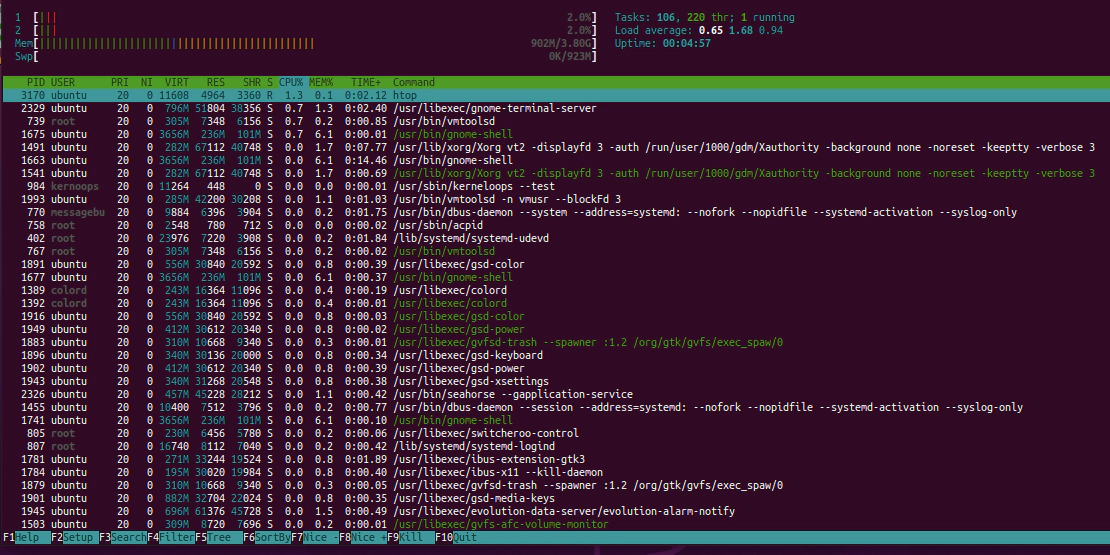
Ao digitar htop é apresentado a tela abaixo:

<div class="content mb-10" id="bkmrk-" style="text-align: justify;">[![HTOP Linux](https://blog.ironlinux.com.br/images/blog-posts/uploads/2022/05/htop1_hub08cc9492934db860bce85724b14ff4c_167855_1110x555_fit_q100_h2_lanczos_3.webp)](https://blog.ironlinux.com.br/images/blog-posts/uploads/2022/05/htop1.png)</div>## 5| Explicando os blocos

### Bloco superior

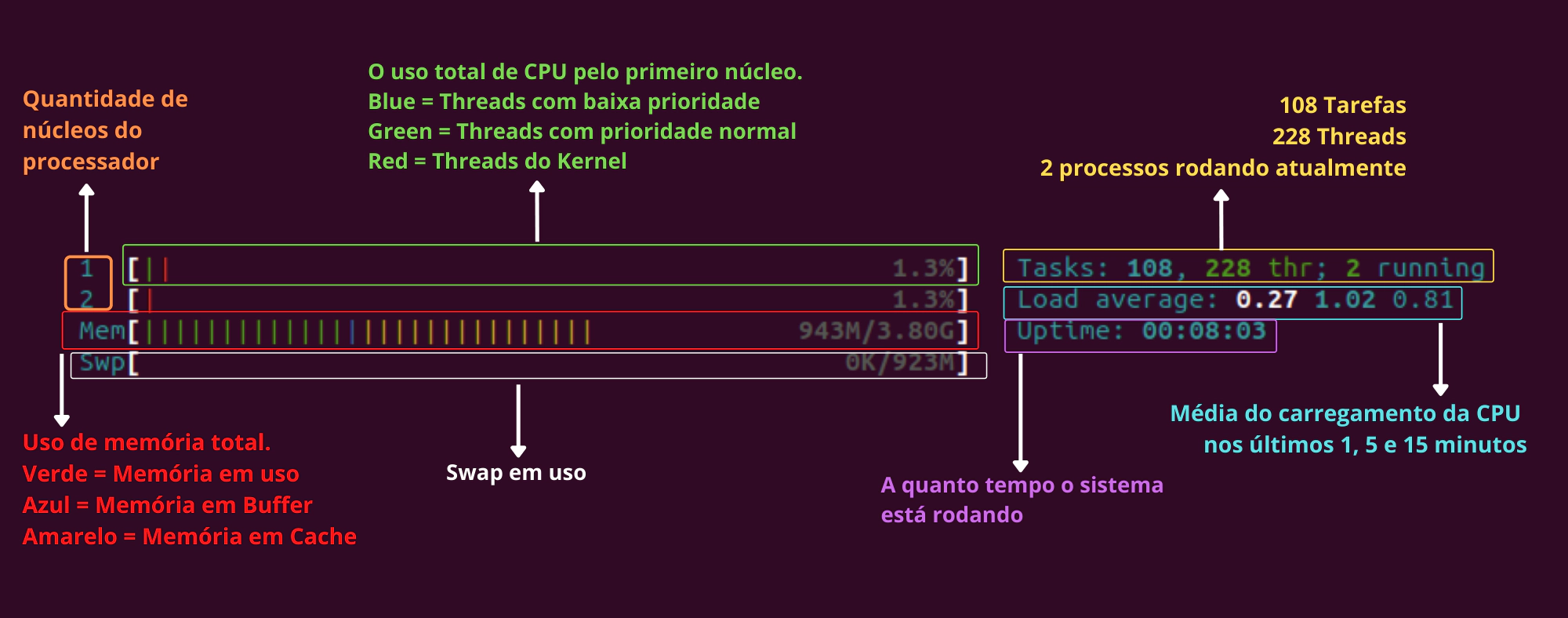
<div class="content mb-10" id="bkmrk--1" style="text-align: justify;">[![Explicando bloco superior do htop](https://blog.ironlinux.com.br/images/blog-posts/uploads/2022/05/htop_imagem1_hu48f19580edc8a08fe93137902397e967_185655_2000x788_fit_q100_h2_lanczos_3.webp)](https://blog.ironlinux.com.br/images/blog-posts/uploads/2022/05/htop_imagem1.png)</div>### Bloco Inferior

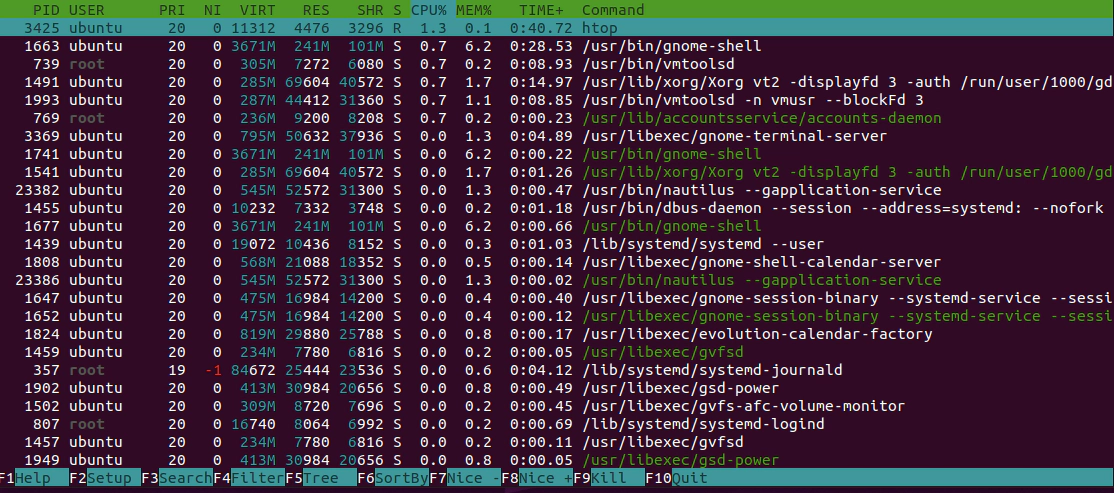
<div class="content mb-10" id="bkmrk--2" style="text-align: justify;">[![Explicando bloco inferior do htop](https://blog.ironlinux.com.br/images/blog-posts/uploads/2022/05/htop3_hud46972117cfe5a7f8797a6709eada205_169753_1114x493_fit_q100_h2_lanczos_3.webp)](https://blog.ironlinux.com.br/images/blog-posts/uploads/2022/05/htop3.png)</div>### Descrição dos Campos

<div class="content mb-10" id="bkmrk-campo-descri%C3%A7%C3%A3o-pid-" style="text-align: justify;"><table><thead><tr><th>Campo</th><th>Descrição</th></tr></thead><tbody><tr><td>PID</td><td>ID do processo</td></tr><tr><td>USER</td><td>Dono do processo</td></tr><tr><td>PRI</td><td>Prioridade do processo (Varia de 0 a 139, sendo que quanto menor mais prioridade)</td></tr><tr><td>NI</td><td>“Nices Values” afeta o valor da prioridade do processo (Varia de -20 a 19)</td></tr><tr><td>VIRT</td><td>Total de memória requerida pelo processo (não necessariamente está toda em uso)</td></tr><tr><td>RES</td><td>Quantidade de memória RAM que o processo está utilizando</td></tr><tr><td>SHR</td><td>Total de memória Compartilhada usada pelo processo</td></tr><tr><td>S</td><td>Estado atual do processo</td></tr><tr><td>CPU %</td><td>Percentual de tempo de CPU que o processo está utilizando</td></tr><tr><td>MEM %</td><td>Percentual de Memória RAM que o processo está utilizando</td></tr><tr><td>TIME +</td><td>Tempo de processador que o processo está utilizando</td></tr><tr><td>COMMAND</td><td>Comando que iniciou o processo</td></tr></tbody></table>

</div>## 5| Opções via CommandLine

O htop permite que você passe opções/ argumentos na execução dele para ajudar na análise

## 5.1| Delay

O comando htop muda as informações apresentadas rapidamente, pois os processos estão constatemente sendo atualizados. Com o comando abaixo o resultado é atualizado com o Delay (atraso) que você definir:

<div class="content mb-10" id="bkmrk-copiar-3" style="text-align: justify;"><button class="copy-code-button" type="button">Copiar</button><div class="highlight"></div></div>```bash
htop -d 15

```

O argumento acima tem o delay de 1 segundo, pois é calculado em décimo de segundo.

### 5.2| Filtro com PID

É possível filtrar com um determinado PID e exibir as informações deles

<div class="content mb-10" id="bkmrk-copiar-4" style="text-align: justify;"><button class="copy-code-button" type="button">Copiar</button><div class="highlight"></div></div>```bash
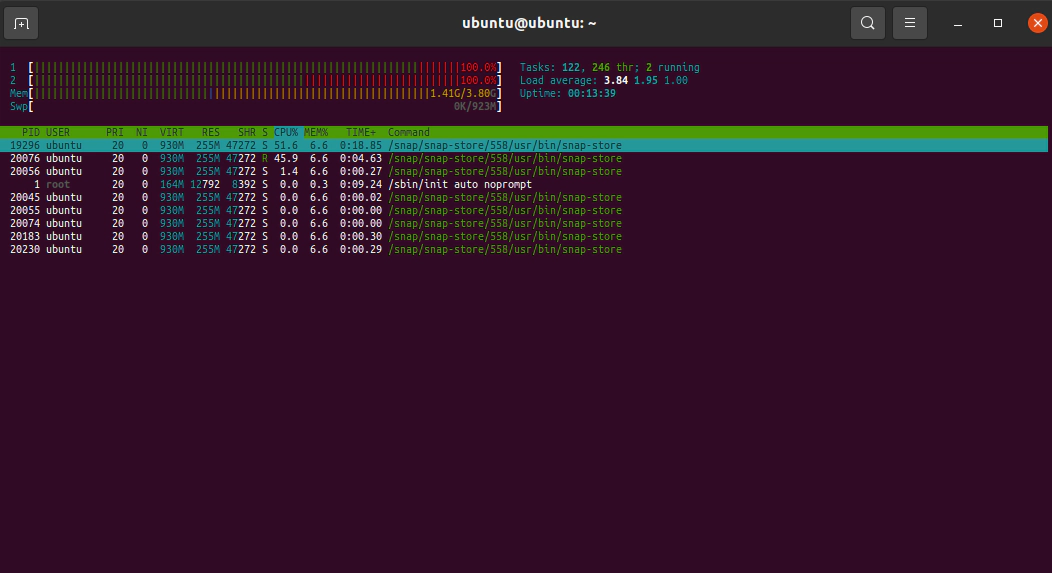
htop -p 1,19296

```

<div class="content mb-10" id="bkmrk--3" style="text-align: justify;"><div class="highlight"></div>[![Filtrar PID no HTOP](https://blog.ironlinux.com.br/images/blog-posts/uploads/2022/05/htop10_hu3d0b9e2b72c74fd983fb62cf31802e02_53084_1052x573_fit_q100_h2_lanczos_3.webp)](https://blog.ironlinux.com.br/images/blog-posts/uploads/2022/05/htop10.png)</div>## Conclusão

Assim como o gerenciador de tarefas no Windows, o comando htop é realmente muito poderoso e com certeza irá lhe ajudar na análise de qualquer caso.

Por fim, agradecemos a leitura e esperamos que este post tenha te ajudado de alguma maneira! Caso tenha alguma dúvida, entre em contato conosco pelo [Telegram](https://t.me/ironlinux) , [Facebook](https://www.facebook.com/ironlinuxoficial) ou [Instagram](https://www.instagram.com/ironlinux_/) ! Veja mais posts no [IronLinux](https://blog.ironlinux.com.br/) !

# CTOP para verificação de uso de containers Docker

sudo wget https://github.com/bcicen/ctop/releases/download/v0.7.7/ctop-0.7.7-linux-amd64 -O /usr/local/bin/ctop  
sudo chmod +x /usr/local/bin/ctop