# Dicas Linux

Dicas para Linux

# Como descobrir (listar) o UUID e LABEL de todas as partições?

Link: [https://bistrunka.net/2012/09/22/como-descobrir-listar-o-uuid-e-label-de-todas-as-particoes/](https://bistrunka.net/2012/09/22/como-descobrir-listar-o-uuid-e-label-de-todas-as-particoes/)

 ( How to find out (list) the UUID and LABEL all the partitions? )

Para listar o código UUID (universally unique identifier) e LABEL (rótulo/nome) de todas as partições de todos os discos do computador com um único comando basta utilizar, como root, o comando blkid:

**sudo blkid**

Olhe a saída no meu computador:

**zumm@destino:~$ sudo blkid**  
/dev/sda1: LABEL=”Ubuntu-12.10″ UUID=”98e6d91d-9b8b-46e5-8429-e492044cbbd5″ TYPE=”ext4″  
/dev/sda2: LABEL=”Vídeos” UUID=”457fce87-b36d-4364-971a-afaa11e39357″ TYPE=”ext4″  
/dev/sda3: LABEL=”Backup” UUID=”ae9f9aeb-ae10-4e70-b680-396e0dd1c320″ TYPE=”ext4″  
/dev/sda5: UUID=”c526a707-a8bb-431a-a2ea-398bb59f8146″ TYPE=”swap”  
/dev/sda6: LABEL=”AMD64″ UUID=”a1d9c813-b4e7-4331-b4eb-6a08e44938e8″ TYPE=”ext4″  
/dev/sda7: LABEL=”Gentoo” UUID=”9daf9b72-ec06-4175-b484-01ff1add6a37″ TYPE=”ext4″  
/dev/sda8: LABEL=”Mint” UUID=”417d751e-faf9-4abc-ac43-271d47c973c6″ TYPE=”ext4″  
/dev/sdb1: LABEL=”Ubuntu-11.04″ UUID=”0a3b9f72-bbd6-4e7f-bf11-6ef2043cf973″ TYPE=”ext4″  
/dev/sdb2: LABEL=”Dados” UUID=”9100787c-03bf-4e22-8080-bd9a586fa2fe” TYPE=”ext3″  
/dev/sdb3: LABEL=”Músicas” UUID=”4d759fd5-5ab2-4b92-b6b6-c015507672ce” TYPE=”ext3″  
/dev/sdb4: UUID=”bdf9c723-c739-4e53-8810-a4e98c9ea8f5″ TYPE=”swap”  
/dev/sdc1: LABEL=”Debian” UUID=”09aefbca-ddea-4068-be78-380fd959c658″ TYPE=”ext4″  
/dev/sdc2: LABEL=”Arch” UUID=”1e2b868a-c634-4f3b-81b6-0e22e33552b3″ TYPE=”ext4″  
/dev/sdc5: UUID=”d6609dbc-1720-4e3d-b316-730fcd87d6b4″ TYPE=”swap”  
/dev/sdc6: LABEL=”Music” UUID=”414d9df7-1cdd-47e5-bda3-523b0a1f0a53″ TYPE=”ext4″  
/dev/sdc7: LABEL=”Video” UUID=”356f8f81-8569-46ef-9fbe-fd8837bb6538″ TYPE=”ext4″

## Outros comandos:

### Para listar o UUID:

**zumm@destino:~$ ls -l /dev/disk/by-uuid**

total 0  
lrwxrwxrwx 1 root root 10 2012-09-21 20:06 0a3b9f72-bbd6-4e7f-bf11-6ef2043cf973 -&gt; ../../sdb1  
lrwxrwxrwx 1 root root 10 2012-09-21 20:05 417d751e-faf9-4abc-ac43-271d47c973c6 -&gt; ../../sda8  
lrwxrwxrwx 1 root root 10 2012-09-21 20:06 457fce87-b36d-4364-971a-afaa11e39357 -&gt; ../../sda2  
lrwxrwxrwx 1 root root 10 2012-09-21 20:06 4d759fd5-5ab2-4b92-b6b6-c015507672ce -&gt; ../../sdb3  
lrwxrwxrwx 1 root root 10 2012-09-21 20:06 9100787c-03bf-4e22-8080-bd9a586fa2fe -&gt; ../../sdb2  
lrwxrwxrwx 1 root root 10 2012-09-21 20:05 98e6d91d-9b8b-46e5-8429-e492044cbbd5 -&gt; ../../sda1  
lrwxrwxrwx 1 root root 10 2012-09-21 20:05 9daf9b72-ec06-4175-b484-01ff1add6a37 -&gt; ../../sda7  
lrwxrwxrwx 1 root root 10 2012-09-21 20:05 a1d9c813-b4e7-4331-b4eb-6a08e44938e8 -&gt; ../../sda6  
lrwxrwxrwx 1 root root 10 2012-09-21 20:06 ae9f9aeb-ae10-4e70-b680-396e0dd1c320 -&gt; ../../sda3  
lrwxrwxrwx 1 root root 10 2012-09-21 20:05 bdf9c723-c739-4e53-8810-a4e98c9ea8f5 -&gt; ../../sdb4  
lrwxrwxrwx 1 root root 10 2012-09-21 20:05 c526a707-a8bb-431a-a2ea-398bb59f8146 -&gt; ../../sda5

### Para listar o LABEL:

**zumm@destino:~$ ls -l /dev/disk/by-label**

total 0  
drwxr-xr-x 2 root root 220 2012-09-22 16:37 .  
drwxr-xr-x 6 root root 120 2012-09-21 20:05 ..  
lrwxrwxrwx 1 root root 10 2012-09-21 20:05 AMD64 -&gt; ../../sda6  
lrwxrwxrwx 1 root root 10 2012-09-21 20:06 Backup -&gt; ../../sda3  
lrwxrwxrwx 1 root root 10 2012-09-21 20:06 Dados -&gt; ../../sdb2  
lrwxrwxrwx 1 root root 10 2012-09-21 20:05 Livre -&gt; ../../sda7  
lrwxrwxrwx 1 root root 10 2012-09-21 20:05 Mint -&gt; ../../sda8  
lrwxrwxrwx 1 root root 10 2012-09-21 20:06 Músicas -&gt; ../../sdb3  
lrwxrwxrwx 1 root root 10 2012-09-21 20:06 Ubuntu-11.04 -&gt; ../../sdb1  
lrwxrwxrwx 1 root root 10 2012-09-21 20:05 Ubuntu-12.10 -&gt; ../../sda1  
lrwxrwxrwx 1 root root 10 2012-09-21 20:06 Vídeos -&gt; ../../sda2

### Listando os UUID’s de apenas um disco:

**zumm@destino:~$ blkid /dev/sda\[1-9\]**  
/dev/sda1: LABEL=”Ubuntu-12.10″ UUID=”98e6d91d-9b8b-46e5-8429-e492044cbbd5″ TYPE=”ext4″  
/dev/sda2: LABEL=”Vídeos” UUID=”457fce87-b36d-4364-971a-afaa11e39357″ TYPE=”ext4″  
/dev/sda3: LABEL=”Backup” UUID=”ae9f9aeb-ae10-4e70-b680-396e0dd1c320″ TYPE=”ext4″  
/dev/sda5: UUID=”c526a707-a8bb-431a-a2ea-398bb59f8146″ TYPE=”swap”  
/dev/sda6: LABEL=”AMD64″ UUID=”a1d9c813-b4e7-4331-b4eb-6a08e44938e8″ TYPE=”ext4″  
/dev/sda7: LABEL=”Gentoo” UUID=”9daf9b72-ec06-4175-b484-01ff1add6a37″ TYPE=”ext4″  
/dev/sda8: LABEL=”Mint” UUID=”417d751e-faf9-4abc-ac43-271d47c973c6″ TYPE=”ext4″

### Listando organizado por colunas

<div id="bkmrk-" style="text-align: justify;"><div id="bkmrk--1"></div></div>**zumm@destino:~$ sudo blkid -o list -c /dev/null**

### Obtendo todas as informações de uma partição com o TUNE2FS

**zumm@destino:~$ sudo tune2fs /dev/sda2**

tune2fs 1.41.14 (22-Dec-2010)  
Filesystem volume name: Vídeos  
Last mounted on: /media/Vídeos  
Filesystem UUID: 457fce87-b36d-4364-971a-afaa11e39357  
Filesystem magic number: 0xEF53  
Filesystem revision #: 1 (dynamic)  
Filesystem features: has\_journal ext\_attr resize\_inode dir\_index filetype needs\_recovery extent flex\_bg sparse\_super large\_file huge\_file uninit\_bg dir\_nlink extra\_isize  
Filesystem flags: signed\_directory\_hash  
Default mount options: (none)  
Filesystem state: clean  
Errors behavior: Continue  
Filesystem OS type: Linux  
Inode count: 59375616  
Block count: 237497855  
Reserved block count: 11874892  
Free blocks: 175586011  
Free inodes: 59374910  
First block: 0  
Block size: 4096  
Fragment size: 4096  
Reserved GDT blocks: 967  
Blocks per group: 32768  
Fragments per group: 32768  
Inodes per group: 8192  
Inode blocks per group: 512  
RAID stride: 32750  
Flex block group size: 16  
Filesystem created: Tue Nov 1 00:13:51 2011  
Last mount time: Fri Sep 21 20:06:02 2012  
Last write time: Fri Sep 21 20:06:02 2012  
Mount count: 16  
Maximum mount count: 32  
Last checked: Mon Sep 17 08:18:46 2012  
Check interval: 15552000 (6 months)  
Next check after: Sat Mar 16 08:18:46 2013  
Lifetime writes: 251 GB  
Reserved blocks uid: 0 (user root)  
Reserved blocks gid: 0 (group root)  
First inode: 11  
Inode size: 256  
Required extra isize: 28  
Desired extra isize: 28  
Journal inode: 8  
Default directory hash: half\_md4  
Directory Hash Seed: d714b716-999e-4eb1-b4b8-a27ae6964d3b  
Journal backup: inode blocks  
**zumm@destino:~$**

Já dá para brincar um pouquinho.

# Introduction to fstab

Link: [https://help.ubuntu.com/community/Fstab](https://help.ubuntu.com/community/Fstab)

The configuration file <tt>/etc/fstab</tt> contains the necessary information to automate the process of mounting partitions. In a nutshell, mounting is the process where a raw (physical) partition is prepared for access and assigned a location on the file system tree (or mount point).<span class="anchor" id="bkmrk-"></span><span class="anchor" id="bkmrk--1"></span>

- In general fstab is used for internal devices, CD/DVD devices, and network shares (samba/nfs/sshfs). Removable devices such as flash drives \*can\* be added to fstab, but are typically mounted by gnome-volume-manager and are beyond the scope of this document.<span class="anchor" id="bkmrk--2"></span><span class="anchor" id="bkmrk--3"></span>
- Options for mount and fstab are similar.<span class="anchor" id="bkmrk--4"></span>
- Partitions listed in fstab can be configured to automatically mount during the boot process.<span class="anchor" id="bkmrk--5"></span>
- If a device/partition is not listed in fstab ONLY ROOT may mount the device/partition.<span class="anchor" id="bkmrk--6"></span>
- Users may mount a device/partition if the device is in fstab with the proper options.<span class="anchor" id="bkmrk--7"></span><span class="anchor" id="bkmrk--8"></span><span class="anchor" id="bkmrk--9"></span>

![IconsPage/tip.png](https://help.ubuntu.com/community/IconsPage?action=AttachFile&do=get&target=tip.png "IconsPage/tip.png") For usage with network shares, see [SettingUpNFSHowTo](https://help.ubuntu.com/community/SettingUpNFSHowTo) , [SettingUpSamba](https://help.ubuntu.com/community/SettingUpSamba) and [SSHFS](http://www.debuntu.org/2006/04/27/39-mounting-a-fuse-filesystem-form-etcfstab).<span class="anchor" id="bkmrk--10"></span><span class="anchor" id="bkmrk--11"></span>

# Fstab File Configuration

<span class="anchor" id="bkmrk--13"></span><span class="anchor" id="bkmrk--14"></span>

![IconsPage/info.png](https://help.ubuntu.com/community/IconsPage?action=AttachFile&do=get&target=info.png "IconsPage/info.png") The syntax of a fstab entry is :<span class="anchor" id="bkmrk--15"></span><span class="anchor" id="bkmrk--16"></span><span class="anchor" id="bkmrk--17"></span>

```
[Device] [Mount Point] [File System Type] [Options] [Dump] [Pass]
```

<span class="anchor" id="bkmrk--19"></span><span class="anchor" id="bkmrk--20"></span>

<div id="bkmrk-fields-description-%3C" style="text-align: justify;"><table style="width: 99.9986%;"><tbody><tr><td style="width: 17.1518%;">**fields**

</td><td style="width: 82.8173%;">**description**

</td></tr><tr><td style="width: 17.1518%;"><span class="anchor" id="bkmrk--21"></span>&lt;device&gt;

</td><td style="width: 82.8173%;">The device/partition (by /dev location or UUID) that contain a file system.

</td></tr><tr><td style="width: 17.1518%;"><span class="anchor" id="bkmrk--22"></span>&lt;mount point&gt;

</td><td style="width: 82.8173%;">The directory on your root file system (aka mount point) from which it will be possible to access the content of the device/partition (note: swap has no mount point). Mount points should not have spaces in the names.

</td></tr><tr><td style="width: 17.1518%;"><span class="anchor" id="bkmrk--23"></span>&lt;file system type&gt;

</td><td style="width: 82.8173%;">Type of file system (see [LinuxFilesystemsExplained](https://help.ubuntu.com/community/LinuxFilesystemsExplained)).

</td></tr><tr><td style="width: 17.1518%;"><span class="anchor" id="bkmrk--24"></span>&lt;options&gt;

</td><td style="width: 82.8173%;">Mount options of access to the device/partition (see the man page for <tt>mount</tt>).

</td></tr><tr><td style="width: 17.1518%;"><span class="anchor" id="bkmrk--25"></span>&lt;dump&gt;

</td><td style="width: 82.8173%;">Enable or disable backing up of the device/partition (the command *dump*). This field is usually set to 0, which disables it.

</td></tr><tr><td style="width: 17.1518%;"><span class="anchor" id="bkmrk--26"></span>&lt;pass num&gt;

</td><td style="width: 82.8173%;">Controls the order in which *fsck* checks the device/partition for errors at boot time. The root device should be 1. Other partitions should be 2, or 0 to disable checking.

</td></tr></tbody></table>

</div><span class="anchor" id="bkmrk--28"></span><span class="anchor" id="bkmrk--29"></span>

Please refer to the examples section for sample entries. We have provided you some detailed explanations of each field:<span class="anchor" id="bkmrk--30"></span><span class="anchor" id="bkmrk--31"></span>

## Device

<span class="anchor" id="bkmrk--33"></span><span class="anchor" id="bkmrk--34"></span>

By default, Ubuntu now uses [UUID](http://en.wikipedia.org/wiki/UUID) to identify partitions.<span class="anchor" id="bkmrk--35"></span><span class="anchor" id="bkmrk--36"></span>

UUID=xxx.yyy.zzz<span class="anchor" id="bkmrk--37"></span><span class="anchor" id="bkmrk--38"></span>

To list your devices by UUID use blkid<span class="anchor" id="bkmrk--39"></span><span class="anchor" id="bkmrk--40"></span>

<span class="anchor" id="bkmrk--42"></span><span class="anchor" id="bkmrk--43"></span>

```
sudo blkid
```

<span class="anchor" id="bkmrk--45"></span><span class="anchor" id="bkmrk--46"></span>

Alternative ways to refer to partitions:<span class="anchor" id="bkmrk--47"></span>

- Label : LABEL=label<span class="anchor" id="bkmrk--48"></span>
- Network ID<span class="anchor" id="bkmrk--49"></span>
    - Samba : //server/share<span class="anchor" id="bkmrk--50"></span>
    - NFS : server:/share<span class="anchor" id="bkmrk--51"></span>
    - SSHFS : sshfs#user@server:/share<span class="anchor" id="bkmrk--52"></span>
- Device : /dev/sdxy (not recommended)<span class="anchor" id="bkmrk--53"></span><span class="anchor" id="bkmrk--54"></span>

## Mount point

<span class="anchor" id="bkmrk--56"></span><span class="anchor" id="bkmrk--57"></span>

A mount point is a location on your directory tree to mount the partition. The default location is /media although you may use alternate locations such as /mnt or your home directory.<span class="anchor" id="bkmrk--58"></span><span class="anchor" id="bkmrk--59"></span>

You may use any name you wish for the mount point, but you must create the mount point before you mount the partition.<span class="anchor" id="bkmrk--60"></span><span class="anchor" id="bkmrk--61"></span>

For example : /media/windows<span class="anchor" id="bkmrk--62"></span><span class="anchor" id="bkmrk--63"></span>

<span class="anchor" id="bkmrk--65"></span><span class="anchor" id="bkmrk--66"></span>

```
sudo mkdir /media/windows
```

<span class="anchor" id="bkmrk--68"></span><span class="anchor" id="bkmrk--69"></span>

## File System Type

<span class="anchor" id="bkmrk--71"></span><span class="anchor" id="bkmrk--72"></span>

You may either use auto or specify a file system. Auto will attempt to automatically detect the file system of the target file system and in general works well. In general auto is used for removable devices and a specific file system or network protocol for network shares.<span class="anchor" id="bkmrk--73"></span><span class="anchor" id="bkmrk--74"></span>

Examples:<span class="anchor" id="bkmrk--75"></span>

- auto<span class="anchor" id="bkmrk--76"></span>
- vfat - used for FAT partitions.<span class="anchor" id="bkmrk--77"></span>
- ntfs, ntfs-3g - used for ntfs partitions.<span class="anchor" id="bkmrk--78"></span>
- ext4, ext3, ext2, jfs, reiserfs, etc.<span class="anchor" id="bkmrk--79"></span>
- udf,iso9660 - for CD/DVD.<span class="anchor" id="bkmrk--80"></span>
- swap.<span class="anchor" id="bkmrk--81"></span><span class="anchor" id="bkmrk--82"></span><span class="anchor" id="bkmrk--83"></span>

## Options

<span class="anchor" id="bkmrk--85"></span><span class="anchor" id="bkmrk--86"></span>

Options are dependent on the file system.<span class="anchor" id="bkmrk--87"></span><span class="anchor" id="bkmrk--88"></span>

You may use "defaults" here and some typical options may include :<span class="anchor" id="bkmrk--89"></span><span class="anchor" id="bkmrk--90"></span>

- **Ubuntu 8.04** and later uses **relatime** as default for linux native file systems. You can find a discussion of relatime here : [http://lwn.net/Articles/244829](http://lwn.net/Articles/244829). This relates to when and how often the last access time of the current version of a file is updated, i.e. when it was last read.<span class="anchor" id="bkmrk--91"></span><span class="anchor" id="bkmrk--92"></span>
- defaults = rw, suid, dev, exec, auto, nouser, and async.<span class="anchor" id="bkmrk--93"></span>
- ntfs/vfat = permissions are set at the time of mounting the partition with umask, dmask, and fmask and can not be changed with commands such as chown or chmod.<span class="anchor" id="bkmrk--94"></span>
    - I advise <tt>dmask=027,fmask=137</tt> (using umask=000 will cause all your files to be executable). More permissive options would be <tt>dmask=000,fmask=111</tt>.<span class="anchor" id="bkmrk--95"></span>
- For mounting samba shares you can specify a username and password, or better a **credentials file**. The credentials file contains should be owned by root.root with permissions = 0400 .<span class="anchor" id="bkmrk--96"></span><span class="anchor" id="bkmrk--97"></span>

Common options :<span class="anchor" id="bkmrk--98"></span><span class="anchor" id="bkmrk--99"></span>

- sync/async - All I/O to the file system should be done (a)synchronously.<span class="anchor" id="bkmrk--100"></span>
- auto - The filesystem can be mounted automatically (at bootup, or when mount is passed the -a option). This is really unnecessary as this is the default action of mount -a anyway.<span class="anchor" id="bkmrk--101"></span>
- noauto - The filesystem will NOT be automatically mounted at startup, or when mount passed -a. You must explicitly mount the filesystem.<span class="anchor" id="bkmrk--102"></span>
- dev/nodev - Interpret/Do not interpret character or block special devices on the file system.<span class="anchor" id="bkmrk--103"></span>
- exec / noexec - Permit/Prevent the execution of binaries from the filesystem.<span class="anchor" id="bkmrk--104"></span>
- suid/nosuid - Permit/Block the operation of suid, and sgid bits.<span class="anchor" id="bkmrk--105"></span>
- ro - Mount read-only.<span class="anchor" id="bkmrk--106"></span>
- rw - Mount read-write.<span class="anchor" id="bkmrk--107"></span>
- user - Permit any user to mount the filesystem. This automatically implies noexec, nosuid,nodev unless overridden.<span class="anchor" id="bkmrk--108"></span>
- nouser - Only permit root to mount the filesystem. This is also a default setting.<span class="anchor" id="bkmrk--109"></span>
- defaults - Use default settings. Equivalent to rw, suid, dev, exec, auto, nouser, async.<span class="anchor" id="bkmrk--110"></span>
- \_netdev - this is a network device, mount it after bringing up the network. Only valid with fstype nfs.<span class="anchor" id="bkmrk--111"></span><span class="anchor" id="bkmrk--112"></span>

For specific options with specific file systems see:<span class="anchor" id="bkmrk--113"></span>

- [man mount](http://manpages.ubuntu.com/mount "Manpage")<span class="anchor" id="bkmrk--114"></span><span class="anchor" id="bkmrk--115"></span><span class="anchor" id="bkmrk--116"></span>

## Dump

<span class="anchor" id="bkmrk--118"></span><span class="anchor" id="bkmrk--119"></span>

This field sets whether the backup utility dump will backup file system. If set to "0" file system ignored, "1" file system is backed up.<span class="anchor" id="bkmrk--120"></span><span class="anchor" id="bkmrk--121"></span>

Dump is seldom used and if in doubt use 0.<span class="anchor" id="bkmrk--122"></span><span class="anchor" id="bkmrk--123"></span>

## Pass (fsck order)

<span class="anchor" id="bkmrk--125"></span><span class="anchor" id="bkmrk--126"></span>

Fsck order is to tell fsck what order to check the file systems, if set to "0" file system is ignored.<span class="anchor" id="bkmrk--127"></span><span class="anchor" id="bkmrk--128"></span>

Often a source of confusion, there are only 3 options :<span class="anchor" id="bkmrk--129"></span><span class="anchor" id="bkmrk--130"></span>

- 0 == do not check.<span class="anchor" id="bkmrk--131"></span>
- 1 == check this partition first.<span class="anchor" id="bkmrk--132"></span>
- 2 == check this partition(s) next<span class="anchor" id="bkmrk--133"></span><span class="anchor" id="bkmrk--134"></span>

In practice, use "1" for your root partition, / and 2 for the rest. All partitions marked with a "2" are checked in sequence and you do not need to specify an order.<span class="anchor" id="bkmrk--135"></span><span class="anchor" id="bkmrk--136"></span>

Use "0" to disable checking the file system at boot or for network shares.<span class="anchor" id="bkmrk--137"></span><span class="anchor" id="bkmrk--138"></span>

You may also "tune" or set the frequency of file checks (default is every 30 mounts) but in general these checks are designed to maintain the integrity of your file system and thus you should strongly consider keeping the default settings.<span class="anchor" id="bkmrk--139"></span><span class="anchor" id="bkmrk--140"></span>

# Examples

<span class="anchor" id="bkmrk--142"></span>

![IconsPage/editor.png](https://help.ubuntu.com/community/IconsPage?action=AttachFile&do=get&target=editor.png "IconsPage/editor.png") The contents of the file will look similar to following:<span class="anchor" id="bkmrk--143"></span><span class="anchor" id="bkmrk--144"></span><span class="anchor" id="bkmrk--145"></span><span class="anchor" id="bkmrk--146"></span><span class="anchor" id="bkmrk--147"></span><span class="anchor" id="bkmrk--148"></span><span class="anchor" id="bkmrk--149"></span><span class="anchor" id="bkmrk--150"></span><span class="anchor" id="bkmrk--151"></span><span class="anchor" id="bkmrk--152"></span><span class="anchor" id="bkmrk--153"></span><span class="anchor" id="bkmrk--154"></span><span class="anchor" id="bkmrk--155"></span>

```
# /etc/fstab: static file system information.
#
# <file system> <mount point>   <type>  <options>       <dump>  <pass>

proc  /proc  proc  defaults  0  0
# /dev/sda5
UUID=be35a709-c787-4198-a903-d5fdc80ab2f8  /  ext3  relatime,errors=remount-ro  0  1
# /dev/sda6
UUID=cee15eca-5b2e-48ad-9735-eae5ac14bc90  none  swap  sw  0  0

/dev/scd0  /media/cdrom0  udf,iso9660  user,noauto,exec,utf8  0  0
```

<span class="anchor" id="bkmrk--157"></span><span class="anchor" id="bkmrk--158"></span>

<span class="u">NOTE</span>: These network share examples (samba, nfs, and sshfs) assume you have already set up the appropriate server.<span class="anchor" id="bkmrk--159"></span><span class="anchor" id="bkmrk--160"></span>

<span class="anchor" id="bkmrk--162"></span><span class="anchor" id="bkmrk--163"></span><span class="anchor" id="bkmrk--164"></span><span class="anchor" id="bkmrk--165"></span><span class="anchor" id="bkmrk--166"></span><span class="anchor" id="bkmrk--167"></span><span class="anchor" id="bkmrk--168"></span><span class="anchor" id="bkmrk--169"></span><span class="anchor" id="bkmrk--170"></span><span class="anchor" id="bkmrk--171"></span><span class="anchor" id="bkmrk--172"></span><span class="anchor" id="bkmrk--173"></span><span class="anchor" id="bkmrk--174"></span><span class="anchor" id="bkmrk--175"></span><span class="anchor" id="bkmrk--176"></span><span class="anchor" id="bkmrk--177"></span><span class="anchor" id="bkmrk--178"></span><span class="anchor" id="bkmrk--179"></span><span class="anchor" id="bkmrk--180"></span><span class="anchor" id="bkmrk--181"></span><span class="anchor" id="bkmrk--182"></span><span class="anchor" id="bkmrk--183"></span><span class="anchor" id="bkmrk--184"></span><span class="anchor" id="bkmrk--185"></span><span class="anchor" id="bkmrk--186"></span><span class="anchor" id="bkmrk--187"></span><span class="anchor" id="bkmrk--188"></span><span class="anchor" id="bkmrk--189"></span><span class="anchor" id="bkmrk--190"></span><span class="anchor" id="bkmrk--191"></span><span class="anchor" id="bkmrk--192"></span><span class="anchor" id="bkmrk--193"></span><span class="anchor" id="bkmrk--194"></span><span class="anchor" id="bkmrk--195"></span><span class="anchor" id="bkmrk--196"></span><span class="anchor" id="bkmrk--197"></span><span class="anchor" id="bkmrk--198"></span><span class="anchor" id="bkmrk--199"></span><span class="anchor" id="bkmrk--200"></span>

```
# FAT ~ Linux calls FAT file systems vfat)
# /dev/hda1
UUID=12102C02102CEB83  /media/windows  vfat auto,users,uid=1000,gid=100,dmask=027,fmask=137,utf8  0  0

# NTFS ~ Use ntfs-3g for write access (rw) 
# /dev/hda1
UUID=12102C02102CEB83  /media/windows  ntfs-3g  auto,users,uid=1000,gid=100,dmask=027,fmask=137,utf8  0  0

# Zip Drives ~ Linux recognizes ZIP drives as sdx'''4'''

# Separate Home
# /dev/sda7
UUID=413eee0c-61ff-4cb7-a299-89d12b075093  /home  ext3  nodev,nosuid,relatime  0  2

# Data partition
# /dev/sda8
UUID=3f8c5321-7181-40b3-a867-9c04a6cd5f2f  /media/data  ext3  relatime,noexec  0  2

# Samba
//server/share  /media/samba  cifs  user=user,uid=1000,gid=100  0  0
# "Server" = Samba server (by IP or name if you have an entry for the server in your hosts file
# "share" = name of the shared directory
# "user" = your samba user
# This set up will ask for a password when mounting the samba share. If you do not want to enter a password, use a credentials file.
# replace "user=user" with "credentials=/etc/samba/credentials" In the credentials file put two lines
# username=user
# password=password
# make the file owned by root and ro by root (sudo chown root.root /etc/samba/credentials && sudo chmod 400 /etc/samba/credentials)

# NFS
Server:/share  /media/nfs  nfs  rsize=8192 and wsize=8192,noexec,nosuid
# "Server" = Samba server (by IP or name if you have an entry for the server in your hosts file
# "share" = name of the shared directory

#SSHFS
sshfs#user@server:/share  fuse  user,allow_other  0  0
# "Server" = Samba server (by IP or name if you have an entry for the server in your hosts file
# "share" = name of the shared directory
```

<span class="anchor" id="bkmrk--202"></span><span class="anchor" id="bkmrk--203"></span>

## File System Specific Examples

<span class="anchor" id="bkmrk--205"></span>

![IconsPage/example.png](https://help.ubuntu.com/community/IconsPage?action=AttachFile&do=get&target=example.png "IconsPage/example.png") Here are a couple of basic examples for different file system types. I will use /dev/sdb1 or /dev/hda2 for simplicity, but remember that any /dev location, UUID=&lt;some\_id&gt;, or LABEL=&lt;some\_label&gt; can work.<span class="anchor" id="bkmrk--206"></span><span class="anchor" id="bkmrk--207"></span>

### Extended file systems (ext)

<span class="anchor" id="bkmrk--209"></span>

Specifically, these are the [ext2](https://en.wikipedia.org/wiki/Ext2), [ext3](https://en.wikipedia.org/wiki/Ext3), and [ext4](https://en.wikipedia.org/wiki/Ext4) filesystems that are common as root filesystems in Linux. The main difference between ext2 and ext3 is that ext3 has journaling which helps protect it from errors when the system crashes. The more modern ext4 supports larger volumes along with other improvements, and is backward compatible with ext3.<span class="anchor" id="bkmrk--210"></span><span class="anchor" id="bkmrk--211"></span>

A root filesystem:<span class="anchor" id="bkmrk--212"></span><span class="anchor" id="bkmrk--213"></span><span class="anchor" id="bkmrk--214"></span>

```
UUID=30fcb748-ad1e-4228-af2f-951e8e7b56df / ext3 defaults,errors=remount-ro,noatime 0 1
```

<span class="anchor" id="bkmrk--216"></span><span class="anchor" id="bkmrk--217"></span>

A non-root file system, ext2:<span class="anchor" id="bkmrk--218"></span><span class="anchor" id="bkmrk--219"></span><span class="anchor" id="bkmrk--220"></span>

```
/dev/sdb1 /media/disk2 ext2 defaults 0 2
```

<span class="anchor" id="bkmrk--222"></span><span class="anchor" id="bkmrk--223"></span>

### File Allocation Table (FAT)

<span class="anchor" id="bkmrk--225"></span>

Specifically, [fat16 and fat32](https://en.wikipedia.org/wiki/File_Allocation_Table), which are common for USB flash drives and flash cards for cameras and other devices.<span class="anchor" id="bkmrk--226"></span><span class="anchor" id="bkmrk--227"></span><span class="anchor" id="bkmrk--228"></span>

```
/dev/hda2 /media/data1 vfat defaults,user,exec,uid=1000,gid=100,umask=000 0 0
```

<span class="anchor" id="bkmrk--230"></span><span class="anchor" id="bkmrk--231"></span>

<span class="anchor" id="bkmrk--233"></span><span class="anchor" id="bkmrk--234"></span>

```
/dev/sdb1 /media/data2 vfat defaults,user,dmask=027,fmask=137 0 0
```

<span class="anchor" id="bkmrk--236"></span><span class="anchor" id="bkmrk--237"></span>

### New Technology File System (NTFS)

<span class="anchor" id="bkmrk--239"></span>

[NTFS](https://en.wikipedia.org/wiki/NTFS) is typically used for a Windows partition.<span class="anchor" id="bkmrk--240"></span><span class="anchor" id="bkmrk--241"></span><span class="anchor" id="bkmrk--242"></span>

```
/dev/hda2 /media/windows ntfs-3g defaults,locale=en_US.utf8 0 0
```

<span class="anchor" id="bkmrk--244"></span>

For a list of locales available on your system, run<span class="anchor" id="bkmrk--245"></span>

- <span class="anchor" id="bkmrk--246"></span>```
     locale -a
    ```
    
    <span class="anchor" id="bkmrk--247"></span><span class="anchor" id="bkmrk--248"></span>

### Hierarchical File System (HFS)

<span class="anchor" id="bkmrk--250"></span>

[HFS](https://en.wikipedia.org/wiki/Hierarchical_File_System), or more commonly, [HFS+](https://en.wikipedia.org/wiki/HFS_Plus), are filesystems generally used by Apple computers.<span class="anchor" id="bkmrk--251"></span><span class="anchor" id="bkmrk--252"></span>

For Read/Write mounting:<span class="anchor" id="bkmrk--253"></span><span class="anchor" id="bkmrk--254"></span><span class="anchor" id="bkmrk--255"></span>

```
/dev/sdb2 /media/Macintosh_HD hfsplus rw,exec,auto,users 0 0
```

<span class="anchor" id="bkmrk--257"></span>

Note: if you want to write data on this partition, you **must** disable the journalization of this partition with **diskutil** under Mac OS.<span class="anchor" id="bkmrk--258"></span><span class="anchor" id="bkmrk--259"></span>

For Read only:<span class="anchor" id="bkmrk--260"></span><span class="anchor" id="bkmrk--261"></span><span class="anchor" id="bkmrk--262"></span>

```
/dev/sda2 /media/Machintosh_HD hfsplus ro,defaults 0 2
```

<span class="anchor" id="bkmrk--264"></span>

Note: if you want to have access to your files on Ubuntu, you must change the permission of the folders and contained files you want to access by doing in the apple terminal:<span class="anchor" id="bkmrk--265"></span><span class="anchor" id="bkmrk--266"></span><span class="anchor" id="bkmrk--267"></span>

```
sudo chmod -R 755 Folder
```

<span class="anchor" id="bkmrk--269"></span>

"Staff" group should have appeared in this folder's info. You can do this on Music and Movies to access these files from Ubuntu.<span class="anchor" id="bkmrk--270"></span><span class="anchor" id="bkmrk--271"></span>

# Editing fstab

<span class="anchor" id="bkmrk--273"></span>

![IconsPage/editor.png](https://help.ubuntu.com/community/IconsPage?action=AttachFile&do=get&target=editor.png "IconsPage/editor.png") Please, before you edit system files, **make a backup**. The -B flag with nano will make a backup automatically.<span class="anchor" id="bkmrk--274"></span><span class="anchor" id="bkmrk--275"></span>

To edit the file in Ubuntu, run:<span class="anchor" id="bkmrk--276"></span><span class="anchor" id="bkmrk--277"></span><span class="anchor" id="bkmrk--278"></span>

```
gksu gedit /etc/fstab
```

<span class="anchor" id="bkmrk--280"></span>

To edit the file in Kubuntu, run:<span class="anchor" id="bkmrk--281"></span><span class="anchor" id="bkmrk--282"></span><span class="anchor" id="bkmrk--283"></span>

```
kdesu kate /etc/fstab
```

<span class="anchor" id="bkmrk--285"></span>

To edit the file directly in terminal, run:<span class="anchor" id="bkmrk--286"></span><span class="anchor" id="bkmrk--287"></span><span class="anchor" id="bkmrk--288"></span>

```
sudo nano -Bw /etc/fstab
```

<span class="anchor" id="bkmrk--290"></span>

- -B = Backup origional fstab to /etc/fstab~ .<span class="anchor" id="bkmrk--291"></span>
- -w = disable wrap of long lines.<span class="anchor" id="bkmrk--292"></span><span class="anchor" id="bkmrk--293"></span>

Alternate:<span class="anchor" id="bkmrk--294"></span><span class="anchor" id="bkmrk--295"></span><span class="anchor" id="bkmrk--296"></span>

```
sudo -e /etc/fstab
```

<span class="anchor" id="bkmrk--298"></span><span class="anchor" id="bkmrk--299"></span>

## Useful Commands

<span class="anchor" id="bkmrk--301"></span>

![IconsPage/terminal.png](https://help.ubuntu.com/community/IconsPage?action=AttachFile&do=get&target=terminal.png "IconsPage/terminal.png") To view the contents of <tt>/etc/fstab</tt>, run the following terminal command:<span class="anchor" id="bkmrk--302"></span><span class="anchor" id="bkmrk--303"></span><span class="anchor" id="bkmrk--304"></span>

```
cat /etc/fstab
```

<span class="anchor" id="bkmrk--306"></span><span class="anchor" id="bkmrk--307"></span>

To get a list of all the UUIDs, use one of the following two commands:<span class="anchor" id="bkmrk--308"></span><span class="anchor" id="bkmrk--309"></span><span class="anchor" id="bkmrk--310"></span><span class="anchor" id="bkmrk--311"></span>

```
sudo blkid
ls -l /dev/disk/by-uuid
```

<span class="anchor" id="bkmrk--313"></span><span class="anchor" id="bkmrk--314"></span>

To list the drives and relevant partitions that are attached to your system, run:<span class="anchor" id="bkmrk--315"></span><span class="anchor" id="bkmrk--316"></span><span class="anchor" id="bkmrk--317"></span>

```
sudo fdisk -l
```

<span class="anchor" id="bkmrk--319"></span><span class="anchor" id="bkmrk--320"></span>

To mount all file systems in <tt>/etc/fstab</tt>, run:<span class="anchor" id="bkmrk--321"></span><span class="anchor" id="bkmrk--322"></span><span class="anchor" id="bkmrk--323"></span>

```
sudo mount -a
```

<span class="anchor" id="bkmrk--325"></span><span class="anchor" id="bkmrk--326"></span>

Remember that the mount point must already exist, otherwise the entry will not mount on the filesystem. To create a new mount point, use root privileges to create the mount point. Here is the generalization and an example:<span class="anchor" id="bkmrk--327"></span><span class="anchor" id="bkmrk--328"></span><span class="anchor" id="bkmrk--329"></span><span class="anchor" id="bkmrk--330"></span>

```
sudo mkdir /path/to/mountpoint
sudo mkdir /media/disk2
```

<span class="anchor" id="bkmrk--332"></span><span class="anchor" id="bkmrk--333"></span>

# Other Resources

<span class="anchor" id="bkmrk--335"></span>

![IconsPage/resources.png](https://help.ubuntu.com/community/IconsPage?action=AttachFile&do=get&target=resources.png "IconsPage/resources.png") Here are some more links for your convenience:<span class="anchor" id="bkmrk--336"></span>

- [UsingUUID](https://help.ubuntu.com/community/UsingUUID)<span class="anchor" id="bkmrk--337"></span>
- [How to fstab](http://ubuntuforums.org/showthread.php?t=283131) (from the Ubuntu Forums)<span class="anchor" id="bkmrk--338"></span>
- [http://en.wikipedia.org/wiki/Fstab](http://en.wikipedia.org/wiki/Fstab)<span class="anchor" id="bkmrk--339"></span>
- [SettingUpNFSHowTo](https://help.ubuntu.com/community/SettingUpNFSHowTo)<span class="anchor" id="bkmrk--340"></span>
- [SettingUpSamba](https://help.ubuntu.com/community/SettingUpSamba)<span class="anchor" id="bkmrk--341"></span>
- [LinuxFilesystemsExplained](https://help.ubuntu.com/community/LinuxFilesystemsExplained)<span class="anchor" id="bkmrk--342"></span>
- [AutomaticallyMountPartitions](https://help.ubuntu.com/community/AutomaticallyMountPartitions)<span class="anchor" id="bkmrk--343"></span>
- [HowtoPartition](https://help.ubuntu.com/community/HowtoPartition)

# EXECUTAR COMANDOS AO EFETUAR LOGIN OU LOGOUT NO LINUX

Link: [https://www.vivaolinux.com.br/dica/Executar-comandos-ao-efetuar-login-ou-logout-no-Linux#google\_vignette](https://www.vivaolinux.com.br/dica/Executar-comandos-ao-efetuar-login-ou-logout-no-Linux#google_vignette)

Para que um comando seja executado quando o usuário efetua LOGIN (iniciar uma sessão) ou LOGOUT (finalizar a sessão), insira o seu comando nos respectivos arquivos que devem estar localizados no HOME de cada usuário:

- .bash\_login
- .bash\_logout

Obs.: Se estes arquivos não existirem, você deve criá-los.  
  
Exemplos:  
  
1\) Exibir uma mensagem quando o usuário efetua LOGIN (adicionar em .bash\_login):  
echo "Bem-vindo(a) ao [Linux](https://www.vivaolinux.com.br/linux/)!"

2\) Limpar a tela quando o usuário efetua LOGOUT (adicionar em .bash\_logout):  
clear

Para que os novos usuários herdem estes arquivos de configuração, copie-os para a pasta /etc/skel. Assim sempre que um novo usuário for criado, serão copiados os arquivos .bash\_login e .bash\_logout para sua pasta HOME.  
  
Espero que seja útil!

# O comando AWK com if, else e outras opções

Link: [https://blog.ironlinux.com.br/o-comando-awk/](https://blog.ironlinux.com.br/o-comando-awk/)

<div class="row justify-center" id="bkmrk-assim-como-o%C2%A0sed%C2%A0%2C-o" style="text-align: justify;"><article class="lg:col-10">Assim como o [SED](https://blog.ironlinux.com.br/o-comando-sed-no-linux) , o AWK é uma ferramenta para manipulação de texto. No entanto, o AWK também é considerado uma linguagem de programação. Com ele é possível pesquisar palavras num arquivo, identificar padrões, realizar substituições e muito mais! Além disso, o AWK suporta expressões regulares, o que permite realizar matches de padrões complexos.

## Output de exemplo

Antes de tudo, para realizarmos as operações/exemplos com o AWK, vamos utilizar a saída do comando **ps u**:

<div class="content mb-10"><button class="copy-code-button" type="button">Copiar</button><div class="highlight"></div></div>```bash
ps u

```

<div class="content mb-10"><div class="highlight"></div>[![Output do comando ps](https://blog.ironlinux.com.br/images/blog-posts/uploads/2022/04/ps_hu180624a0801036315a165abb38b8795b_18750_652x107_fit_q100_h2_lanczos_3.webp)](https://blog.ironlinux.com.br/images/blog-posts/uploads/2022/04/ps.png)</div>## 1 | Utilizações básicas

### 1.1 | Printar a primeira coluna

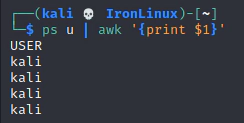
Para apresentar apena a primeira coluna é possível utilizar o comando abaixo. A primeira coluna é representada por **$1**:

<div class="content mb-10"><button class="copy-code-button" type="button">Copiar</button><div class="highlight"></div></div>```bash
ps u | awk '{print $1}'

```

<div class="content mb-10"><div class="highlight"></div>[![Primeira coluna com AWK](https://blog.ironlinux.com.br/images/blog-posts/uploads/2022/04/ps1_hu40bf0526a869add2d330c0ce6e8f32a6_3217_244x123_fit_q100_h2_lanczos_3.webp)](https://blog.ironlinux.com.br/images/blog-posts/uploads/2022/04/ps1.png)</div>### 1.2 | Printar múltiplas colunas

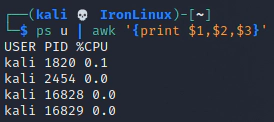
É possível trazer múltiplas colunas utilizando o comando abaixo. OBS: A vírgula neste exemplo representará um espaço comum na saída final:

<div class="content mb-10"><button class="copy-code-button" type="button">Copiar</button><div class="highlight"></div></div>```bash
ps u | awk '{print $1,$2,$3}'

```

<div class="content mb-10"><div class="highlight"></div>[![Múltiplas colunas com AWK](https://blog.ironlinux.com.br/images/blog-posts/uploads/2022/04/ps2_hu5298a6ce1fe8a70582a96b9331ce6162_9640_274x122_fit_q100_h2_lanczos_3.webp)](https://blog.ironlinux.com.br/images/blog-posts/uploads/2022/04/ps2.png)</div>### 1.3 | Printar múltiplas colunas separadas por Tab

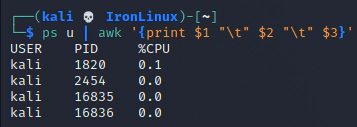
Utilizando **"\\t"** é possível separar as colunas com Tab:

<div class="content mb-10"><button class="copy-code-button" type="button">Copiar</button><div class="highlight"></div></div>```bash
ps u | awk '{print $1 "\t" $2 "\t" $3}'

```

<div class="content mb-10"><div class="highlight"></div>[![Múltiplas colunas separadas por tab com AWK](https://blog.ironlinux.com.br/images/blog-posts/uploads/2022/04/ps3_hucd7d7e596ee68c48a6155cdb16aca5bf_12368_357x127_fit_q100_h2_lanczos_3.webp)](https://blog.ironlinux.com.br/images/blog-posts/uploads/2022/04/ps3.png)</div>### 1.4 | Printar o último elemento

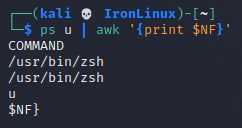
Utilizando **$NF** é possível trazer o último elemento (neste caso é a coluna COMMAND):

<div class="content mb-10"><button class="copy-code-button" type="button">Copiar</button><div class="highlight"></div></div>```bash
ps u | awk '{print $NF}'

```

<div class="content mb-10"><div class="highlight"></div>[![Último elemento/coluna com AWK](https://blog.ironlinux.com.br/images/blog-posts/uploads/2022/04/ps4_huee13c904e35975e64df63d3931d16746_8004_242x128_fit_q100_h2_lanczos_3.webp)](https://blog.ironlinux.com.br/images/blog-posts/uploads/2022/04/ps4.png)</div>### 1.5 | Ignorar a primeira linha

É comum precisar remover a primeira linha de um arquivo para depois trabalhar com os dados. Para fazer isso, basta utilizar o comando abaixo:

<div class="content mb-10"><button class="copy-code-button" type="button">Copiar</button><div class="highlight"></div></div>```bash
ps u | awk 'NR!=1'

```

<div class="content mb-10"><div class="highlight"></div>[![Ignorar primeira linha com AWK](https://blog.ironlinux.com.br/images/blog-posts/uploads/2022/04/awk-1linha_hu05b53ab58852e2b82758cce26f5b64fb_18912_650x113_fit_q100_h2_lanczos_3.webp)](https://blog.ironlinux.com.br/images/blog-posts/uploads/2022/04/awk-1linha.png)</div>### 1.6 | Substituir texto

Para substituir um texto, podemos utilizar a função **sub()**, conforme o exemplo abaixo, que substitui a string “**kali**” por “**outro-usuario**”:

<div class="content mb-10"><button class="copy-code-button" type="button">Copiar</button><div class="highlight"></div></div>```bash
ps u | awk -e 'sub(/kali/, "outro-usuario")'

```

<div class="content mb-10"><div class="highlight"></div>[![Substituir texto com AWK](https://blog.ironlinux.com.br/images/blog-posts/uploads/2022/04/awksub_hud9f2e6ec4736187a9a6160a1e1934855_21892_904x98_fit_q100_h2_lanczos_3.webp)](https://blog.ironlinux.com.br/images/blog-posts/uploads/2022/04/awksub.png)</div>OBS: A função **sub()** substitui apenas a primeira ocorrência, uma vez por linha. Caso queira substituir mais de uma ocorrência, utilize a função **gsub()**.

## 2 | Utilizando um outro delimitador

Por padrão, o delimitador do AWK é o espaço (ou tab). No entanto, em alguns casos, você precisará indicar um outro delimitador (como por exemplo **vírgula** ou **ponto e vírgula**). Desta forma, no exemplo abaixo, estamos utilizando **;** como delimitador e printando o segundo elemento:

<div class="content mb-10"><button class="copy-code-button" type="button">Copiar</button><div class="highlight"></div></div>```bash
echo 'oi;tudo;certo' | awk -F ';' '{print $2}'

```

<div class="content mb-10"><div class="highlight"></div>[![Alterar delimitador AWK](https://blog.ironlinux.com.br/images/blog-posts/uploads/2022/04/delimitador_hud1b700e45a3865556df07ed4908ab68e_8393_415x64_fit_q100_h2_lanczos_3.webp)](https://blog.ironlinux.com.br/images/blog-posts/uploads/2022/04/delimitador.png)</div>## 3 | Condicionais

### 3.1 | AWK com if

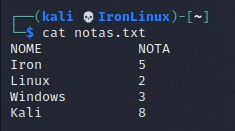
Para exemplificar o uso de condicionais (if) vamos utilizar o arquivo **notas.txt** que possui o seguinte conteúdo:

<div class="content mb-10">[![IF no AWK](https://blog.ironlinux.com.br/images/blog-posts/uploads/2022/04/notas-awk_hu0653596c22c5c588e3e591cfddb13782_7945_235x131_fit_q100_h2_lanczos_3.webp)](https://blog.ironlinux.com.br/images/blog-posts/uploads/2022/04/notas-awk.png)</div>Por exemplo, para printar a linha inteira se a primeira coluna for a string **Iron**:

<div class="content mb-10"><button class="copy-code-button" type="button">Copiar</button><div class="highlight"></div></div>```bash
awk '{ if ($1 == "Iron") print $0 }' notas.txt

```

<div class="content mb-10"><div class="highlight"></div>[![Primeira coluna com if no AWK](https://blog.ironlinux.com.br/images/blog-posts/uploads/2022/04/if1_huae5162889fdba2edda79031e243610d0_7955_434x59_fit_q100_h2_lanczos_3.webp)](https://blog.ironlinux.com.br/images/blog-posts/uploads/2022/04/if1.png)</div>Por exemplo, para printar a nota do aluno **Iron** em uma frase:

<div class="content mb-10"><button class="copy-code-button" type="button">Copiar</button><div class="highlight"></div></div>```bash
awk '{ if ($1 == "Iron") print "A nota do Aluno", $1, "foi", $2}' notas.txt

```

<div class="content mb-10"><div class="highlight"></div>[![Manipulando output com if no AWK](https://blog.ironlinux.com.br/images/blog-posts/uploads/2022/04/if2_hue5c6a73792c69eb177e191576a99da83_11466_663x63_fit_q100_h2_lanczos_3.webp)](https://blog.ironlinux.com.br/images/blog-posts/uploads/2022/04/if2.png)</div>### 3.2 | AWK com if/else

No exemplo abaixo estamos utilizando if/else para determinar quais alunos reprovaram ou passaram (com nota maior que 5). Também estamos utilizando **NR!=1** para ignorar a primeira linha:

<div class="content mb-10"><button class="copy-code-button" type="button">Copiar</button><div class="highlight"></div></div>```bash
awk 'NR!=1 {if ($2 >=5 ) print $0,"=>","Passou!"; else print $0,"=>","Reprovou!"}' notas.txt

```

<div class="content mb-10"><div class="highlight"></div>[![AWK if e else](https://blog.ironlinux.com.br/images/blog-posts/uploads/2022/04/ifelse_hu0aea360217126417a164d40544d60609_21178_785x111_fit_q100_h2_lanczos_3.webp)](https://blog.ironlinux.com.br/images/blog-posts/uploads/2022/04/ifelse.png)</div>## 3.3 | Cheatsheet de condicionais

<div class="content mb-10"><table><thead><tr><th>Condicionais</th><th>Descrição</th></tr></thead><tbody><tr><td>if ($5 &gt;= 10)</td><td>Se a quinta coluna for maior ou igual a 10</td></tr><tr><td>if ($3 == 10)</td><td>Se a terceira coluna for igual a 10</td></tr><tr><td>if ($1 == “Linux”)</td><td>Se a primeira coluna for igual a string **Linux**</td></tr><tr><td>if ($1 == “Linux”</td><td> </td></tr><tr><td>if ($1 ==“Linux” &amp;&amp; $2 &gt; 5)</td><td>Se a primeira coluna for igual a string **Linux** **e** a segunda coluna for **maior** que **5**</td></tr></tbody></table>

</div>## 4 | Utilizando REGEX

### 4.1 | Exemplos com REGEX

Na regex abaixo, estamos printando a linha inteira caso a segunda coluna se inicie com o número 1:

<div class="content mb-10"><button class="copy-code-button" type="button">Copiar</button><div class="highlight"></div></div>```bash
ps u | awk -e '$2 ~ /^1/ {print $0}'

```

<div class="content mb-10"><div class="highlight"></div>[![Regex com AWK - exemplo 1](https://blog.ironlinux.com.br/images/blog-posts/uploads/2022/04/awk-regex_hue8f336504f106075d7913aa5a67af0c9_12306_650x66_fit_q100_h2_lanczos_3.webp)](https://blog.ironlinux.com.br/images/blog-posts/uploads/2022/04/awk-regex.png)</div>Na regex abaixo estamos printando todas as linhas cuja coluna 2 **não** comecem com o número 1:

<div class="content mb-10"><button class="copy-code-button" type="button">Copiar</button><div class="highlight"></div></div>```bash
ps u | awk -e '$2 !~ /^1/ {print $0}'

```

<div class="content mb-10"><div class="highlight"></div>[![Regex com AWK - exemplo 2](https://blog.ironlinux.com.br/images/blog-posts/uploads/2022/04/awk-regex2_hu343e058f96ed749dea6809523cfe1d3e_22855_779x110_fit_q100_h2_lanczos_3.webp)](https://blog.ironlinux.com.br/images/blog-posts/uploads/2022/04/awk-regex2.png)</div>### 4.2 | Cheatsheet de REGEX

<div class="content mb-10"><table><thead><tr><th>Regex</th><th>Descrição</th></tr></thead><tbody><tr><td>\[mr\]</td><td>Letras\*\* m\*\* ou **r**</td></tr><tr><td>\[a-z\]</td><td>Qualquer letra de **a** à **z**</td></tr><tr><td>\[a-zA-Z\]</td><td>Qualquer letra de **A** à **Z** (maiúsculo ou minúsculo)</td></tr><tr><td>\[A-Z0-9\]{5}</td><td>5 caracteres, podendo ser qualquer letra de A à Z ou números de 0 a 9</td></tr></tbody></table>

</div>## 5 | Alguns outros usos interessantes

### 5.1 | Pegar linhas entre dois padrões

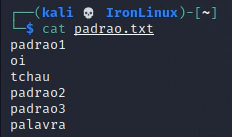
Vamos utilizar o arquivo **padrao.txt** abaixo para realizar as operações:

<div class="content mb-10">[![Coletar linhas entre padrões com AWK](https://blog.ironlinux.com.br/images/blog-posts/uploads/2022/04/padrao_hu5856180c72bc9dbad9abe8c237201352_7420_232x137_fit_q100_h2_lanczos_3.webp)](https://blog.ironlinux.com.br/images/blog-posts/uploads/2022/04/padrao.png)</div>Caso você queira printar, todas as linhas entre “**padrao1**” e “**padrao2**”:

<div class="content mb-10"><button class="copy-code-button" type="button">Copiar</button><div class="highlight"></div></div>```bash
awk '/padrao1/{flag=1;next}/padrao2/{flag=0}flag' padrao.txt

```

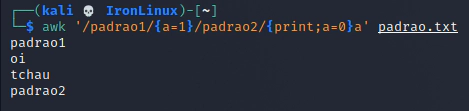
<div class="content mb-10"><div class="highlight"></div>[![Linhas entre padrões com AWK](https://blog.ironlinux.com.br/images/blog-posts/uploads/2022/04/sempadroes_hu13a8c08b9c48a80f5489a97d5ef44904_11583_525x78_fit_q100_h2_lanczos_3.webp)](https://blog.ironlinux.com.br/images/blog-posts/uploads/2022/04/sempadroes.png)</div>Caso queira que “**padrao1**” e “**padrao2**” também seja printado:

<div class="content mb-10"><button class="copy-code-button" type="button">Copiar</button><div class="highlight"></div></div>```bash
awk '/padrao1/{a=1}/padrao2/{print;a=0}a' padrao.txt

```

<div class="content mb-10"><div class="highlight"></div>[![Conteúdo entre padrões com AWK](https://blog.ironlinux.com.br/images/blog-posts/uploads/2022/04/incluindo-awk_hu7950d1ebe0ea81691bf7bd0517119b58_13761_469x111_fit_q100_h2_lanczos_3.webp)](https://blog.ironlinux.com.br/images/blog-posts/uploads/2022/04/incluindo-awk.png)</div>### 5.2 | Adicionar um prefixo nas linhas

Para adicionar um prefixo nas linhas pode-se utilizar a função **gensub()**, veja o exemplo abaixo, onde adicionamos a palavra “Prefixos” em todas as linhas que comecem com caracteres alfanuméricos:

<div class="content mb-10"><button class="copy-code-button" type="button">Copiar</button><div class="highlight"></div></div>```bash
awk -e ' { print gensub(/^[a-zA-Z0-9]*/, "Prefixos &",1) }' notas.txt

```

<div class="content mb-10"><div class="highlight"></div>[![gensub no AWK](https://blog.ironlinux.com.br/images/blog-posts/uploads/2022/04/awkprefixos_hub99131691dd910f7ec991e08f4ae1217_17865_603x114_fit_q100_h2_lanczos_3.webp)](https://blog.ironlinux.com.br/images/blog-posts/uploads/2022/04/awkprefixos.png)</div>Por fim, agradecemos a leitura e esperamos que este post tenha te ajudado de alguma maneira! Caso tenha alguma dúvida, entre em contato conosco pelo [Telegram](https://t.me/ironlinux) , [Facebook](https://www.facebook.com/ironlinuxoficial) ou [Instagram](https://www.instagram.com/ironlinux_/) ! Veja mais posts no [IronLinux](https://blog.ironlinux.com.br/) !

##### Tags:

<div class="row items-start justify-between"><div class="lg:col-5 mb-10 flex items-center lg:mb-0">  
- [Awk](https://blog.ironlinux.com.br/tags/awk/)
- [Comandos linux](https://blog.ironlinux.com.br/tags/comandos-linux/)
- [Linux](https://blog.ironlinux.com.br/tags/linux/)
- [Manipulação de texto](https://blog.ironlinux.com.br/tags/manipula%c3%a7%c3%a3o-de-texto/)
- [Sed](https://blog.ironlinux.com.br/tags/sed/)

</div><div class="lg:col-4 flex items-center"><div class="share-icons">  
</div></div></div><div class="row items-start justify-between"><div class="lg:col-4 flex items-center"></div></div></article></div>## Posts relacionados

<div class="section pb-0" id="bkmrk-" style="text-align: justify;"><div class="row"><div class="lg:col-4"><div class="bg-body dark:bg-darkmode-body">[<picture><source media="(max-width: 575px)" srcset="/images/blog-posts/uploads/2019/10/error_hucc2e0509482998e4b2d13b1c822b4379_20362_545x0_resize_q100_h2_lanczos_2.webp"><source media="(max-width: 767px)" srcset="/images/blog-posts/uploads/2019/10/error_hucc2e0509482998e4b2d13b1c822b4379_20362_600x0_resize_q100_h2_lanczos_2.webp"><source media="(max-width: 991px)" srcset="/images/blog-posts/uploads/2019/10/error_hucc2e0509482998e4b2d13b1c822b4379_20362_700x0_resize_q100_h2_lanczos_2.webp"><source srcset="/images/blog-posts/uploads/2019/10/error_hucc2e0509482998e4b2d13b1c822b4379_20362_1110x0_resize_q100_h2_lanczos_2.webp">![Redirecionar a saída padrão e de erros](https://blog.ironlinux.com.br/images/blog-posts/uploads/2019/10/error_hucc2e0509482998e4b2d13b1c822b4379_20362_1110x0_resize_q100_h2_lanczos_2.webp)</source></source></source></source></picture>](https://blog.ironlinux.com.br/redirecionar-saida-padrao-e-de-erros/)</div></div></div></div>#### [Redirecionar a saída padrão e de erros](https://blog.ironlinux.com.br/redirecionar-saida-padrao-e-de-erros/)

<div class="section pb-0" id="bkmrk-vinicius-souza-%C2%A0linu" style="text-align: justify;"><div class="row"><div class="lg:col-4"><div class="bg-body dark:bg-darkmode-body">- [Vinicius Souza](https://blog.ironlinux.com.br/authors/vinicius-souza/)
- [Linux](https://blog.ironlinux.com.br/categories/linux/)

</div></div></div></div>Quando é executado um comando ou algum script no Linux é possível redirecionar a saída padrão e de erros para não ser printado em tela ou que seja direcionado à algum lugar especifico.

<div class="section pb-0" id="bkmrk-ler-post-completo" style="text-align: justify;"><div class="row"><div class="lg:col-4"><div class="bg-body dark:bg-darkmode-body">[Ler post completo](https://blog.ironlinux.com.br/redirecionar-saida-padrao-e-de-erros/)</div></div><div class="lg:col-4"><div class="bg-body dark:bg-darkmode-body">[<picture><source media="(max-width: 575px)" srcset="/images/blog-posts/uploads/2020/12/COMANDO-SED-1_hud2e12d6c9cec0cf7fb6055af72465bd8_131220_545x0_resize_q100_h2_lanczos_2.webp"><source media="(max-width: 767px)" srcset="/images/blog-posts/uploads/2020/12/COMANDO-SED-1_hud2e12d6c9cec0cf7fb6055af72465bd8_131220_600x0_resize_q100_h2_lanczos_2.webp"><source media="(max-width: 991px)" srcset="/images/blog-posts/uploads/2020/12/COMANDO-SED-1_hud2e12d6c9cec0cf7fb6055af72465bd8_131220_700x0_resize_q100_h2_lanczos_2.webp"><source srcset="/images/blog-posts/uploads/2020/12/COMANDO-SED-1_hud2e12d6c9cec0cf7fb6055af72465bd8_131220_1110x0_resize_q100_h2_lanczos_2.webp">![O comando SED no Linux](https://blog.ironlinux.com.br/images/blog-posts/uploads/2020/12/COMANDO-SED-1_hud2e12d6c9cec0cf7fb6055af72465bd8_131220_1110x0_resize_q100_h2_lanczos_2.webp)</source></source></source></source></picture>](https://blog.ironlinux.com.br/o-comando-sed-no-linux/)</div></div></div></div>#### [O comando SED no Linux](https://blog.ironlinux.com.br/o-comando-sed-no-linux/)

<div class="section pb-0" id="bkmrk-vinicius-souza-%C2%A0linu-1" style="text-align: justify;"><div class="row"><div class="lg:col-4"><div class="bg-body dark:bg-darkmode-body">- [Vinicius Souza](https://blog.ironlinux.com.br/authors/vinicius-souza/)
- [Linux](https://blog.ironlinux.com.br/categories/linux/)

</div></div></div></div>O comando SED é uma ótima ferramenta de edição de arquivos ou de formatação de resultados de comandos, com ele você pode pesquisar, localizar e substituir, inserir ou excluir palavras, números e etc.

<div class="section pb-0" id="bkmrk-ler-post-completo-1" style="text-align: justify;"><div class="row"><div class="lg:col-4"><div class="bg-body dark:bg-darkmode-body">[Ler post completo](https://blog.ironlinux.com.br/o-comando-sed-no-linux/)</div></div><div class="lg:col-4"><div class="bg-body dark:bg-darkmode-body">[<picture><source media="(max-width: 575px)" srcset="/images/blog-posts/uploads/2020/04/Stress-ng-1_hu20ef07f6d87399612b4205b98ee978d4_28688_545x0_resize_q100_h2_lanczos_2.webp"><source media="(max-width: 767px)" srcset="/images/blog-posts/uploads/2020/04/Stress-ng-1_hu20ef07f6d87399612b4205b98ee978d4_28688_600x0_resize_q100_h2_lanczos_2.webp"><source media="(max-width: 991px)" srcset="/images/blog-posts/uploads/2020/04/Stress-ng-1_hu20ef07f6d87399612b4205b98ee978d4_28688_700x0_resize_q100_h2_lanczos_2.webp"><source srcset="/images/blog-posts/uploads/2020/04/Stress-ng-1_hu20ef07f6d87399612b4205b98ee978d4_28688_1110x0_resize_q100_h2_lanczos_2.webp">![Estressando MEM, DISCO e CPU com Stress-ng [Debian9]](https://blog.ironlinux.com.br/images/blog-posts/uploads/2020/04/Stress-ng-1_hu20ef07f6d87399612b4205b98ee978d4_28688_1110x0_resize_q100_h2_lanczos_2.webp)</source></source></source></source></picture>](https://blog.ironlinux.com.br/estressando-mem-disco-e-cpu-com-stress-ng-debian9/)</div></div></div></div>#### [Estressando MEM, DISCO e CPU com Stress-ng \[Debian9\]](https://blog.ironlinux.com.br/estressando-mem-disco-e-cpu-com-stress-ng-debian9/)

<div class="section pb-0" id="bkmrk-vinicius-souza-%C2%A0linu-2" style="text-align: justify;"><div class="row"><div class="lg:col-4"><div class="bg-body dark:bg-darkmode-body">- [Vinicius Souza](https://blog.ironlinux.com.br/authors/vinicius-souza/)
- [Linux](https://blog.ironlinux.com.br/categories/linux/)

</div></div></div></div>O STRESS-NG Com a ferramenta Stress-ng podemos literalmente realizar o Stress de alguns recursos do seu servidor, sendo eles: Cpu, memória e disco.

<div class="section pb-0" id="bkmrk-ler-post-completo-2"><div class="row"><div class="lg:col-4"><div class="bg-body dark:bg-darkmode-body" style="text-align: justify;">[Ler post completo](https://blog.ironlinux.com.br/estressando-mem-disco-e-cpu-com-stress-ng-debian9/)</div></div></div></div>

# Verificar vida útil de um hard disk

Link: [https://www.hdsentinel.com/hard\_disk\_sentinel\_linux.php](https://www.hdsentinel.com/hard_disk_sentinel_linux.php)

<table border="0" cellpadding="0" cellspacing="0" id="bkmrk-hard-disk-sentinel-l" width="100%"><tbody><tr><td width="70%">## Hard Disk Sentinel Linux Edition (FREE)

</td><td align="right">[![Download Hard Disk Sentinel Linux version](https://www.hdsentinel.com/img/download.gif)](https://www.hdsentinel.com/hard_disk_sentinel_linux.php#download)</td></tr></tbody></table>

By using Hard Disk Sentinel Linux console edition, it is possible to examine the temperature and health information (and more) of **IDE, S-ATA (SATA II also), SCSI and [USB](https://www.hdsentinel.com/compatibility_usbharddisks.php)** hard disks connected to motherboard or external controller cards. **The user must be root to use this software or start it with sudo.**

To display hard disk / SSD status in a graphical interface, download [Hard Disk Sentinel Linux GUI (Graphical User Interface)](https://www.hdsentinel.com/hard_disk_sentinel_linux_gui.php) package. Thanks for Gregory25!

To simplify starting Hard Disk Sentinel Linux Edition, it is possible to use one of the [Linux Desktop Installers](https://www.hdsentinel.com/add-on-linux-installers.php) for the actual Linux distribution which allows starting directly from the desktop without the need of starting manually from a console. Thanks for Marc Sayer for these packages!

To receive daily status reports, please check the [HDSentinel\_EmailUtil.zip](https://www.hdsentinel.com/hdslin/hdsentinel_emailutil.zip) package. Thanks for Raul del Cid Lopez for this script!

<center id="bkmrk-">[![Hard Disk Sentinel Linux version](https://www.hdsentinel.com/hdslin/hdslin1.gif)](https://www.hdsentinel.com/hdslin/hdslin.jpg)</center>### List of features

- display hard disk / solid state disk information on the terminal
- create comprehensive report about the disk system, including both hard disk and SSD specific features (for example, media rotation rate, TRIM command, etc.)
- display and manage acoustic setting of hard disks (on supported USB disks also)
- offers outputs for both users and scripts/other applications to process

The following information are displayed:

- detected hard disk number and device name (for example /dev/sda)
- size, model ID, serial number, revision and interface of all detected hard disks
- temperature, health and performance values
- power on time (days, hour, minutes - if supported)  
    **Note**: this is for informational purposes only, the value displayed under Windows (after some minutes of testing) may be more accurate
- acoustic management settings (if supported and **-aam** or **-setaam** option is used

### Command line switches

The switches are NOT case sensitive. Upper and lower case can be used to specify them.

- **-h** - displays help and usage information
- **-r \[report file\]** - automatically save report to filename (default: report.txt)
- **-html** - use with -r to save HTML format report (-html -r report.html)
- **-mht** - use with -r to save MHT format report (-mht -r report.mht)
- **-autosd** - detect industrial SD card type and save flag file (see [How to: monitor (micro) SD card health and status](https://www.hdsentinel.com/how_to_monitor_sd_card_health_status.php) for more details)
- **-dev /dev/sdX** - detect and report only the specified device without accessing others
- **-devs d1,d2** - detect (comma separated) devices in addition to default ones eg. /dev/sda,/dev/sdb,/dev/sdc
- **-onlydevs d1,d2** - detect (comma separated) devices only eg. /dev/sda,/dev/sdb,/dev/sdc
- **-nodevs d1,d2** - exclude detection of (comma separated) devices eg. /dev/sda,/dev/sdb,/dev/sdc
- **-dump** - dump report to stdout (can be used with -xml to dump XML output instead of text)
- **-xml** - create and save XML report instead of TXT
- **-solid** - solid output (drive, tempC, health%, power on hours, model, S/N, size)
- **-verbose** - detailed detection information and save temporary files (only for debug purposes)
- **-aam** - display acoustic management settings (current and recommended level)
- **-setaam drive\_num|ALL level(hex)80-FE|QUIET|LOUD** - set acoustic level on drive 0..n (or all)  
    80 or QUIET is the lowest (most silent) setting, FE or LOUD is the highest (fastest) setting  
    For example: **hdsentinel -setaam 0 loud** - Configures drive 0 to fastest (loud) setting. Same as **hdsentinel -setaam 0 FE**

Please send saved XML or TXT reports, questions or ideas to <info@hdsentinel.com> to help improving this tool.

### License

Hard Disk Sentinel Linux edition is **FREE**. You can freely distribute and use it to analyse hard disk status. However, if you like this tool and would like to keep it updated, please support further development by registering the Windows version of the software.

### Usage of Hard Disk Sentinel Linux version

After downloading the file below, please follow these steps to use it:

- double click to open and decompress it to any folder
- open a terminal window and navigate to the folder
- change file permissions to make it executable by using **chmod 755 HDSentinel**
- launch it by entering **sudo ./HDSentinel \[options\]**  
    *sudo* is not required if you logged in as "root".

### Examples

Optimize complete system for silence: **hdsentinel -setaam all quiet**

Optimize complete system for high performance (but louder disk access): **hdsentinel -setaam all loud**

Select a balanced level between silence and performance on drive 0: **hdsentinel -setaam 0 C0**  
Note: some disks do not support balanced settings and they may select the most silent (80) or high performance (FE) setting instead.  
Please start **hsentinel** without parameters to see drive assignments (eg. /dev/sda) to drive indexes.

Due to the high amount of requests, it is possible to create minimal output which can be easily parsed and processed for further use. Some examples are:

List disk drives, temperature (in Celsius), health %, power on hours, disk model, disk serial, size:  
**hdsentinel -solid**. Sample results:

```
  /dev/sda 42   3  4830 WDC_WD800JD-8LSA0   WD-WMAM9F937837   76324
  /dev/sdb 30 100  6128 ST3250624A          5ND3J94R         238472
  /dev/sdc 46 100 10982 WDC_WD2500JS-00MHB0 WD-WCANK8705209  238475
  /dev/sdd  ?   ?     ? GENERIC_CF_READER   9999                  0
  /dev/sde  ?   ?     ? GENERIC_SD_READER   9999               1963
```

List only temperature, drive, size:  
**hdsentinel -solid | awk '{print $2, $1, $7}'**

```
  42 /dev/sda 76324 
  30 /dev/sdb 238472
  46 /dev/sdc 238475
  ? /dev/sdd 0      
  ? /dev/sde 1963   
```

List only temperature, drive, model ID, highest temperature on top, drives without temperature information (for example card readers) removed:  
**hdsentinel -solid | awk '{print $2, $1, $5}' | grep -v "^?" | sort -nr**

```
  46 /dev/sdc WDC_WD2500JS-00MHB0
  42 /dev/sda WDC_WD800JD-8LSA0  
  30 /dev/sdb ST3250624A         
```

List only health, temperature, drive, lowest health on top, drives without temperature information (for example card readers) removed:  
**hdsentinel -solid | awk '{print $3, $2, $1}' | grep -v "^?" | sort -n**

```
  3 42 /dev/sda  
  100 30 /dev/sdb
  100 46 /dev/sdc
```

Note that the spaces in hard disk model ID and serial number are replaced with underscore (\_).

If you have any ideas, thoughts about the automatic processing of output or if you have complete script(s) you want to share with other users, please [send a mail](mailto:info@hdsentinel.com) and it will be published on this page with the name and credits of the sender of the script.

<a name="download"></a>

### Download Hard Disk Sentinel Linux

<a name="download"></a>[Hard Disk Sentinel 32-bit Linux console version - **executable, gzip-compressed**](https://www.hdsentinel.com/hdslin/hdsentinel-019b.gz)

[Hard Disk Sentinel 64-bit Linux console version - **executable, zip-compressed**](https://www.hdsentinel.com/hdslin/hdsentinel-020c-x64.zip)

[Hard Disk Sentinel Linux console version for Raspberry PI (ARM CPU) - **executable, gzip-compressed**](https://www.hdsentinel.com/hdslin/hdsentinel-020-arm.gz)

[Hard Disk Sentinel Linux console version for NAS boxes (ARMv5 CPU) - **executable, non-compressed**](https://www.hdsentinel.com/hdslin/armv5/hdsentinelarm) (see notes below)

[Hard Disk Sentinel Linux console version for NAS boxes / Raspberry PI 4 (ARMv7 CPU) - **executable, gzip-compressed**](https://www.hdsentinel.com/hdslin/hdsentinel-armv7.gz)

[Hard Disk Sentinel Linux console version for NAS boxes / Raspberry PI 4 64-bit (ARMv8 / ARM64 CPU) - **executable, zip-compressed**](https://www.hdsentinel.com/hdslin/hdsentinel-armv8.zip)  
 Can be used with Synology D220j and other [Synology NAS models](https://github.com/SynoCommunity/spksrc/wiki/Architecture-per-Synology-model) with ARMv8 CPU

### Compatibility

Kernel support is required to detect and display information about SATA hard disks. This version was successfully tested under the following systems:

- blackPanther OS v16.2 SE
- CentOS 5, 6 and newer
- Fedora 5, 6, 7, 8, 9, 10, 15 and newer
- Ubuntu 8.04 server kernel 2.6.24-16-server, 9.04
- Kubuntu 8.04
- Xubuntu 8.04
- Slackware 11.0
- UHU Linux 2.1
- SuSe 10.2, SuSe 10.3 (SuSe 10.0 - NOT working, reports wanted)
- Debian Lenny 5.0
- Debian GNU/Linux 6.0.1 Squeez
- Raspberry PI (ARM CPU)
- NAS boxes (ARM CPU): WD MyBook Live, D-Link DNS-320LW two bay Sharecenter, D-Link DNS-327L two bay Sharecenter, Seagate FreeAgent DockStar, Zyxel NSA320, Synology DS211. DSM 5.0-4493 update 3

Successfully tested with Adaptec SCSI controllers and SCSI hard disks, and with external enclosures built with different USB-ATA bridge in chips [USB Hard disks, hard disk enclosures](https://www.hdsentinel.com/compatibility_usbharddisks.php). Supports LSI / Intel / IBM RAID controllers too.

### Updates

**0.20**

<table border="0" id="bkmrk-7%2F7%2F2023-added--devs"><tbody><tr><td valign="top" width="120">7/7/2023</td><td align="justify">- added -devs, -onlydevs, -nodevs command line switches to control which drives should be detected
- added support of Kingston DataTraveler MAX : detect health, temperature, S.M.A.R.T. status of Kingston DataTraveler MAX series pendrives
- added support of DockCase DSWC1P USB-M.2 (NVMe/SATA) adapter
- added support of ASUS Tuf Gaming A1 USB 3.2 NVMe adapter
- added support of ACOS SATA SSDs, Fanxiang S101, Go-Infinity SSD, ZOZT G3000, SQUARE ES 550, Ramsta R900 SSDs
- improved support and reporting of 22 TB WD hard disk drives, Toshiba 18 TB hard disk drives
- improved support/health display of SanDisk SDSSDH3 models when new/unused
- improved support of various SAS drives
- improved compatibility with various USB devices
- improved Health % reporting for intensively used Indilinx Barefoot SSD
- improved compatibility with GLOWAY SSD, HP SSD 600, Patriot Burst Elite SSD, Patriot P220 SSD, Patriot P210 SSD, PNY SSD, PNY ELITE SSD, Toshiba SATA SSD, Kingston SSD, Swissbit SSD
- improved support of some Sandisk, Intel, LiteOn SATA SSDs, Transcend TS120GSSD220S SSD, WDS120G2G0A-00, Lexar SATA SSD, XRAYDISK SATA SSD, KINGSPEC SATA SSD, WALRAM SSD
- improved support of Intel Pro 5400s SSDs
- improved support and Health % calculation / text reports for various Sandisk SSDs
- improved support and Health % calculation / text reports for various Patriot SSDs
- improved support and Health % calculation / text reports for various DELL-specific SSDs
- added support of Apricorn Fortress L3 and Padlock 3 external hard disk drives and Apricorn ASK3 or ASK3z Secure Key pendrives: in addition to the robust design and security functions the hard disk drives and pendrives supported by Hard Disk Sentinel: complete health, temperature, self-monitoring S.M.A.R.T. status detected and displayed.
- added support of SSK USB 3.1 / 3.2 Gen 2 (10 Gbps) NVMe adapter: detect NVMe SSD status
- added support of Kingston XS2000 SSD, Goodram CX400 G2, Zadak SSD
- improved support of some Acer SSDs, Sandisk SSDs, Lite-on SSDs
- added support of Kingston Design-In SSDs (OMSP0S3, OM4P0S3, OM8P0S3, OCP0S3)
- improved health/status reporting for PNY SATA SSDs
- improved display of power on time, health, status of newer WD / Hitachi SAS hard disk drives
- improved text description of NVMe SSDs upon different problems / error conditions
- adjusted calculation and reporting lower health on failing / problematic NVMe SSDs
- improved support and detection with Synology NAS devices

</td></tr></tbody></table>

**0.19**

<table border="0" id="bkmrk-28%2F2%2F2021-added-supp"><tbody><tr><td valign="top" width="120">28/2/2021</td><td align="justify">- added support of newer SATA, SAS, NVMe M.2 PCie SSDs: detect health, temperature, and complete self-monitoring S.M.A.R.T. status
- added support of newer hard disk drives, hybrid drives: detect health, temperature, and complete self-monitoring S.M.A.R.T. status
- added support of newer NVMe-USB adapters / converters
- added support of ORICO 3559U3 5-bay external USB 3.0 hard disk enclosure
- added support of Yottamaster 4-bay and FS5U3 5-bay external USB 3.0 hard disk enclosure
- improved **detection of NVMe M.2 SSDs** under Linux. Detect health, temperature and complete self-monitoring S.M.A.R.T. status of NVMe M.2 SSDs connected to motherboard (nvme0, nvme1, etc... devices)

</td></tr></tbody></table>

**0.18**

<table border="0" id="bkmrk-7%2F11%2F2019-added%C2%A0dete"><tbody><tr><td valign="top" width="120">7/11/2019</td><td align="justify">- added **detection of NVMe M.2 SSDs** under Linux. Detect health, temperature and complete self-monitoring S.M.A.R.T. status of NVMe M.2 SSDs connected to motherboard (nvme0, nvme1, etc... devices)
- added detection of NVMe M.2 SSDs with USB-NVMe adapters based on ASMEDIA ASM236x and JMicron JMS583 chipsets
- added detection of SAS hard disk drives and SSDs configured as RAID with LSI, Intel, Dell SAS RAID controllers
- added support for new hard disk and SSD models, identify self-monitoring status of Kingston, Intel, Samsung, KingDian, Sandisk, LiteOn, ADATA, Crucial, Corsair, Lenovo, Apacer, WD SSDs
- added/improved support of various Western Digital, Hitachi, Seagate, Toshiba hard disk drives
- added/improved support of Helium (He) filled hard disk drives
- added/improved support of numerous external USB adapters, USB-ATA bridges, docking stations
- fixed bug with empty memory card readers

</td></tr></tbody></table>

<center id="bkmrk--3">![Hard Disk Sentinel Linux NVMe SSD detection](https://www.hdsentinel.com/hdslin/img/hds-linux-nvme.png "Hard Disk Sentinel Linux NVMe SSD detection")</center><center id="bkmrk--4">![Hard Disk Sentinel Linux detection SAS hard disk in RAID configuration](https://www.hdsentinel.com/hdslin/img/hds-linux-sas.png "Hard Disk Sentinel Linux detection SAS hard disk in RAID configuration")</center>**0.17**

<table border="0" id="bkmrk-30%2F8%2F2017-added%C2%A0dete"><tbody><tr><td valign="top" width="120">30/8/2017</td><td align="justify">- added **detection of industrial micro SD cards** under Linux. Detect status immediately if the detection method of the micro SD card previously configured under the Windows - or if **-autosd** command line parameter specified to detect and save the detection method and use in all sub-sequent detections under Windows or Linux.  
    Note: with Raspberry PI, it is not possible to detect internal memory card status, just status of card in external USB memory card reader.
- added support of ASMedia ASM1352R dual drive (RAID) enclosures: detection of complete status of both hard disks
- added **-html** command line option to save HTML format report (-html -r reportfile.html)
- added **-mht** command line option to save MHT format report (-mht -r reportfile.mht)
- added support of more than 26 drives, detection of additional drives when required
- added support for new hard disk and SSD models, identify self-monitoring status

</td></tr></tbody></table>

<center id="bkmrk--5">![Hard Disk Sentinel Linux industrial SD memory card status](https://www.hdsentinel.com/hdslin/img/screenshot-sd1.png "Hard Disk Sentinel Linux industrial SD memory card status")</center><center id="bkmrk--6">![Hard Disk Sentinel Linux industrial SD memory card status in HTML report](https://www.hdsentinel.com/hdslin/img/screenshot-sd2.png "Hard Disk Sentinel Linux industrial SD memory card status in HTML report")</center><center id="bkmrk--7">![Hard Disk Sentinel Linux industrial SD memory card status and S.M.A.R.T. self monitoring values](https://www.hdsentinel.com/hdslin/img/screenshot-sd3.png "Hard Disk Sentinel Linux industrial SD memory card status and S.M.A.R.T. self monitoring values")</center>**0.16**

<table border="0" id="bkmrk-13%2F9%2F2016-added-supp"><tbody><tr><td valign="top" width="120">13/9/2016</td><td align="justify">- added support for Intel, IBM, LSI RAID controllers
- experimental support of JMicron external USB RAID boxes (contact for assistance)
- added support for 4000+ hard disk and SSD models, interpreting and displaying their self-monitoring status
- displaying lifetime writes for SSDs

</td></tr></tbody></table>

**0.08 - [Download Hard Disk Sentinel Linux 0.08 version](https://www.hdsentinel.com/hdslin/hdsentinel_008.zip)**

<table border="0" id="bkmrk-6%2F3%2F2012-more-hard-d"><tbody><tr><td valign="top" width="120">6/3/2012</td><td align="justify">- more hard disk drive / solid state disk details saved to report
- improved compatibility with USB hard disks and various disk controllers
- true 64 bit version released

</td></tr></tbody></table>

**0.03 - [Download this version](https://www.hdsentinel.com/hdslin/hdsentinel003.gz)**

<table border="0" id="bkmrk-21%2F7%2F2009-more-hard-"><tbody><tr><td valign="top" width="120">21/7/2009</td><td align="justify">- more hard disk drive / solid state disk details saved to report
- -aam and -setaam commands to modify acoustic level of disk drives
- -dump to dump report to stdout
- -solid option to create solid output for further processing
- improved power on time detection for Samsung, Maxtor, Toshiba, Fujitsu models
- improved detection of SCSI and USB drives
- detection of SCSI and USB drive capacities

</td></tr></tbody></table>

**0.02 - [Download this version](https://www.hdsentinel.com/hdslin/hdsentinel002.gz)**

<table border="0" id="bkmrk-25%2F7%2F2008-added-supp"><tbody><tr><td valign="top" width="120">25/7/2008</td><td align="justify">- added support for SCSI and [USB hard disks](https://www.hdsentinel.com/compatibility_usbharddisks.php)
- improved temperature detection on Fujitsu hard disks

</td></tr></tbody></table>

**0.01 - [Download this version](https://www.hdsentinel.com/hdslin/hdsentinel001.gz)**

<table border="0" id="bkmrk-29%2F4%2F2008-first-init"><tbody><tr><td valign="top" width="120">29/4/2008</td><td align="justify">- first initial version

</td></tr></tbody></table>

### Raspberry PI

<center id="bkmrk--8">![Hard Disk Sentinel Linux version running on Raspberry PI](https://www.hdsentinel.com/hdslin/raspberry_pi.png "Hard Disk Sentinel Linux version running on Raspberry PI")</center>### NAS boxes with ARM CPU

<center id="bkmrk--9">![Hard Disk Sentinel Linux version running on D-Link DNS-320LW](https://www.hdsentinel.com/hdslin/armv5/armv5.png "Hard Disk Sentinel Linux version running on D-Link DNS-320LW")</center>The Linux version of Hard Disk Sentinel also available for NAS boxes built with ARM CPUs. The NAS box should have telnet / SSH access in order to download and use this tool.

To get Telnet / SSH access, special firmware version(s) or additional packages (like the [fun\_plug](http://nas-tweaks.net/371/hdd-installation-of-the-fun_plug-0-7-on-nas-devices/) may be required. **Putty** tool is also required to connect the NAS box and access its console.

**Usage:**

- get Telnet / SSH access to the NAS box and log-in to your device by using putty.exe
- enter **wget http://www.hdsentinel.com/hdslin/armv5/hdsentinelarm** to download the latest ARMv5 CPU build.  
    To simplify things, the file is not compressed.
- enter **chmod 755 hdsentinelarm** to set the proper permission (executable). You may use **chmod +x hdsentinelarm** instead.
- enter **./hdsentinelarm** to start the Hard Disk Sentinel on the NAS and get hard disk status information.

**Tested on:**

- WD MyBook Live
- D-Link DNS-320LW two bay Sharecenter
- Seagate FreeAgent DockStar

# Some useful ssh config option

Link: [https://taozhi.medium.com/some-useful-ssh-config-option-7858a58c5e7b](https://taozhi.medium.com/some-useful-ssh-config-option-7858a58c5e7b)

When managing multiple Linux servers, we use SSH for logging in and performing tasks. Understanding how to configure SSH properly is essential for efficient server management.

# Basic Config

```
Host my_jump<br></br>    identityfile "~/.ssh/my_jump"<br></br>    hostname 47.254.197.212<br></br>    hostkeyalias my_jump<br></br>    user root<br></br>    port 22
```

In the above config, “my\_jump” is the hostname supporting wildcards to match multiple servers simultaneously.

The identityfile specifies the authorized private keys, hostname is the server’s IP address, and hostkeyalias is useful for connecting to the server when its IP address changes without needing to update known\_hosts. The user and port specify the SSH login credentials.

# Reuse the sock

Upon relogging into the server, how can we bypass entering the password and reuse the previous session to quickly reconnect? We should the control setting in ssh config.

```
Host *<br></br>    serveraliveinterval 60<br></br>    keepalive yes<br></br>    controlmaster auto<br></br>    controlpath ~/.ssh/socks/%h-%k-%p-%r<br></br>    controlpersist yes
```

By using the above configuration, we set the controlpath for all servers using the ‘\*’ symbol in the Host field. The controlpath specifies the socket path.

%h represents the host IP.

%k represents the hostname.

%p represents the port.

%r represents the username.

When you connect to a server using ssh, you should see a socket file present. `~/.ssh/socks`.

<div class="fj fk fl fm fn" id="bkmrk-" style="text-align: justify;"><div class="ab cb"><div class="ci bh ev ew ex ey"><figure class="nc nd ne nf ng ob ny nz paragraph-image"><div class="oc od ed oe bh of" role="button" tabindex="0"><div class="ny nz oa"><picture><source sizes="(min-resolution: 4dppx) and (max-width: 700px) 50vw, (-webkit-min-device-pixel-ratio: 4) and (max-width: 700px) 50vw, (min-resolution: 3dppx) and (max-width: 700px) 67vw, (-webkit-min-device-pixel-ratio: 3) and (max-width: 700px) 65vw, (min-resolution: 2.5dppx) and (max-width: 700px) 80vw, (-webkit-min-device-pixel-ratio: 2.5) and (max-width: 700px) 80vw, (min-resolution: 2dppx) and (max-width: 700px) 100vw, (-webkit-min-device-pixel-ratio: 2) and (max-width: 700px) 100vw, 700px" srcset="https://miro.medium.com/v2/resize:fit:640/format:webp/1*EFp-htHJ0ldUFPSLuPU1YA.png 640w, https://miro.medium.com/v2/resize:fit:720/format:webp/1*EFp-htHJ0ldUFPSLuPU1YA.png 720w, https://miro.medium.com/v2/resize:fit:750/format:webp/1*EFp-htHJ0ldUFPSLuPU1YA.png 750w, https://miro.medium.com/v2/resize:fit:786/format:webp/1*EFp-htHJ0ldUFPSLuPU1YA.png 786w, https://miro.medium.com/v2/resize:fit:828/format:webp/1*EFp-htHJ0ldUFPSLuPU1YA.png 828w, https://miro.medium.com/v2/resize:fit:1100/format:webp/1*EFp-htHJ0ldUFPSLuPU1YA.png 1100w, https://miro.medium.com/v2/resize:fit:1400/format:webp/1*EFp-htHJ0ldUFPSLuPU1YA.png 1400w" type="image/webp"><source data-testid="og" sizes="(min-resolution: 4dppx) and (max-width: 700px) 50vw, (-webkit-min-device-pixel-ratio: 4) and (max-width: 700px) 50vw, (min-resolution: 3dppx) and (max-width: 700px) 67vw, (-webkit-min-device-pixel-ratio: 3) and (max-width: 700px) 65vw, (min-resolution: 2.5dppx) and (max-width: 700px) 80vw, (-webkit-min-device-pixel-ratio: 2.5) and (max-width: 700px) 80vw, (min-resolution: 2dppx) and (max-width: 700px) 100vw, (-webkit-min-device-pixel-ratio: 2) and (max-width: 700px) 100vw, 700px" srcset="https://miro.medium.com/v2/resize:fit:640/1*EFp-htHJ0ldUFPSLuPU1YA.png 640w, https://miro.medium.com/v2/resize:fit:720/1*EFp-htHJ0ldUFPSLuPU1YA.png 720w, https://miro.medium.com/v2/resize:fit:750/1*EFp-htHJ0ldUFPSLuPU1YA.png 750w, https://miro.medium.com/v2/resize:fit:786/1*EFp-htHJ0ldUFPSLuPU1YA.png 786w, https://miro.medium.com/v2/resize:fit:828/1*EFp-htHJ0ldUFPSLuPU1YA.png 828w, https://miro.medium.com/v2/resize:fit:1100/1*EFp-htHJ0ldUFPSLuPU1YA.png 1100w, https://miro.medium.com/v2/resize:fit:1400/1*EFp-htHJ0ldUFPSLuPU1YA.png 1400w">![](https://miro.medium.com/v2/resize:fit:945/1*EFp-htHJ0ldUFPSLuPU1YA.png)</source></source></picture></div></div></figure></div></div></div># Set Jump Server

To secure production servers inaccessible for direct login, we can first connect to a jump server, then use SSH through the jump server to access the production server. Automating this process is possible by configuring ProxyCommand or ProxyJump in the SSH settings.

Config the jump server a and b first.

```
Host jump-server-a<br></br> HostKeyAlias jump-server-a<br></br> Hostname 100.97.200.66<br></br><br></br>Host jump-server-b<br></br> HostKeyAlias jump-server-b<br></br> Hostname 100.97.200.67<br></br><br></br>Host jump-server-*<br></br> HashKnownHosts no<br></br> ServerAliveInterval 60<br></br> Port 22<br></br> User root<br></br> PreferredAuthentications publickey<br></br> IdentityFile ~/.ssh/id_taozhi<br></br> Controlpath ~/.ssh/socks/%h-%k-%p-%r<br></br> ControlMaster auto<br></br> ControlPersist 5m<br></br> setenv LC_ALL=C.UTF-8
```

Config the production servers

```
Host production-server-a<br></br> ProxyJump jump-server-a<br></br><br></br>Host production-server-b<br></br> ProxyJump jump-server-b<br></br><br></br>Host production-server-c<br></br> ProxyCommand ssh -W %h:%p jump-server-b<br></br><br></br>Host production-server-*<br></br> LogLevel ERROR<br></br> UserKnownHostsFile /dev/null<br></br> StrictHostKeyChecking no<br></br> Port 22<br></br> User root<br></br> IdentityFile ~/.ssh/id_taozhi<br></br> controlmaster no<br></br> setenv LC_ALL=C.UTF-8
```

Following configuration, we can login to the production server locally.

```
ssh -o Hostname=172.16.28.19 production-server-a
```

You can log in to the production server with one command now.

<div class="ab cb oh oi oj ok" id="bkmrk--1" role="separator" style="text-align: justify;">  
</div># Conclusions

SSH is a versatile command with numerous configuration options. More options can be found for reading [here](https://linux.die.net/man/5/ssh_config). If you have any useful ssh config you are using, please comment it, let using it together.

# Acesso SSH via web

Link: [https://github.com/butlerx/wetty/tree/main](https://github.com/butlerx/wetty/tree/main)

# WeTTY = Web + TTY.

<div class="markdown-heading" dir="auto" id="bkmrk-" style="text-align: justify;">[<svg aria-hidden="true" class="octicon octicon-link" height="16" version="1.1" viewbox="0 0 16 16" width="16"><path d="m7.775 3.275 1.25-1.25a3.5 3.5 0 1 1 4.95 4.95l-2.5 2.5a3.5 3.5 0 0 1-4.95 0 .751.751 0 0 1 .018-1.042.751.751 0 0 1 1.042-.018 1.998 1.998 0 0 0 2.83 0l2.5-2.5a2.002 2.002 0 0 0-2.83-2.83l-1.25 1.25a.751.751 0 0 1-1.042-.018.751.751 0 0 1-.018-1.042Zm-4.69 9.64a1.998 1.998 0 0 0 2.83 0l1.25-1.25a.751.751 0 0 1 1.042.018.751.751 0 0 1 .018 1.042l-1.25 1.25a3.5 3.5 0 1 1-4.95-4.95l2.5-2.5a3.5 3.5 0 0 1 4.95 0 .751.751 0 0 1-.018 1.042.751.751 0 0 1-1.042.018 1.998 1.998 0 0 0-2.83 0l-2.5 2.5a1.998 1.998 0 0 0 0 2.83Z"></path></svg>](https://github.com/butlerx/wetty#wetty--web--tty)</div>[![All Contributors](https://camo.githubusercontent.com/9aa2deae168828b34be1676d375ad2841cac0c198a83373e35a72ac44b83a87d/68747470733a2f2f696d672e736869656c64732e696f2f62616467652f616c6c5f636f6e7472696275746f72732d34312d6f72616e67652e7376673f7374796c653d666c61742d737175617265)](https://github.com/butlerx/wetty#contributors-)

[![Documentation](https://camo.githubusercontent.com/477e3b9f33ae65e1572c4ca7d282e5517820e1a8d529ca2bdd1f5e63b3b14c13/68747470733a2f2f696d672e736869656c64732e696f2f62616467652f646f63756d656e746174696f6e2d7965732d627269676874677265656e2e737667)](https://github.com/butlerx/wetty/tree/main/docs) [![License: MIT](https://camo.githubusercontent.com/6cd0120cc4c5ac11d28b2c60f76033b52db98dac641de3b2644bb054b449d60c/68747470733a2f2f696d672e736869656c64732e696f2f62616467652f4c6963656e73652d4d49542d79656c6c6f772e737667)](https://github.com/butlerx/wetty/blob/main/LICENSE)

> Terminal access in browser over http/https

[![WeTTY](https://github.com/butlerx/wetty/raw/main/docs/terminal.png?raw=true)](https://github.com/butlerx/wetty/blob/main/docs/terminal.png?raw=true)

Terminal over HTTP and https. WeTTY is an alternative to ajaxterm and anyterm but much better than them because WeTTY uses xterm.js which is a full fledged implementation of terminal emulation written entirely in JavaScript. WeTTY uses websockets rather than Ajax and hence better response time.

## Prerequisites

<div class="markdown-heading" dir="auto" id="bkmrk--4" style="text-align: justify;">[<svg aria-hidden="true" class="octicon octicon-link" height="16" version="1.1" viewbox="0 0 16 16" width="16"><path d="m7.775 3.275 1.25-1.25a3.5 3.5 0 1 1 4.95 4.95l-2.5 2.5a3.5 3.5 0 0 1-4.95 0 .751.751 0 0 1 .018-1.042.751.751 0 0 1 1.042-.018 1.998 1.998 0 0 0 2.83 0l2.5-2.5a2.002 2.002 0 0 0-2.83-2.83l-1.25 1.25a.751.751 0 0 1-1.042-.018.751.751 0 0 1-.018-1.042Zm-4.69 9.64a1.998 1.998 0 0 0 2.83 0l1.25-1.25a.751.751 0 0 1 1.042.018.751.751 0 0 1 .018 1.042l-1.25 1.25a3.5 3.5 0 1 1-4.95-4.95l2.5-2.5a3.5 3.5 0 0 1 4.95 0 .751.751 0 0 1-.018 1.042.751.751 0 0 1-1.042.018 1.998 1.998 0 0 0-2.83 0l-2.5 2.5a1.998 1.998 0 0 0 0 2.83Z"></path></svg>](https://github.com/butlerx/wetty#prerequisites)</div>- node &gt;=18
- make
- python
- build-essential

## Install

<div class="markdown-heading" dir="auto" id="bkmrk--6" style="text-align: justify;">[<svg aria-hidden="true" class="octicon octicon-link" height="16" version="1.1" viewbox="0 0 16 16" width="16"><path d="m7.775 3.275 1.25-1.25a3.5 3.5 0 1 1 4.95 4.95l-2.5 2.5a3.5 3.5 0 0 1-4.95 0 .751.751 0 0 1 .018-1.042.751.751 0 0 1 1.042-.018 1.998 1.998 0 0 0 2.83 0l2.5-2.5a2.002 2.002 0 0 0-2.83-2.83l-1.25 1.25a.751.751 0 0 1-1.042-.018.751.751 0 0 1-.018-1.042Zm-4.69 9.64a1.998 1.998 0 0 0 2.83 0l1.25-1.25a.751.751 0 0 1 1.042.018.751.751 0 0 1 .018 1.042l-1.25 1.25a3.5 3.5 0 1 1-4.95-4.95l2.5-2.5a3.5 3.5 0 0 1 4.95 0 .751.751 0 0 1-.018 1.042.751.751 0 0 1-1.042.018 1.998 1.998 0 0 0-2.83 0l-2.5 2.5a1.998 1.998 0 0 0 0 2.83Z"></path></svg>](https://github.com/butlerx/wetty#install)</div>```
npm -g i wetty
```

<div class="highlight highlight-source-shell notranslate position-relative overflow-auto" dir="auto" id="bkmrk--8" style="text-align: justify;"><div class="zeroclipboard-container"><svg aria-hidden="true" class="octicon octicon-copy js-clipboard-copy-icon" data-view-component="true" height="16" version="1.1" viewbox="0 0 16 16" width="16"><path d="M0 6.75C0 5.784.784 5 1.75 5h1.5a.75.75 0 0 1 0 1.5h-1.5a.25.25 0 0 0-.25.25v7.5c0 .138.112.25.25.25h7.5a.25.25 0 0 0 .25-.25v-1.5a.75.75 0 0 1 1.5 0v1.5A1.75 1.75 0 0 1 9.25 16h-7.5A1.75 1.75 0 0 1 0 14.25Z"></path><path d="M5 1.75C5 .784 5.784 0 6.75 0h7.5C15.216 0 16 .784 16 1.75v7.5A1.75 1.75 0 0 1 14.25 11h-7.5A1.75 1.75 0 0 1 5 9.25Zm1.75-.25a.25.25 0 0 0-.25.25v7.5c0 .138.112.25.25.25h7.5a.25.25 0 0 0 .25-.25v-7.5a.25.25 0 0 0-.25-.25Z"></path></svg></div></div>## Usage

<div class="markdown-heading" dir="auto" id="bkmrk--9" style="text-align: justify;">[<svg aria-hidden="true" class="octicon octicon-link" height="16" version="1.1" viewbox="0 0 16 16" width="16"><path d="m7.775 3.275 1.25-1.25a3.5 3.5 0 1 1 4.95 4.95l-2.5 2.5a3.5 3.5 0 0 1-4.95 0 .751.751 0 0 1 .018-1.042.751.751 0 0 1 1.042-.018 1.998 1.998 0 0 0 2.83 0l2.5-2.5a2.002 2.002 0 0 0-2.83-2.83l-1.25 1.25a.751.751 0 0 1-1.042-.018.751.751 0 0 1-.018-1.042Zm-4.69 9.64a1.998 1.998 0 0 0 2.83 0l1.25-1.25a.751.751 0 0 1 1.042.018.751.751 0 0 1 .018 1.042l-1.25 1.25a3.5 3.5 0 1 1-4.95-4.95l2.5-2.5a3.5 3.5 0 0 1 4.95 0 .751.751 0 0 1-.018 1.042.751.751 0 0 1-1.042.018 1.998 1.998 0 0 0-2.83 0l-2.5 2.5a1.998 1.998 0 0 0 0 2.83Z"></path></svg>](https://github.com/butlerx/wetty#usage)</div>```
$ wetty --help
Options:
  --help, -h      Print help message                                   [boolean]
  --version       Show version number                                  [boolean]
  --conf          config file to load config from                       [string]
  --ssl-key       path to SSL key                                       [string]
  --ssl-cert      path to SSL certificate                               [string]
  --ssh-host      ssh server host                                       [string]
  --ssh-port      ssh server port                                       [number]
  --ssh-user      ssh user                                              [string]
  --title         window title                                          [string]
  --ssh-auth      defaults to "password", you can use "publickey,password"
                  instead                                               [string]
  --ssh-pass      ssh password                                          [string]
  --ssh-key       path to an optional client private key (connection will be
                  password-less and insecure!)                          [string]
  --ssh-config    Specifies an alternative ssh configuration file. For further
                  details see "-F" option in ssh(1)                     [string]
  --force-ssh     Connecting through ssh even if running as root       [boolean]
  --known-hosts   path to known hosts file                              [string]
  --base, -b      base path to wetty                                    [string]
  --port, -p      wetty listen port                                     [number]
  --host          wetty listen host                                     [string]
  --command, -c   command to run in shell                               [string]
  --allow-iframe  Allow wetty to be embedded in an iframe, defaults to allowing
                  same origin                                          [boolean]
```

<div class="highlight highlight-source-shell notranslate position-relative overflow-auto" dir="auto" id="bkmrk--11" style="text-align: justify;"><div class="zeroclipboard-container"><svg aria-hidden="true" class="octicon octicon-copy js-clipboard-copy-icon" data-view-component="true" height="16" version="1.1" viewbox="0 0 16 16" width="16"><path d="M0 6.75C0 5.784.784 5 1.75 5h1.5a.75.75 0 0 1 0 1.5h-1.5a.25.25 0 0 0-.25.25v7.5c0 .138.112.25.25.25h7.5a.25.25 0 0 0 .25-.25v-1.5a.75.75 0 0 1 1.5 0v1.5A1.75 1.75 0 0 1 9.25 16h-7.5A1.75 1.75 0 0 1 0 14.25Z"></path><path d="M5 1.75C5 .784 5.784 0 6.75 0h7.5C15.216 0 16 .784 16 1.75v7.5A1.75 1.75 0 0 1 14.25 11h-7.5A1.75 1.75 0 0 1 5 9.25Zm1.75-.25a.25.25 0 0 0-.25.25v7.5c0 .138.112.25.25.25h7.5a.25.25 0 0 0 .25-.25v-7.5a.25.25 0 0 0-.25-.25Z"></path></svg></div></div>Open your browser on `http://yourserver:3000/wetty` and you will prompted to login. Or go to `http://yourserver:3000/wetty/ssh/<username>` to specify the user beforehand.

If you run it as root it will launch `/bin/login` (where you can specify the user name), else it will launch `ssh` and connect by default to `localhost`. The SSH connection can be forced using the `--force-ssh` option.

If instead you wish to connect to a remote host you can specify the `--ssh-host` option, the SSH port using the `--ssh-port` option and the SSH user using the `--ssh-user` option.

Check out the [Flags docs](https://butlerx.github.io/wetty/flags) for a full list of flags

### Docker container

<div class="markdown-heading" dir="auto" id="bkmrk--12" style="text-align: justify;">[<svg aria-hidden="true" class="octicon octicon-link" height="16" version="1.1" viewbox="0 0 16 16" width="16"><path d="m7.775 3.275 1.25-1.25a3.5 3.5 0 1 1 4.95 4.95l-2.5 2.5a3.5 3.5 0 0 1-4.95 0 .751.751 0 0 1 .018-1.042.751.751 0 0 1 1.042-.018 1.998 1.998 0 0 0 2.83 0l2.5-2.5a2.002 2.002 0 0 0-2.83-2.83l-1.25 1.25a.751.751 0 0 1-1.042-.018.751.751 0 0 1-.018-1.042Zm-4.69 9.64a1.998 1.998 0 0 0 2.83 0l1.25-1.25a.751.751 0 0 1 1.042.018.751.751 0 0 1 .018 1.042l-1.25 1.25a3.5 3.5 0 1 1-4.95-4.95l2.5-2.5a3.5 3.5 0 0 1 4.95 0 .751.751 0 0 1-.018 1.042.751.751 0 0 1-1.042.018 1.998 1.998 0 0 0-2.83 0l-2.5 2.5a1.998 1.998 0 0 0 0 2.83Z"></path></svg>](https://github.com/butlerx/wetty#docker-container)</div>To use WeTTY as a docker container, a docker image is available on [docker hub](https://hub.docker.com/r/wettyoss/wetty). To run this image, use

```
docker run --rm -p 3000:3000 wettyoss/wetty --ssh-host=<YOUR-IP>
```

<div class="highlight highlight-source-shell notranslate position-relative overflow-auto" dir="auto" id="bkmrk--14" style="text-align: justify;"><div class="zeroclipboard-container"><svg aria-hidden="true" class="octicon octicon-copy js-clipboard-copy-icon" data-view-component="true" height="16" version="1.1" viewbox="0 0 16 16" width="16"><path d="M0 6.75C0 5.784.784 5 1.75 5h1.5a.75.75 0 0 1 0 1.5h-1.5a.25.25 0 0 0-.25.25v7.5c0 .138.112.25.25.25h7.5a.25.25 0 0 0 .25-.25v-1.5a.75.75 0 0 1 1.5 0v1.5A1.75 1.75 0 0 1 9.25 16h-7.5A1.75 1.75 0 0 1 0 14.25Z"></path><path d="M5 1.75C5 .784 5.784 0 6.75 0h7.5C15.216 0 16 .784 16 1.75v7.5A1.75 1.75 0 0 1 14.25 11h-7.5A1.75 1.75 0 0 1 5 9.25Zm1.75-.25a.25.25 0 0 0-.25.25v7.5c0 .138.112.25.25.25h7.5a.25.25 0 0 0 .25-.25v-7.5a.25.25 0 0 0-.25-.25Z"></path></svg></div></div>and you will be able to open a ssh session to the host given by `YOUR-IP` under the URL [http://localhost:3000/wetty](http://localhost:3000/wetty).

It is recommended to drive WeTTY behind a reverse proxy to have HTTPS security and possibly Let’s Encrypt support. Popular containers to achieve this are [nginx-proxy](https://github.com/nginx-proxy/nginx-proxy) and [traefik](https://traefik.io/traefik/). For traefik there is an example docker-compose file in the containers directory.

## FAQ

<div class="markdown-heading" dir="auto" id="bkmrk--15" style="text-align: justify;">[<svg aria-hidden="true" class="octicon octicon-link" height="16" version="1.1" viewbox="0 0 16 16" width="16"><path d="m7.775 3.275 1.25-1.25a3.5 3.5 0 1 1 4.95 4.95l-2.5 2.5a3.5 3.5 0 0 1-4.95 0 .751.751 0 0 1 .018-1.042.751.751 0 0 1 1.042-.018 1.998 1.998 0 0 0 2.83 0l2.5-2.5a2.002 2.002 0 0 0-2.83-2.83l-1.25 1.25a.751.751 0 0 1-1.042-.018.751.751 0 0 1-.018-1.042Zm-4.69 9.64a1.998 1.998 0 0 0 2.83 0l1.25-1.25a.751.751 0 0 1 1.042.018.751.751 0 0 1 .018 1.042l-1.25 1.25a3.5 3.5 0 1 1-4.95-4.95l2.5-2.5a3.5 3.5 0 0 1 4.95 0 .751.751 0 0 1-.018 1.042.751.751 0 0 1-1.042.018 1.998 1.998 0 0 0-2.83 0l-2.5 2.5a1.998 1.998 0 0 0 0 2.83Z"></path></svg>](https://github.com/butlerx/wetty#faq)</div>Check out the [docs](https://github.com/butlerx/wetty/tree/main/docs)

- [Running as daemon](https://butlerx.github.io/wetty/service)
- [HTTPS Support](https://butlerx.github.io/wetty/https)
    - [Using NGINX](https://butlerx.github.io/wetty/nginx)
    - [Using Apache](https://butlerx.github.io/wetty/apache)
- [Automatic Login](https://butlerx.github.io/wetty/auto-login)
- [Downloading Files](https://butlerx.github.io/wetty/downloading-files)

### What browsers are supported?

<div class="markdown-heading" dir="auto" id="bkmrk--17" style="text-align: justify;">[<svg aria-hidden="true" class="octicon octicon-link" height="16" version="1.1" viewbox="0 0 16 16" width="16"><path d="m7.775 3.275 1.25-1.25a3.5 3.5 0 1 1 4.95 4.95l-2.5 2.5a3.5 3.5 0 0 1-4.95 0 .751.751 0 0 1 .018-1.042.751.751 0 0 1 1.042-.018 1.998 1.998 0 0 0 2.83 0l2.5-2.5a2.002 2.002 0 0 0-2.83-2.83l-1.25 1.25a.751.751 0 0 1-1.042-.018.751.751 0 0 1-.018-1.042Zm-4.69 9.64a1.998 1.998 0 0 0 2.83 0l1.25-1.25a.751.751 0 0 1 1.042.018.751.751 0 0 1 .018 1.042l-1.25 1.25a3.5 3.5 0 1 1-4.95-4.95l2.5-2.5a3.5 3.5 0 0 1 4.95 0 .751.751 0 0 1-.018 1.042.751.751 0 0 1-1.042.018 1.998 1.998 0 0 0-2.83 0l-2.5 2.5a1.998 1.998 0 0 0 0 2.83Z"></path></svg>](https://github.com/butlerx/wetty#what-browsers-are-supported)</div>WeTTY supports all browsers that [xterm.js supports](https://github.com/xtermjs/xterm.js#browser-support).

## Author

<div class="markdown-heading" dir="auto" id="bkmrk--19" style="text-align: justify;">[<svg aria-hidden="true" class="octicon octicon-link" height="16" version="1.1" viewbox="0 0 16 16" width="16"><path d="m7.775 3.275 1.25-1.25a3.5 3.5 0 1 1 4.95 4.95l-2.5 2.5a3.5 3.5 0 0 1-4.95 0 .751.751 0 0 1 .018-1.042.751.751 0 0 1 1.042-.018 1.998 1.998 0 0 0 2.83 0l2.5-2.5a2.002 2.002 0 0 0-2.83-2.83l-1.25 1.25a.751.751 0 0 1-1.042-.018.751.751 0 0 1-.018-1.042Zm-4.69 9.64a1.998 1.998 0 0 0 2.83 0l1.25-1.25a.751.751 0 0 1 1.042.018.751.751 0 0 1 .018 1.042l-1.25 1.25a3.5 3.5 0 1 1-4.95-4.95l2.5-2.5a3.5 3.5 0 0 1 4.95 0 .751.751 0 0 1-.018 1.042.751.751 0 0 1-1.042.018 1.998 1.998 0 0 0-2.83 0l-2.5 2.5a1.998 1.998 0 0 0 0 2.83Z"></path></svg>](https://github.com/butlerx/wetty#author)</div>👤 **Cian Butler <butlerx@notthe.cloud>**

- Mastodon: [@butlerx@mastodon.ie](https://mastodon.ie/@butlerx)
- Github: [@butlerx](https://github.com/butlerx)

## Contributing ✨

<div class="markdown-heading" dir="auto" id="bkmrk--21" style="text-align: justify;">[<svg aria-hidden="true" class="octicon octicon-link" height="16" version="1.1" viewbox="0 0 16 16" width="16"><path d="m7.775 3.275 1.25-1.25a3.5 3.5 0 1 1 4.95 4.95l-2.5 2.5a3.5 3.5 0 0 1-4.95 0 .751.751 0 0 1 .018-1.042.751.751 0 0 1 1.042-.018 1.998 1.998 0 0 0 2.83 0l2.5-2.5a2.002 2.002 0 0 0-2.83-2.83l-1.25 1.25a.751.751 0 0 1-1.042-.018.751.751 0 0 1-.018-1.042Zm-4.69 9.64a1.998 1.998 0 0 0 2.83 0l1.25-1.25a.751.751 0 0 1 1.042.018.751.751 0 0 1 .018 1.042l-1.25 1.25a3.5 3.5 0 1 1-4.95-4.95l2.5-2.5a3.5 3.5 0 0 1 4.95 0 .751.751 0 0 1-.018 1.042.751.751 0 0 1-1.042.018 1.998 1.998 0 0 0-2.83 0l-2.5 2.5a1.998 1.998 0 0 0 0 2.83Z"></path></svg>](https://github.com/butlerx/wetty#contributing-)</div>Contributions, issues and feature requests are welcome!  
Feel free to check [issues page](https://github.com/butlerx/wetty/issues).

Please read the [development docs](https://butlerx.github.io/wetty/development) for installing from source and running is dev node

Thanks goes to these wonderful people ([emoji key](https://allcontributors.org/docs/en/emoji-key)):

# Como baixar repositórios de imagens do Bitnami

Informação extraída do ChatGPT

O endereço que você passou:

> `https://github.com/bitnami/containers/tree/main/bitnami/suitecrm/8/debian-12`

...é uma **página de diretório no GitHub**, não um servidor de arquivos direto. Portanto, você **não pode usar `wget` ou `curl`** para baixar o diretório diretamente.

Mas há **duas formas corretas** de baixar esse conteúdo:

---

## ✅ Opção 1: Clonar apenas esse diretório com `git sparse-checkout` (recomendado)

Se você **não quiser baixar o repositório todo**, mas apenas esse diretório, use `git sparse-checkout`.

### Passos:

\# 1. Clone o repositório, mas sem o conteúdo  
git clone --depth 1 --filter=blob:none --sparse https://github.com/bitnami/containers.git

\# 2. Vá para a pasta clonada  
cd containers

\# 3. Ative sparse-checkout para baixar só o diretório desejado  
git sparse-checkout set bitnami/suitecrm/8/debian-12

### Resultado:

Você terá **somente a pasta `bitnami/suitecrm/8/debian-12`** localmente, sem baixar o repositório completo (~centenas de MB normalmente).

---

## ✅ Opção 2: Baixar o repositório inteiro (caso aceite o tamanho maior)

Se preferir baixar tudo (incluindo outras imagens), use:

git clone [https://github.com/bitnami/containers.git](https://github.com/bitnami/containers.git)

Depois navegue até:

cd containers/bitnami/suitecrm/8/debian-12

## ❌ Por que `wget` ou `curl` não funciona?

- GitHub **não oferece diretórios como arquivos ZIP automaticamente** via URL de pasta.
- `wget` baixaria o HTML da página, não os arquivos reais do diretório.

#### **Shell Script para baixar aplicativos pelo caminho no Bitnami**

\#!/bin/bash

echo "🔧 Exemplo de caminho: bitnami/suitecrm/8/debian-12"  
read -p "Digite o caminho completo do diretório no repositório Bitnami Containers: " TARGET\_DIR

\# Repositório Bitnami Containers  
REPO\_URL="https://github.com/bitnami/containers.git"  
REPO\_DIR="bitnami-containers"

\# Limpar se pasta já existir  
if \[ -d "$REPO\_DIR" \]; then  
 echo "Removendo pasta existente: $REPO\_DIR"  
 rm -rf "$REPO\_DIR"  
fi

echo -e "\\n📦 Iniciando download do diretório '$TARGET\_DIR'...\\n"

\# Clonar com sparse-checkout  
git clone --depth 1 --filter=blob:none --sparse "$REPO\_URL" "$REPO\_DIR" || {  
 echo "❌ Falha ao clonar repositório."  
 exit 1  
}

cd "$REPO\_DIR" || {  
 echo "❌ Erro ao acessar diretório $REPO\_DIR"  
 exit 1  
}

\# Baixar apenas o diretório informado  
if git sparse-checkout set "$TARGET\_DIR"; then  
 echo -e "\\n✅ Diretório '$TARGET\_DIR' baixado com sucesso!"  
 echo "📁 Caminho local: $REPO\_DIR/$TARGET\_DIR"  
else  
 echo -e "\\n❌ Diretório '$TARGET\_DIR' não encontrado no repositório."  
 exit 1  
fi

# Links para Ícones e Logotipos

LInk: [https://iconduck.com/](https://iconduck.com/)